
15 · Customer display
On this page
A second screen, facing the customer: the sale as it's rung, prices and savings included, the total, a QR code to pay by, and a thank-you with the change. An Inky Mall OS Pro feature (the Customer display switch in Settings).
It can be a second monitor on the register computer, or a tablet showing as one. The register drives it; nothing is typed on it and nothing on it can be changed by the customer.
Setting it up
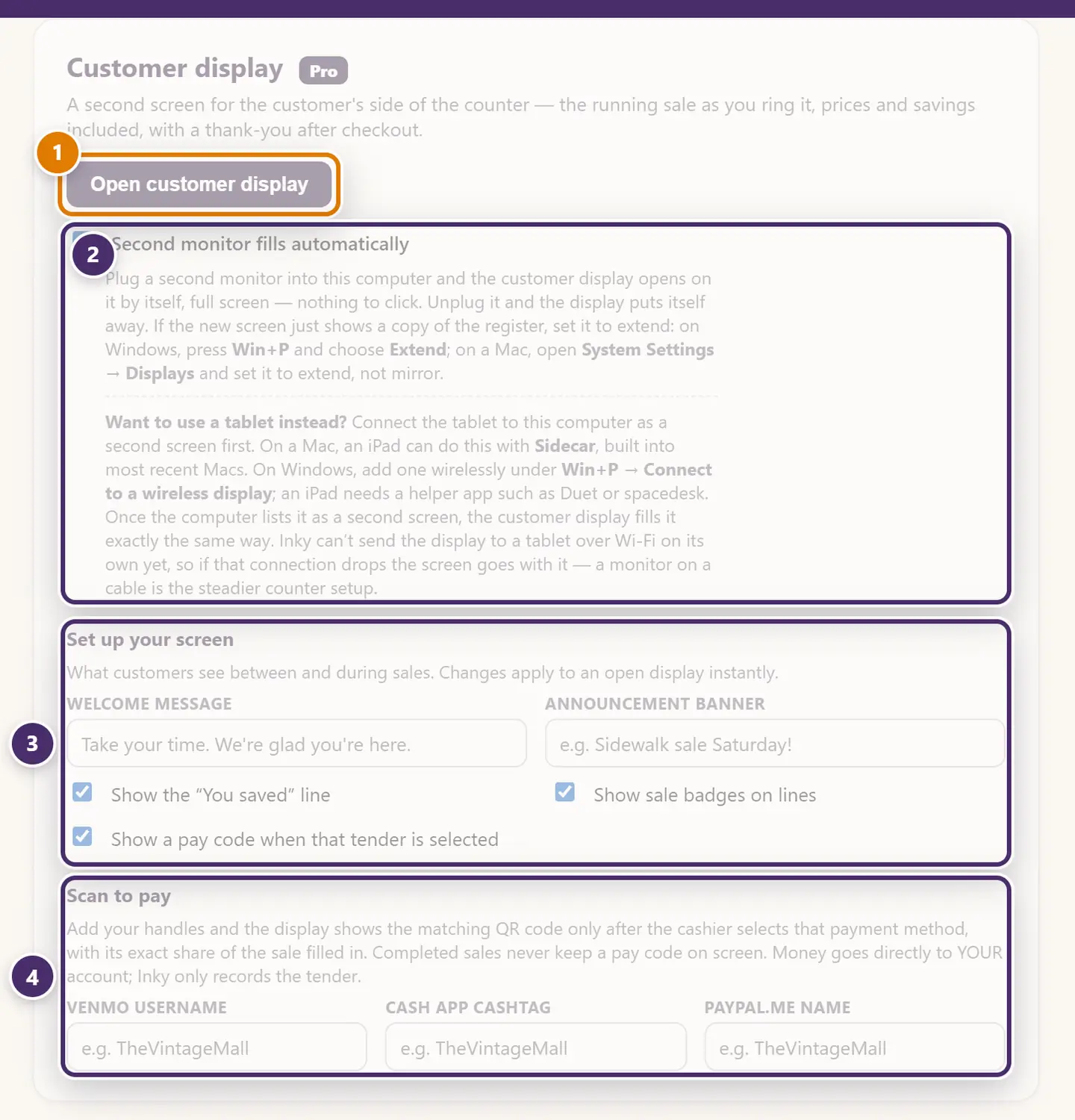
- Open customer display — opens the second window. Drag it onto the screen your customers see and make it full screen.
- Second monitor fills automatically. Plug a second monitor into this computer and the display opens on it by itself, full screen; unplug it and the display puts itself away. If the new screen just mirrors the register, set it to extend: on Windows, press Win+P and choose Extend; on a Mac, open System Settings → Displays and set it to extend, not mirror. The note underneath explains how to use a tablet as that screen: connect it to the computer as a second display first (on a Mac, an iPad can do this with Sidecar, built into most recent Macs; on Windows, add one wirelessly under Win+P → Connect to a wireless display, and an iPad needs a helper app such as Duet or Spacedesk) and Inky treats it exactly like a monitor. Inky can't send the display to a tablet over Wi-Fi on its own yet, so if that connection drops the screen goes with it — a monitor on a cable is the steadier counter setup.
- Set up your screen. The welcome message between sales, an announcement banner (Sidewalk sale Saturday!), and whether to show the You saved line and the sale badges on discounted lines. Changes apply to an open display instantly.
- Scan to pay. Your Venmo, Cash App and PayPal handles. With one filled in, the display shows the matching QR code — with the exact amount — the moment the cashier picks that tender. Money goes straight to your account; Inky only records the tender. See Card reader & wallets.
What the customer sees
Between sales
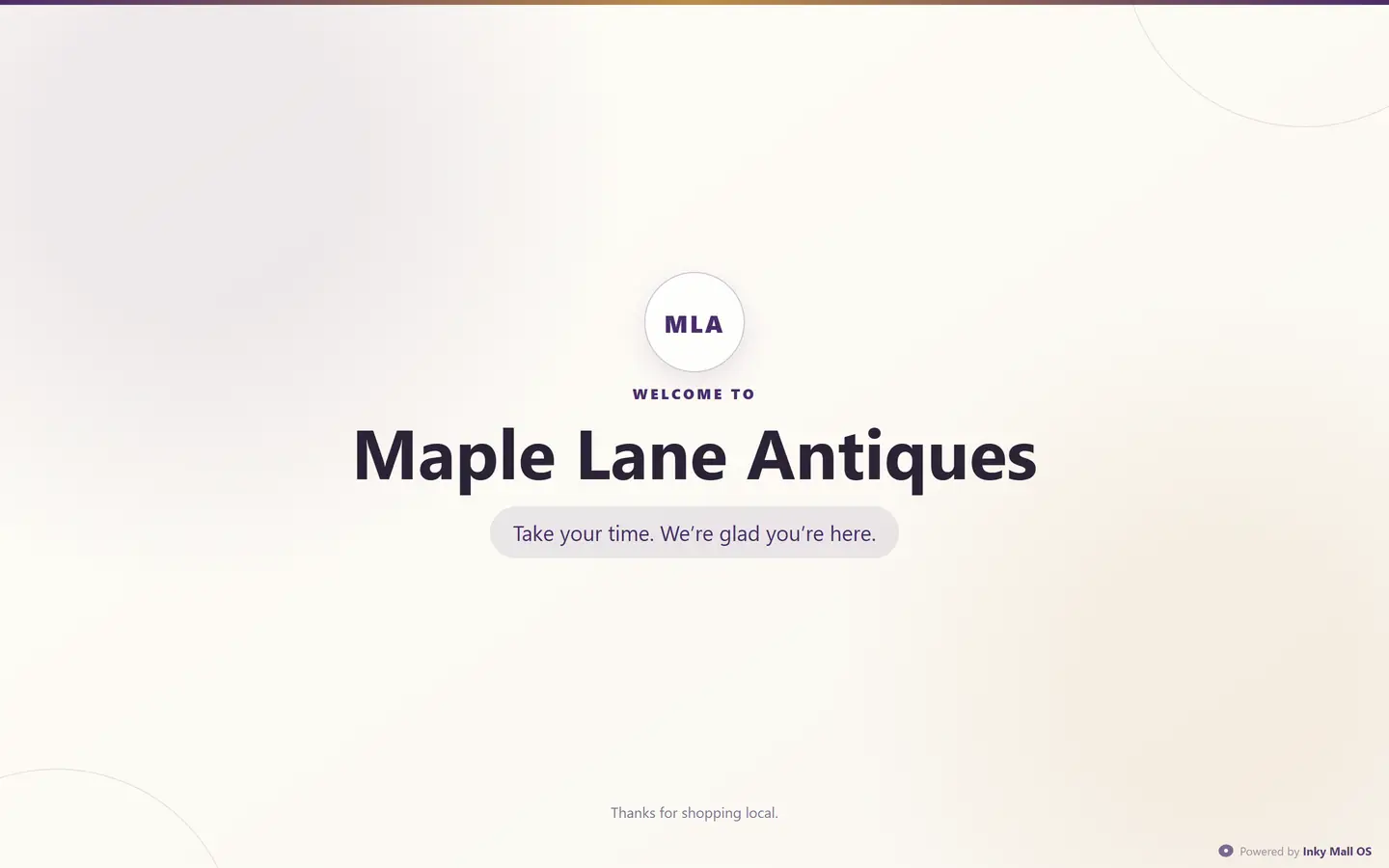
The shop's name — or its logo, with Branding — the tagline, and the welcome message from Settings. It sits here whenever nothing is being rung, and the announcement banner, if there is one, runs across the top.
During a sale
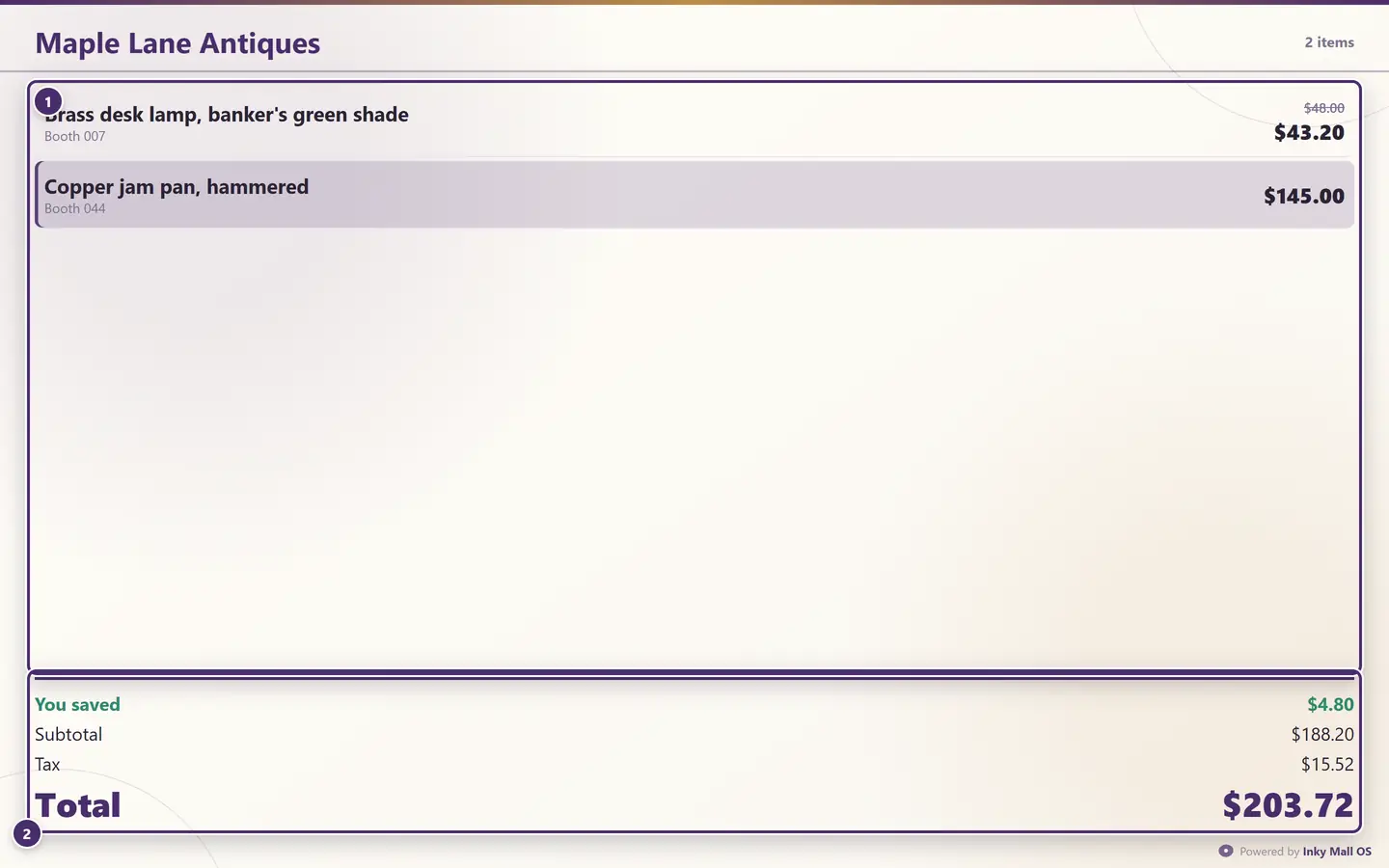
- Each line as it's rung — the item and its booth. A discounted line shows the tag price struck through, the sale price, and a badge with what came off.
- The running total: the You saved line when a discount applied, subtotal, tax and total — the same figures the cashier is looking at.
Paying
When the cashier takes payment, the display changes with the tender: a card shows Please wait for the reader; a wallet with a handle on file shows Scan to pay with Venmo and the QR code for the exact amount; anything else shows the amount due. If a card payment fails, the display says Payment needs attention — please see the cashier rather than anything alarming.
After payment
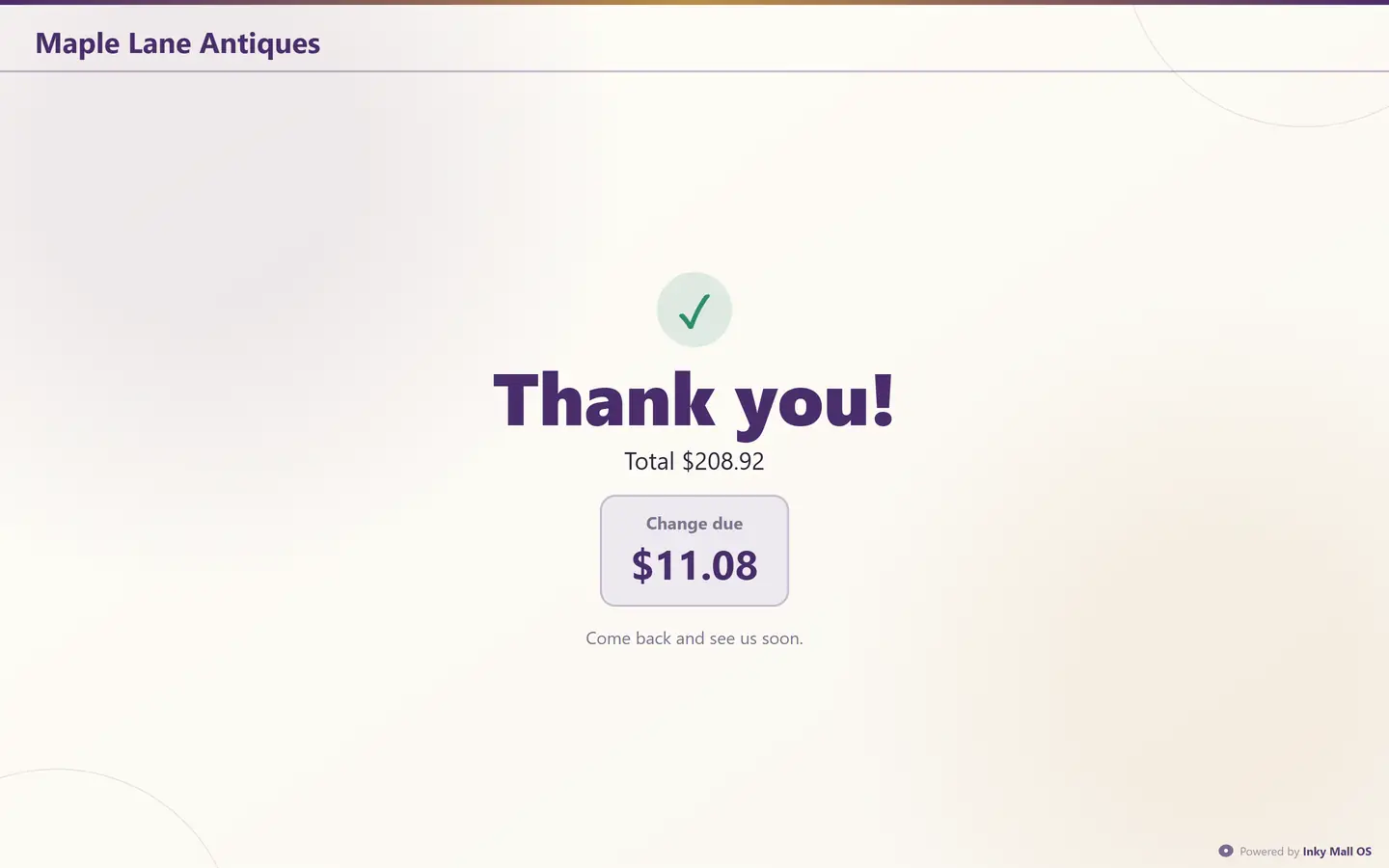
Thank you, the total, and the change due in a box the customer can read from across the counter — the same number the cashier sees. It returns to the welcome screen on its own.
If the display shows "Waiting for the register"
The display and the register talk to each other on this computer. If the display window was opened before the register finished starting, it waits and connects by itself. If the register is closed, the display says Reconnecting to the register and picks up again when the register is back. A display left open overnight is fine.
When the internet is out
The display needs no internet — it's another window of the same app. The one part that does is the QR code for a wallet payment on a shop with a Square connection, where Square generates the code; the plain handle codes keep working.
Guide for Inky Mall OS 0.16.0, updated Nov 20, 2026 · Download the whole guide (PDF)