4 · Card reader & wallets
Inky records how a customer paid; it doesn't take the money — with one exception. This chapter is about that exception, the Square card reader, and about the wallets (Venmo, Cash App, PayPal), where the money goes straight to your own account and the register's job is making sure it actually arrived.
A note on the pictures. The reader flows need a live Square account and a paired reader, which the manual's demo shop doesn't have. The setup and confirmation screens below are real; the tap-the-card screens are described in words until a real-machine pass adds them.
The Square card reader
What it needs
Three things, in order — the Card reader card in Settings tells you which one is missing:
- Cloud+, because the reader talks to Square through your Inky account.
- Your Square account linked to the store, done once in Inky on the web.
- This register's reader paired — below. Each till pairs its own reader.
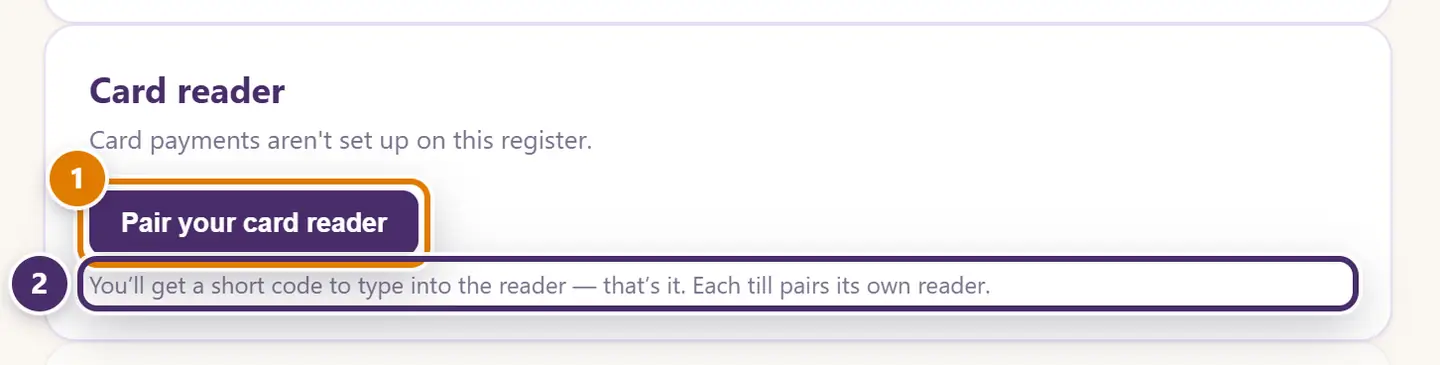
- Pair your card reader. Inky shows a short code; type it into the Square reader, and that's the pairing. The code is good for about five minutes; if it expires, get a new one.
- Each till pairs its own reader. A reader belongs to one register; a second register pairs a second reader. Pair a different reader and Unpair are on the same card once one is paired.
Once paired, the card says Reader paired — card payments are ready at this till, and a Square reader tender appears at checkout. If the card says (test mode), the reader is on Square's sandbox and no real money moves — the way to try it out.
Taking a card
Pick Square reader as the tender and press Process payment. The sale is recorded first — on an offline-first register the local write is the reliable half and the network charge is the risky half, so ringing first means a failure can never take money without a sale behind it. Then the reader screen opens:
- Tap card on the reader — the amount, and Sending to the reader… then Waiting for the reader… while the customer taps, inserts or swipes. The customer display, if you have one, says Please wait for the reader. Close — finish on the reader lets you put the screen away while the customer finishes.
- Paid — Card payment went through. Done.
- Card didn't go through — the reader was unreachable, or the card was declined. The sale is still recorded, and none of the three ways out is a dead end: Try the card again (a fresh attempt on the reader); Undo this sale (the items go back on the floor — Sale undone — items back on the floor); or Leave it — I'll sort it out, which keeps the sale open for you to take another way. A sale still waiting on a card shows This card payment still needs attention on the register.
The plain Card tender — the one that just records a card you ran on your own terminal — is hidden while a reader is paired, so nobody logs a card the reader should have charged. Turn it back on under Payment methods if you need both.
Phone orders
A customer on the phone can pay by card two ways, and neither puts their card number into Inky:
- Type the card in — the reader opens Square's own screen for typing a card, and you key in what the customer reads out.
- Send a payment link — Square makes a payment page for the exact amount, and the customer pays it on their own phone. Nobody reads a card number out loud, and they can pay later.
Turn it on once. Under Payment methods, tick Take cards over the phone. It's off until you do. Then, at checkout, pick Square reader and choose under it: Customer is here, Phone order — type the card in on the reader, or Phone order — send a payment link. Press Process payment.
Typing the card in
On the reader, type the card number, expiry date, security code and ZIP. The register shows Type the card on the reader until Square approves it, then Paid.
If a card won't tap — a damaged chip, say — the Card didn't go through screen also offers Type the card in instead, on the same sale.
Sending a payment link
The Send the payment link screen gives you two ways to get it to the customer:
- Email the link. Type their email (it's filled in if the customer on the sale has one) and press Email the link. Inky sends it with your shop's name on it.
- Text it from the shop phone. Scan the code on the screen with the phone, then send the link in a text — or press Copy link and paste it.
Then press Done — I'll wait for payment. You don't have to keep the screen open: the sale is recorded, and it's marked paid by itself when the customer pays — even if that's tomorrow and the register was closed overnight.
Links not paid yet are listed under Payment links waiting on the Cash & Credit tab, with how long each has waited. Check now asks Square right away; Copy link gets it again to resend. If the customer changes their mind, Undo this sale there cancels the link first, so it can't be paid afterwards, and then puts the items back on the floor. If they paid in the meantime, the sale stays, marked paid.
Until a link is paid, the items show as sold — set them aside for the customer.
Know the costs
- They cost more. Square charges more for a typed-in card or a payment link than a tapped one. Your Square account shows your rates.
- Fraud is on the shop. A card that wasn't there is much harder to win a chargeback on. Keep phone orders for customers you know, or check ID when they pick up.
- They need the internet, like every reader payment.
A phone-order card is a Square payment like any other: it refunds with Refund to card, and the card fee applies the same way — ask the customer credit or debit just as you would at the counter.
The card fee
If the shop adds a percentage for credit cards, the reader tender asks credit or debit like any card and adds the fee to the amount sent to the reader. See Taking payment.
Square gift cards
If your shop sells Square gift cards — the branded plastic ones Square prints for you, or Square eGift cards — the register can take them, sell them, reload them and check them, alongside Inky's own gift cards. A Square gift card's balance stays in Square: Inky asks Square every time and never keeps a copy, so a card spent at the register and a card spent anywhere else in Square always agree.
Turn it on once. Under Payment methods, tick Square gift cards. It needs your Square account connected with the gift card permission. If you connected Square before this update, reconnect it once in Inky on the web; until you do, Square gift cards don't show up at the register. No reader is needed for any of it.
Taking one as payment. Pick Gift card like any gift card and scan or type the number on the card. Inky's own cards answer at once; a number Inky doesn't know is checked with Square, and the row shows Square gift card ••1234 · $40.00 on it. It never covers more than the card holds — split the rest onto another tender, the Square reader included. Square sets the money aside on the card while the sale finishes, and takes it when the sale is paid. Undo this sale at any point before then puts the money straight back on the card.
Swiping still works. You can also take a plastic Square gift card on the Square reader tender by swiping it on the reader, exactly as before.
Selling or reloading one. Sell gift card, choose Square gift card, scan or type the number, the amount, and how they're paying. Square checks the card first, so a card it won't take costs nothing. Square loads it once it's paid. Cash goes into the drawer count. If Square is slow to finish one, it waits under Gift card loads waiting on Cash & Credit and finishes by itself; a paid one is never charged twice.
Checking one. Check a gift card shows what's on any card, either kind. For a lost or stolen Square card, an owner or manager can Deactivate it there.
Know the costs and limits.
- Square's load fee. Square takes a fee on money loaded onto its gift cards (2.5% on the Free and Plus plans, 0% on Premium), out of your payout. Cash loads count too. It's the same fee as loading in Square's own app.
- $2,000 a card is Square's limit on what one card can hold.
- They need the internet. Offline, the register says so, and Inky's own gift cards keep working.
Refunding a card
A sale paid through the reader gets a Refund to card button on the Sales tab. It asks for an owner's or manager's PIN, lets you tick which lines to refund, sends the money back through Square, and only then reverses those lines — a refund can never be recorded that didn't go through. See Sales & corrections.
Venmo, Cash App and PayPal
A wallet payment goes from the customer's phone to your account. Nothing comes back to the register, so Inky asks you to confirm.
Cash App, automatically — with Square
On a shop with a Square connection, a Cash App sale opens Customer scans to pay: a Square-hosted QR code for the exact amount, on the register and on the customer display. When the customer pays, Square reports it and the sale is confirmed by itself — confirmed automatically, as the tender list says. Paid another way and Undo this sale are there if the customer changes their mind.
The others — you confirm
For Venmo and PayPal (and Cash App without Square), after Process payment:
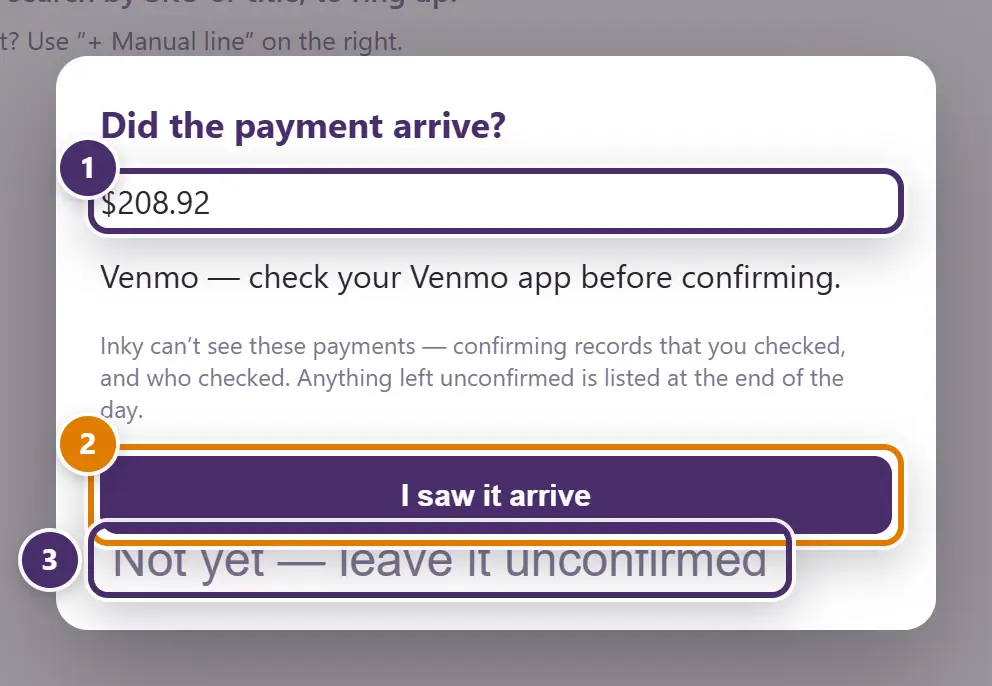
- The amount to look for in the app on your phone. The sale is already rung; this is about the money.
- I saw it arrive. The payment is marked confirmed, with who confirmed it.
- Not yet — leave it unconfirmed. The sale stands; the payment goes onto Wallet payments to check on the Cash & Credit tab until someone confirms it there.

- Which day, and how much on it is unconfirmed.
- Each unconfirmed payment. Check the app, then I checked — it arrived. What stays here at the end of the day is what to chase if the day is short.
The asking is a setting — Ask the cashier to confirm wallet payments, on by default under Payment methods. Turn it off and wallet sales ring without the question; the unconfirmed list still builds, so nothing is lost, only the prompt.
Scan-to-pay codes without Square
With your handles filled in on the Customer display card, the display shows the matching QR code — your Venmo, Cash App or PayPal handle with the exact amount — as soon as the cashier picks that tender. The customer scans, pays you directly, and the cashier confirms as above. See Customer display.
When the internet is out
The Square reader needs a connection — Square has to approve the charge. If the internet drops mid-tap, the failure screen offers to take the sale another way or undo it, and nothing is lost. Automatic Cash App verification needs a connection too. The confirm-it-yourself wallets work exactly as always: the customer pays from their phone, you check yours.
Guide for Inky Mall OS 0.16.0, updated Nov 20, 2026 · Download the whole guide (PDF)