
14 · Staff & security
On this page
Who can do what. Inky has three kinds of PIN:
| PIN | Who | Opens |
|---|---|---|
| Owner PIN | You. One per shop, 6–8 digits. | Everything — every back-office tab, every approval. |
| Manager PIN | An employee you've made a manager. | The back-office tabs you've granted (Pro), plus approving over-limit discounts and card refunds. |
| Cashier PIN | Each employee. 4–8 digits, with an employee number. | The time clock, the register when login is required, and their own hours. A cashier's PIN also confirms an ordinary sale correction. |
Booth PINs — for vendors to see their own booth — are separate, and live in Vendors & booths.
The owner's PIN
Inky asks you to create it the first time you open a back-office tab. From then on:
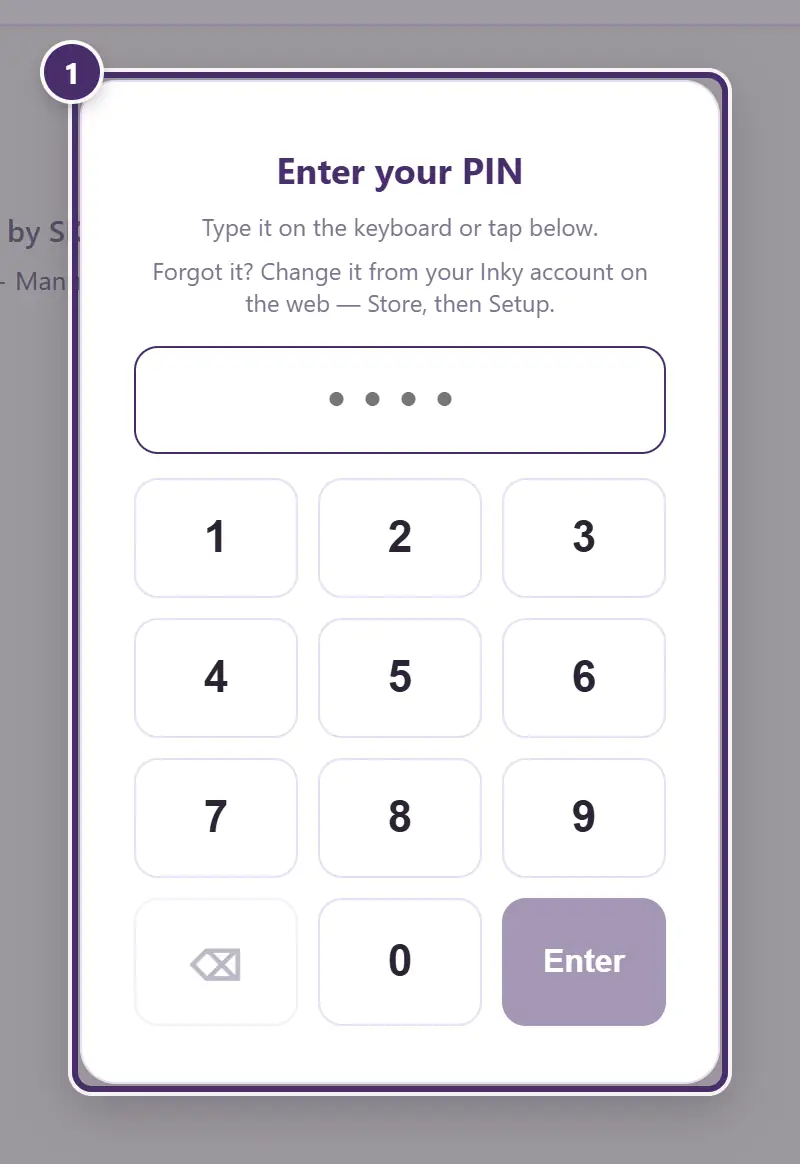
- The back office is behind this. Financials, Payouts, Vendor Management, Cash & Credit, Staff and Settings all ask for it; the Register, Items and Sales never do. Tap Owner in the top bar to open it, and Owner · Lock to lock it again when you walk away.
The register never changes the owner PIN once it's set. If it must change — or it's been forgotten — that's done from your Inky account on the web, under Store → Setup, and the register picks it up.
The Staff tab
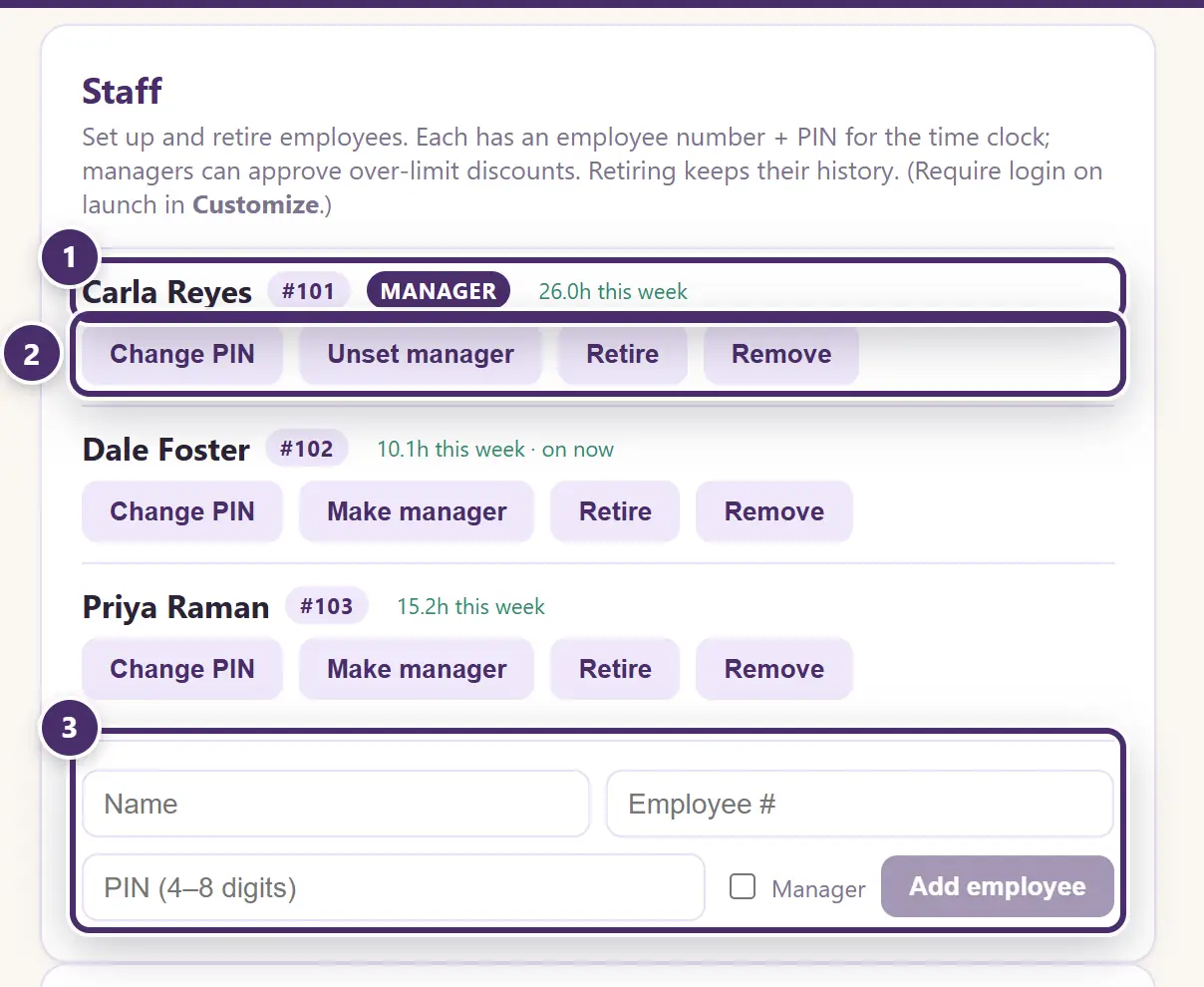
- One line per employee: name, employee number, whether they're a manager, whether they still need a PIN, and their hours this week — on now if they're clocked in.
- The buttons. Set or change their PIN; make or unset a manager; Retire (keeps all their history; Restore brings them back) or Remove; and, on a Cloud+ shop, Invite to manage pay — a code they scan to create their own get-inky account, where their clock-ins flow straight into their pay.
- Add an employee: a name, an employee number for the time clock, a PIN, and whether they're a manager.
Retire, don't remove, for anyone who has ever rung a sale — retiring keeps their name on the sales and the activity log.
The time clock
The Time clock button in the top bar is for everyone, all day, with no owner PIN.
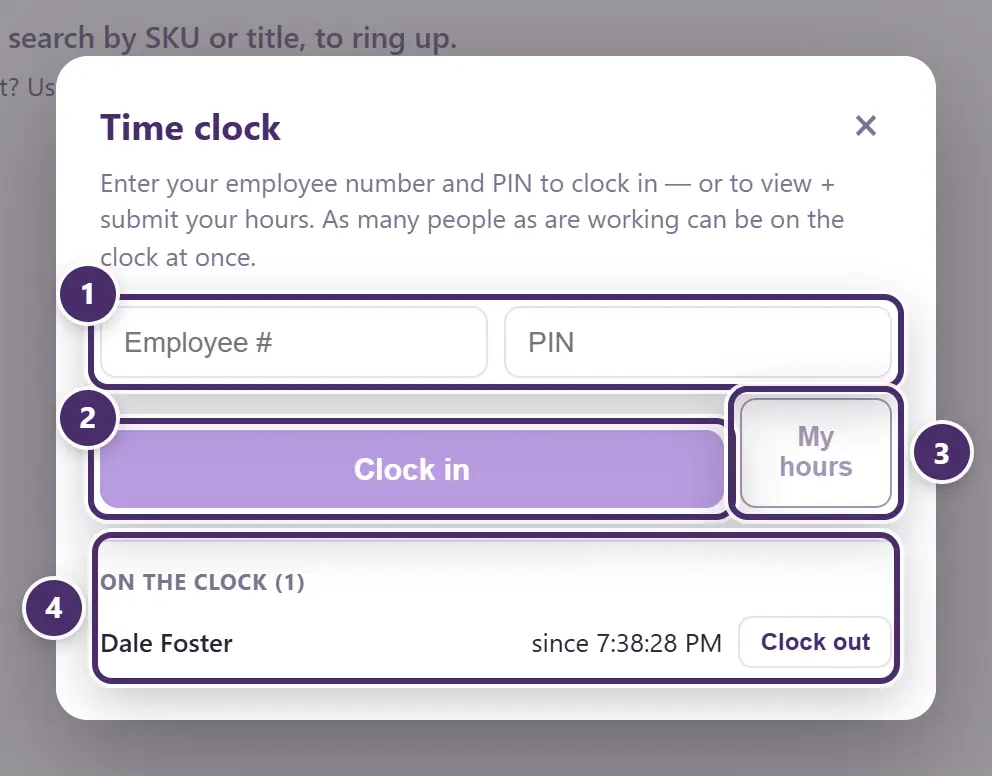
- Employee number and PIN. The same pair, morning and evening.
- Clock in — or Clock out, if they're already on.
- My hours opens their own week.
- Who's on the clock right now, and since when. Anyone can clock out a colleague who forgot, from here.
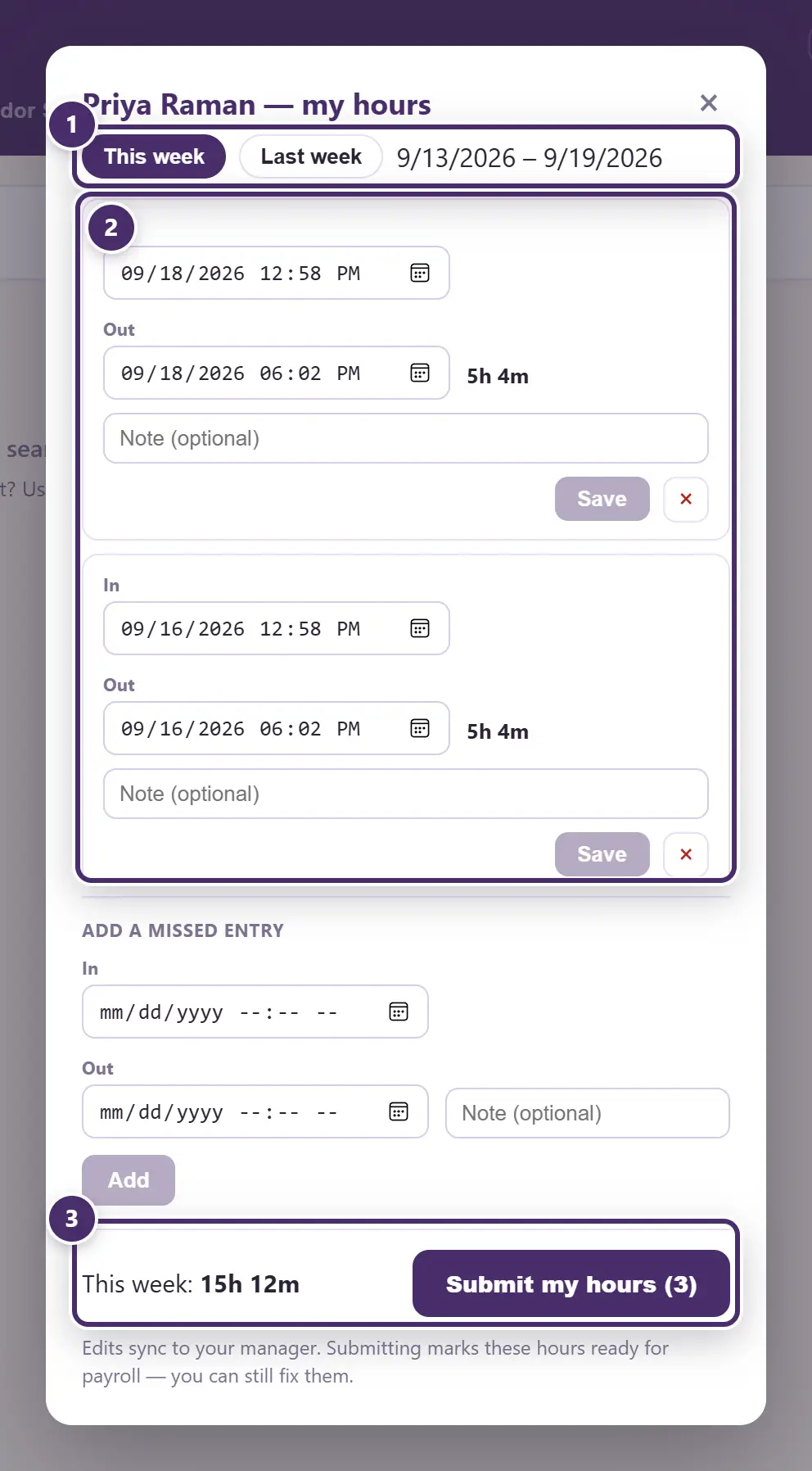
- This week or last.
- Every entry, with its length. Times and a note can be corrected; Add a missed entry covers the morning someone forgot to clock in.
- The week's total, and Submit my hours — marks them ready for payroll. They can still be fixed afterwards; the change syncs to the manager.
On a Cloud+ shop the hours are on the web too, for whoever runs payroll — see Cloud+ & sync.
Requiring login at the register
Off by default: the register is simply open. Turn on Require cashier login in Settings and, from the next launch:
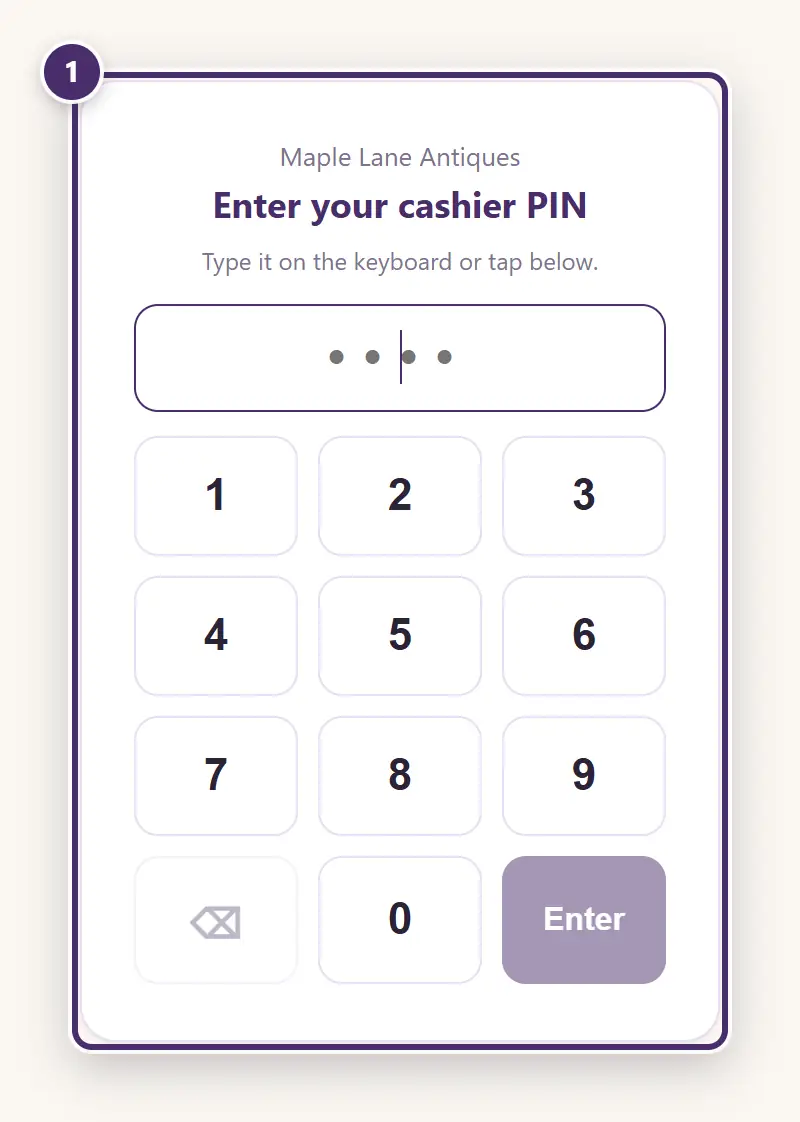
- Every launch starts here. Whoever clocks in is the cashier on every sale rung until they clock out — their name is on the receipt record and in the reports — and the register locks again when nobody is on.
This is the setting that makes "who rang it?" answerable. It also means a sale can't be rung by nobody.
Discounts that need a manager
Limit staff discounts in Settings sets a percentage. Any sale that discounts more than that — on a line, on the ticket, or combined — stops at Take payment:
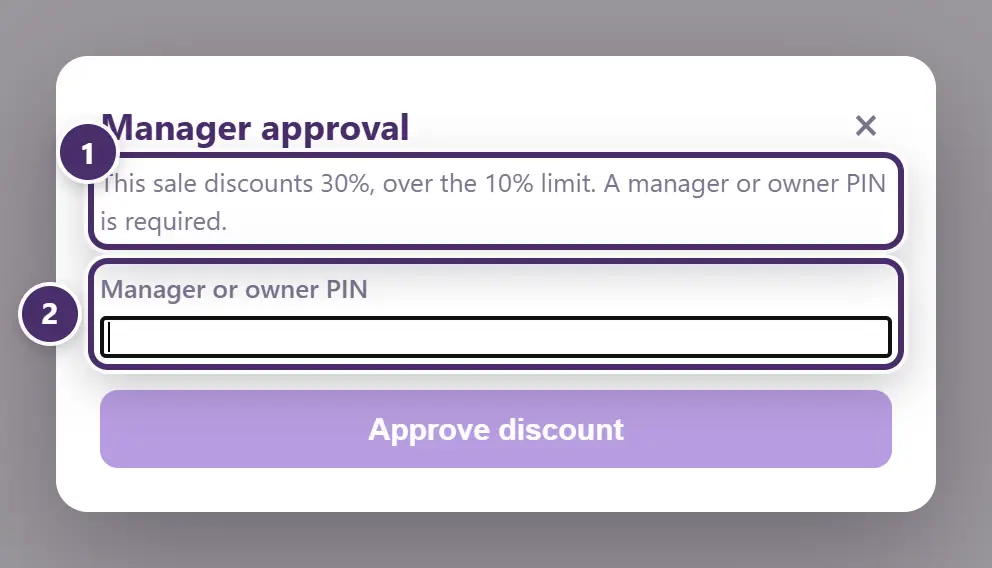
- Why it stopped. The sale discounts more than the shop allows without approval.
- A manager's or owner's PIN lets it through — and the approval is written to the activity log with their name and the reason.
The same rule applies to a refund to card: an owner's or manager's PIN, never a cashier's.
Managers, and what they can open
A manager is an employee with Make manager ticked. Their PIN approves discounts and card refunds; on a Pro shop it can also open parts of the back office:
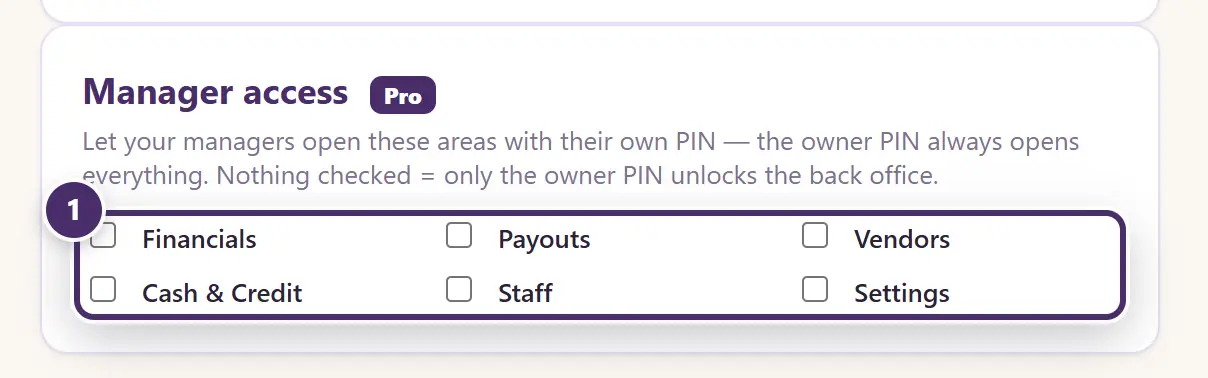
- Which back-office tabs a manager's PIN opens. Tick Financials, Payouts, Vendors, Cash & Credit, Staff or Settings — any mix. The owner's PIN always opens everything; with nothing ticked, only the owner can get in. A manager enters their PIN at the same Owner button, and the top bar shows their name while they're in.
The schedule
Who's meant to be in, beside who actually was. An Inky Mall OS Pro feature (the Employee schedule switch in Settings).
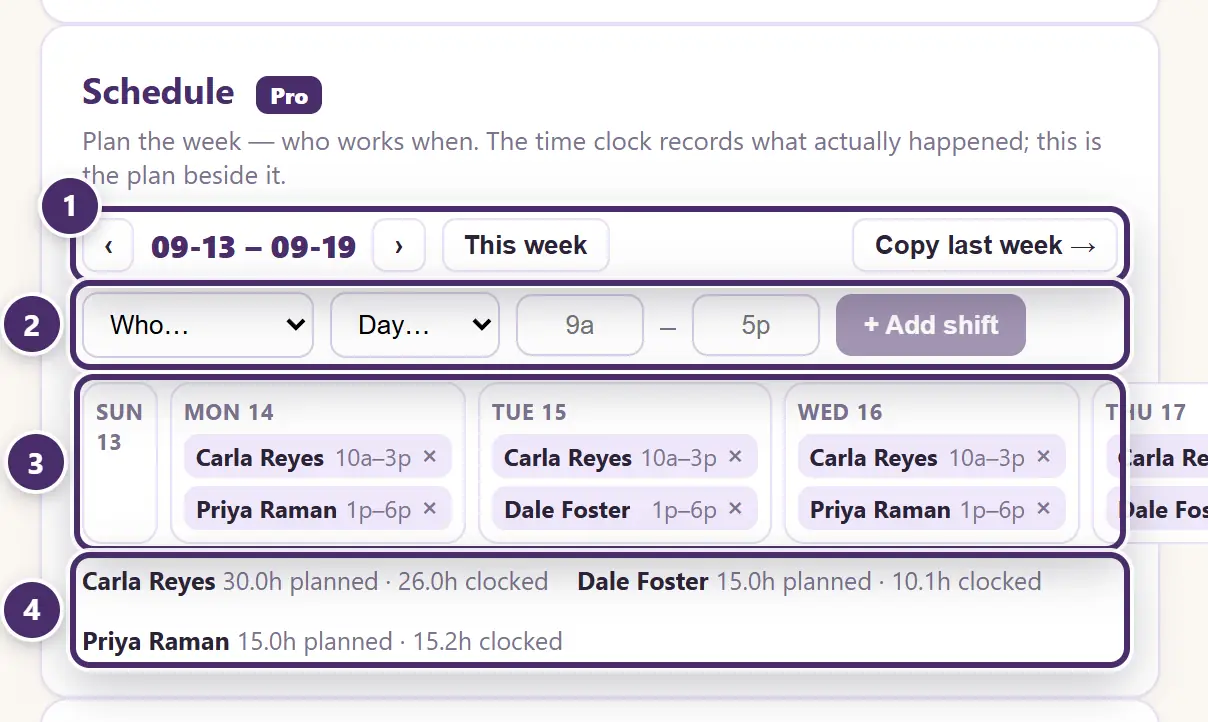
- Which week, and Copy last week → for a rota that repeats.
- Add a shift: who, which day, from when to when — 9a, 5p, 1:30p all work.
- The week, one column per day. The × on a shift removes it.
- Planned against clocked, per person, for the week.
The activity log
Everything that changes money or history after the fact, with a name on it.
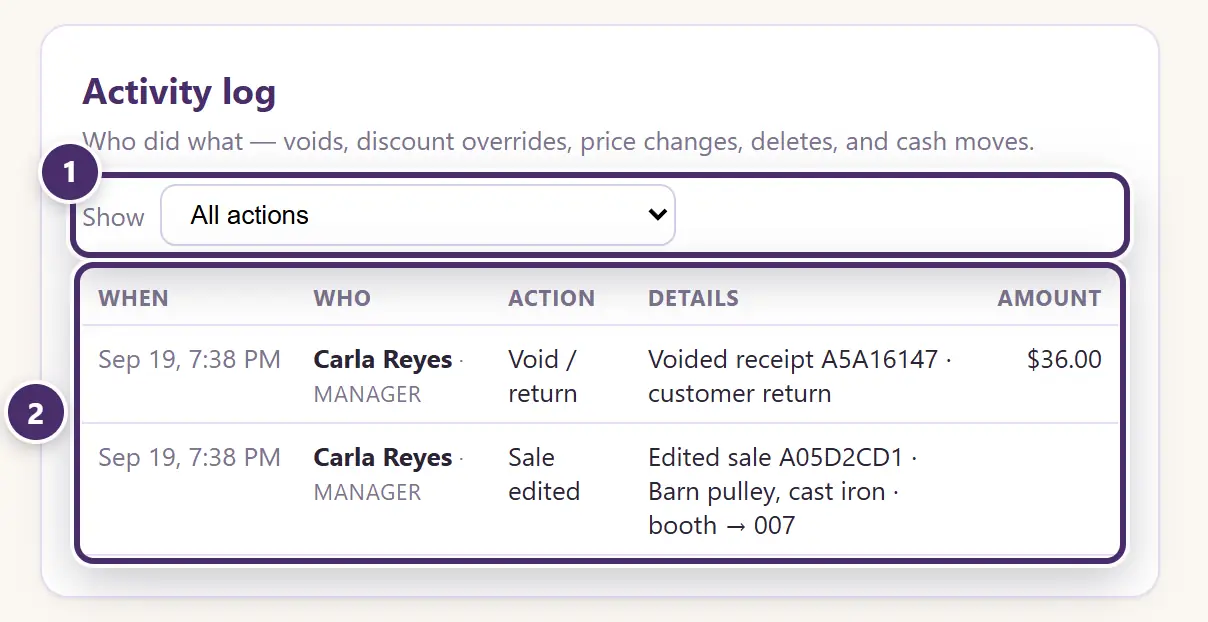
- Filter to one kind of action.
- Who did what, and when: voids and returns, sale edits, price and quantity changes, bulk edits, items moved between booths or marked sold by hand, discount approvals, quantity deals taken off a sale, item and booth deletions, booths combined, gift cards voided, the drawer opened or counted, wallet payments confirmed — each with the name on the PIN that did it, their role, and the amount where there is one.
The log is written by the register itself as things happen; there is no way to edit or delete an entry from the app.
When the internet is out
PINs, the time clock, the schedule and the activity log are all local. Hours and the log sync to the web when a Cloud+ shop reconnects; Invite to manage pay is the one button here that needs a connection.
Guide for Inky Mall OS 0.16.0, updated Nov 20, 2026 · Download the whole guide (PDF)