
3 · Taking payment
On this page
The register showed the Take payment window once. This chapter goes through it tender by tender: what each one asks for, what it does to the numbers, and what happens the moment you press Process payment.
The one rule underneath all of it: Inky records how the customer paid; you take the money. With the single exception of the card reader, Inky never moves money itself.
Cash
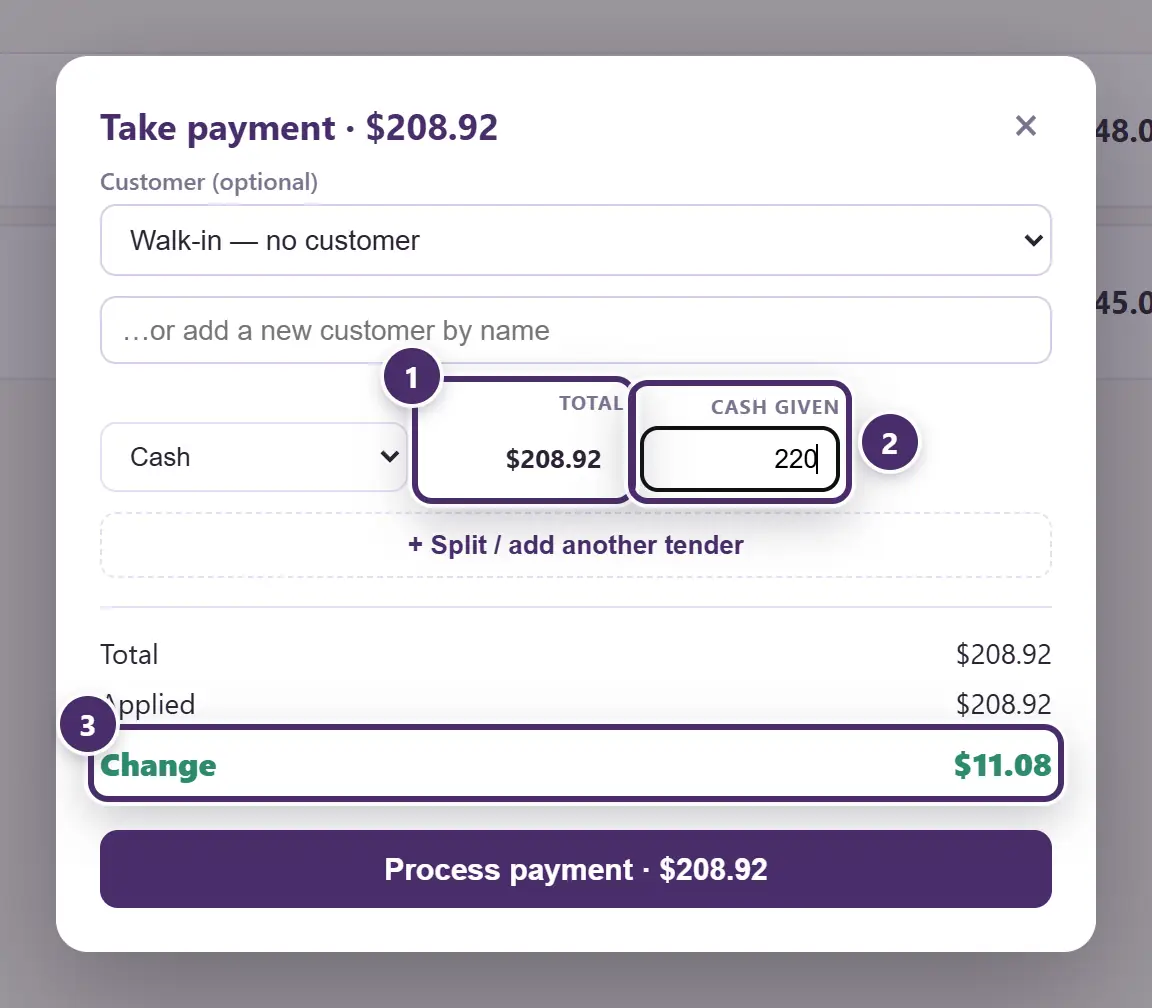
- The total this tender covers.
- Cash given. Type what they handed over — round money, usually.
- Change. What to hand back. It's also what the customer display shows, and what the receipt prints.
If a receipt printer with a drawer is set up, the drawer opens by itself on a cash sale. For making change without a sale, use No sale — open drawer on the register.
Splitting a sale
$100 in cash and the rest on a card, a gift card that doesn't quite cover it, two friends paying half each. Tap + Split / add another tender.
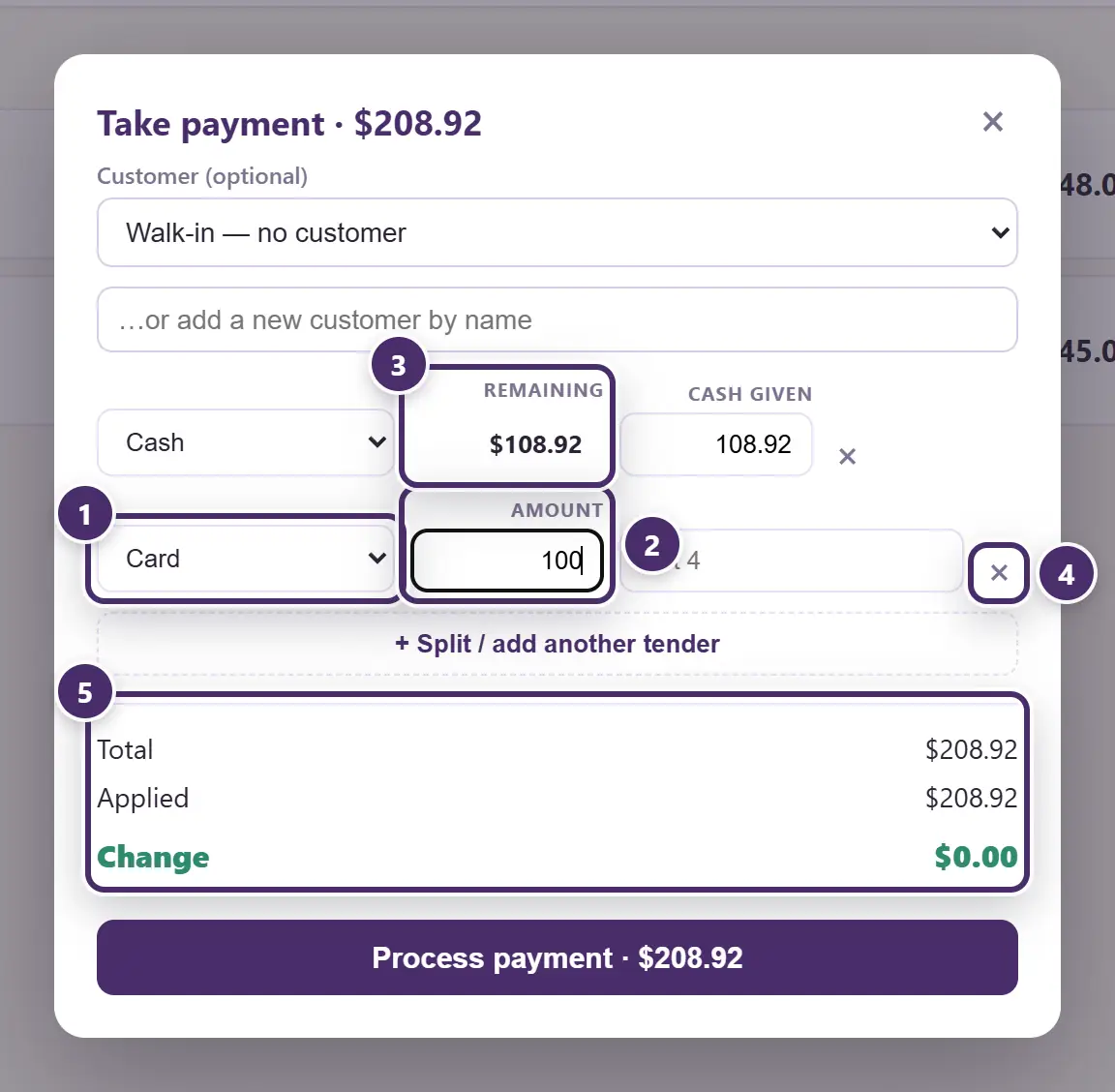
- The next tender. Pick how the rest is being paid — any tender, in any order.
- How much of it. A new line opens on exactly the balance remaining. Leave it, or type less and split again.
- Each line pays its own share, top to bottom. Type what goes on the first tender — on cash, the cash they handed you — and whatever is left falls to the next line. Hand over $2 on a $6.42 sale and cash is $2.00, with $4.42 remaining for the card.
- Remove a line to go back to a single tender.
- Total, applied, and what's still owed. Balance remaining shows what is left to cover; Over shows if the lines add up to more than the sale. Process payment stays greyed until the lines meet the total exactly, and a line paying $0 has to come off.
You can split as many ways as you need. The one exception is the Square reader: it takes one card per sale, so only one line can go on it. Take the rest in cash, a check, a gift card or store credit.
Card
There are two kinds of card tender, and which ones you see depends on your setup:
- Card records a card you charged on your own terminal — Inky logs it, you run the card. It asks for the last four digits, optional, for reconciling the statement later.
- Square reader appears only on a till with a paired reader, and it actually takes the payment: after Process payment the sale goes to the reader and the customer taps. While a reader is paired, the plain Card tender is hidden by default so nobody logs a card the reader should have charged. Both are covered in Card reader & wallets.
A card fee
If your shop adds a percentage for credit cards (Card fee in Settings), the card tender asks one more question.
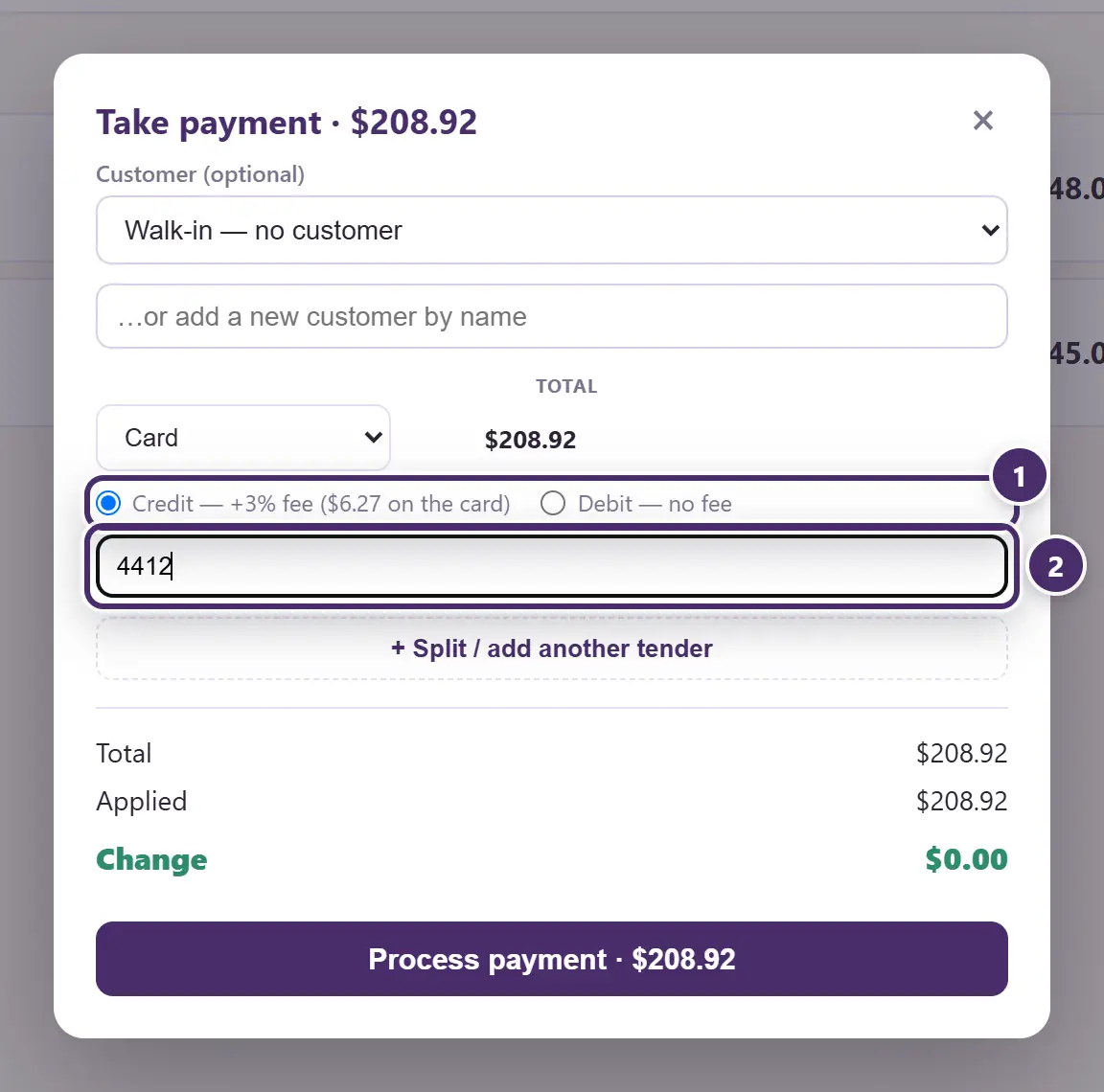
- Credit or debit. The fee rides credit only — card-network rules forbid a surcharge on debit — so the register asks. The amount going onto the card, fee included, is shown before you commit.
- Last four digits, optional.
The fee is printed on the receipt as its own line, and it goes to the shop — never into a booth's sales.
Check
Pick Check and a check # box appears. Optional, but it is what you'll want when a check comes back.
Venmo, Cash App, PayPal
These take a handle or note, optional. What matters is what happens after Process payment: the money goes straight to your own account, and Inky can't see it arrive — so the register asks you to confirm it did. Cash App can be verified automatically on a shop with a Square connection (the customer scans a code and Square reports the payment); the others ask the cashier "Did the payment arrive?", and anything not confirmed is listed under Wallet payments to check on the Cash & Credit tab, so a short day can be traced. The whole flow, screen by screen, is in Card reader & wallets.
Only the wallets your shop accepts appear in the list — Settings → Payment methods chooses them. Cash is always on.
Gift card
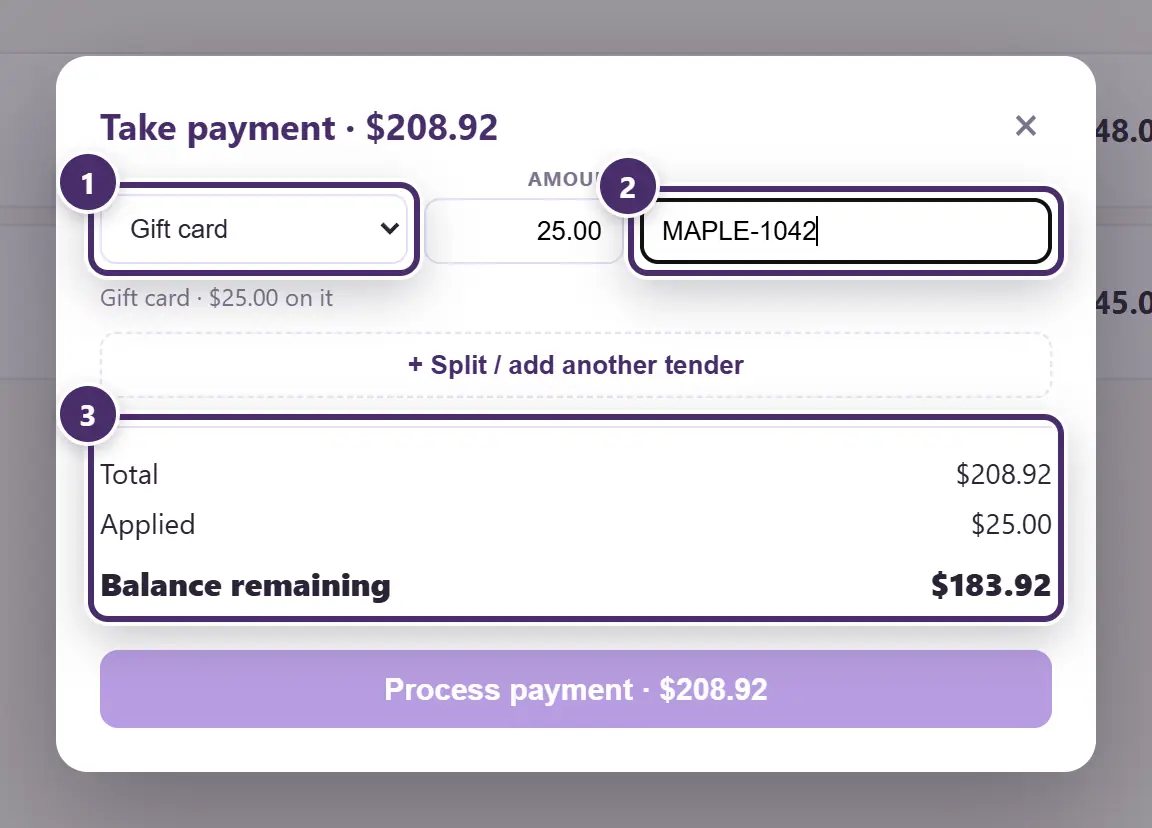
- Gift card is always in the list — it doesn't take money, it draws down a balance the shop already holds.
- The number on the card. Type or scan it. Inky's own cards answer at once. With Square gift cards on, a number Inky doesn't know is checked with Square. A card with nothing left, or one nobody knows, turns the box red.
- What it covers. Never more than the card holds: a $25 card against a $208.92 sale leaves $183.92 due, and you split the rest onto another tender.
Whatever is left on the card stays on it, and the receipt says how much. Inky's own balances live on the Cash & Credit tab; a Square gift card's balance stays in Square — see Square gift cards.
Store credit
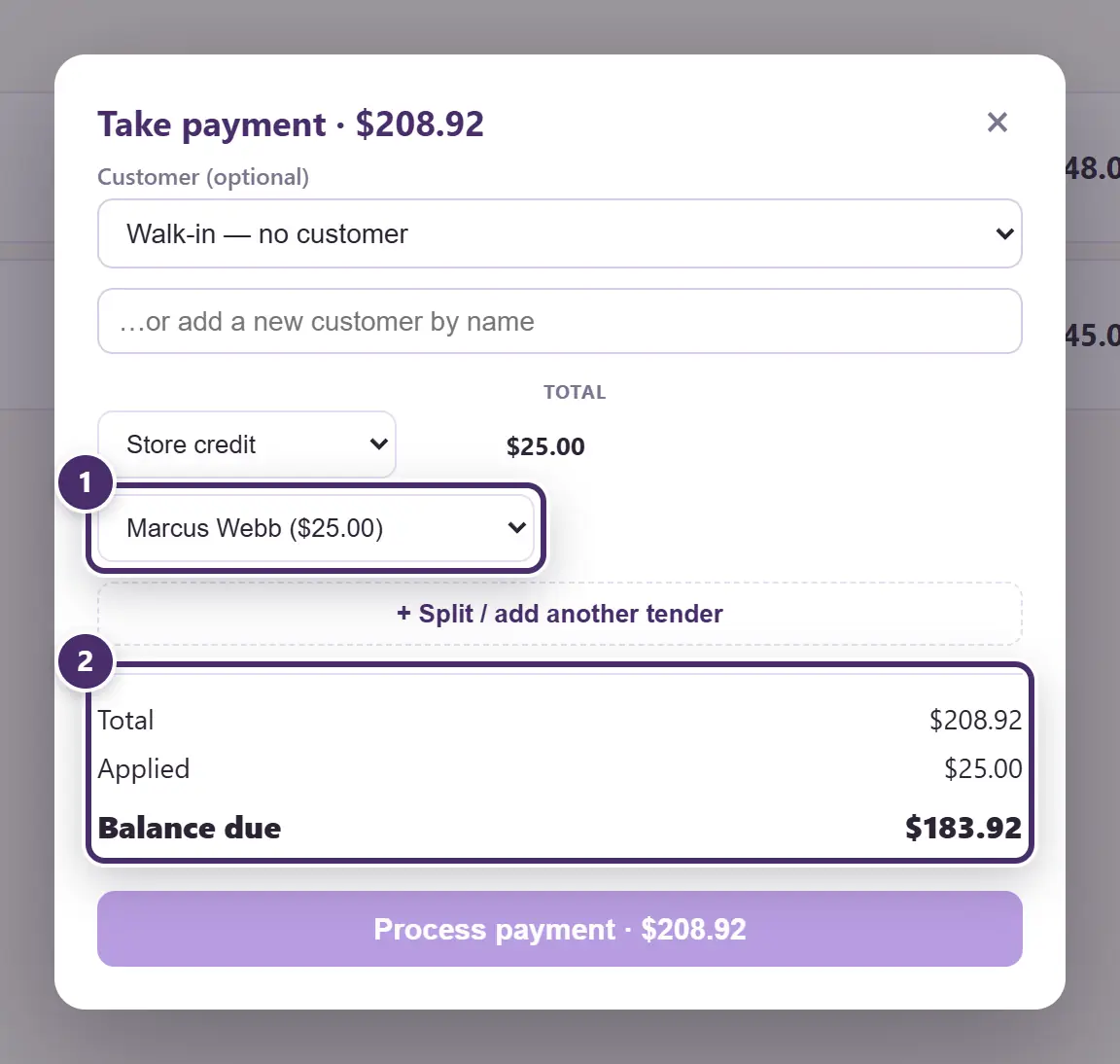
- Whose credit. Each customer is listed with what they have on file, and the tender is capped at that balance.
- What's still owed after the credit is used up — split the rest onto another tender.
Store credit is issued on the Cash & Credit tab, and a rewards redemption arrives as store credit too — see below.
Who is buying
Customer (optional) sits at the top of the window on a Pro shop. Pick a regular from the list, or type a new name under it and Inky creates the customer as the sale is rung. Attaching a customer is what builds their purchase history and lifetime spend on the customer card. On an ordinary sale it's entirely optional.
Tax-exempt
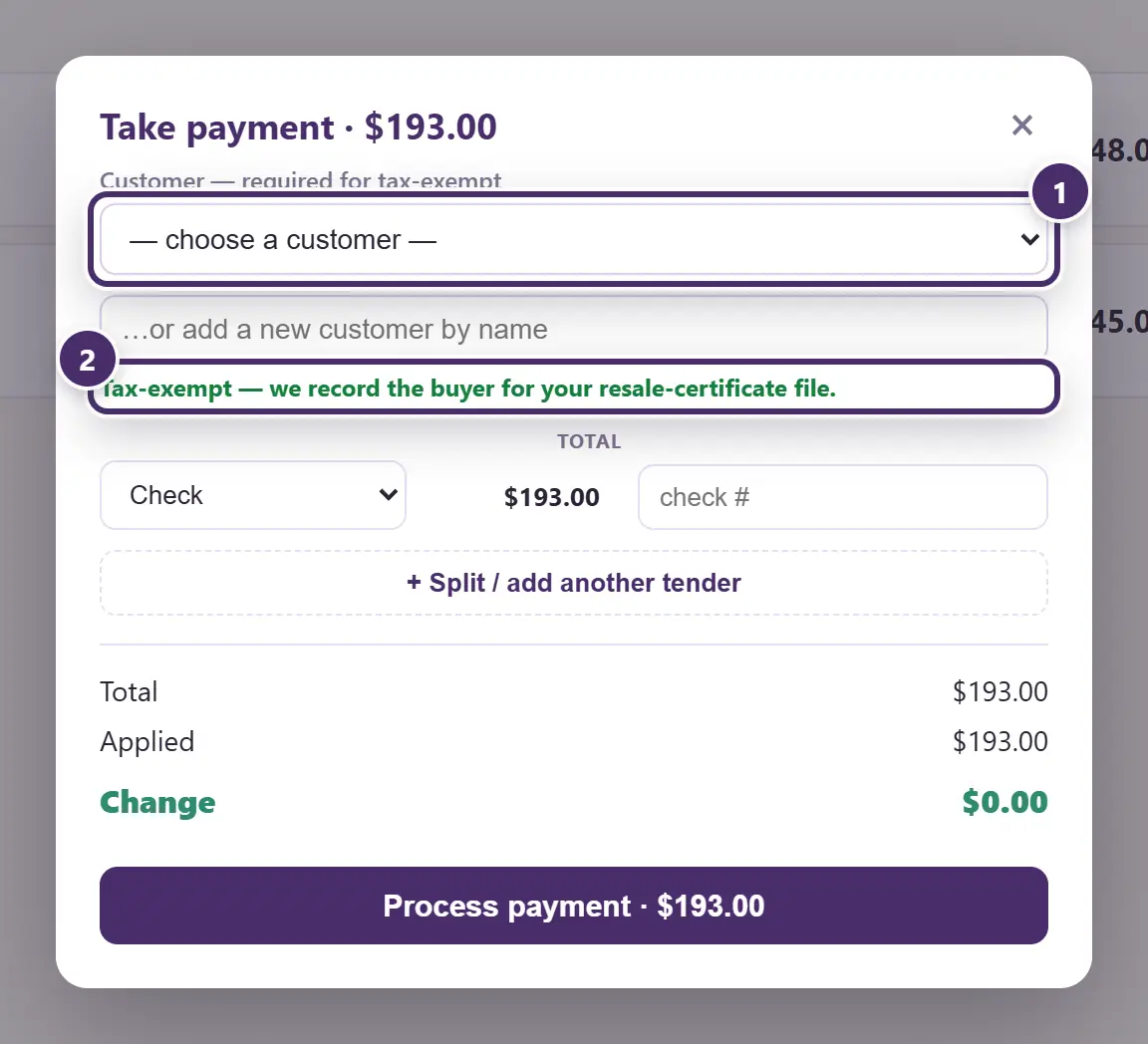
- The buyer. Already filled in, if you ticked Tax-exempt on the register — that's the customer you chose there. It is not optional on a tax-exempt sale: pick one, or type a new name. Inky won't complete the sale without one.
- Why. The name goes on record for your resale-certificate file.
A customer already saved as a reseller does this for you: pick them, and the sale is made tax-exempt on the spot, with the tax that came off shown in green.
Rewards
If your shop runs a rewards program, a rewards phone box sits at the top of this window: type the member's number (or just the last four) and tap Find. Their points show, and when they have enough, Redeem turns a block of points into store credit and puts it on the sale as a tender line. Points are earned on what's actually paid, once the sale goes through. The program itself — rates, what a redemption is worth, opting in — is in Promotions, coupons & rewards.
After Process payment
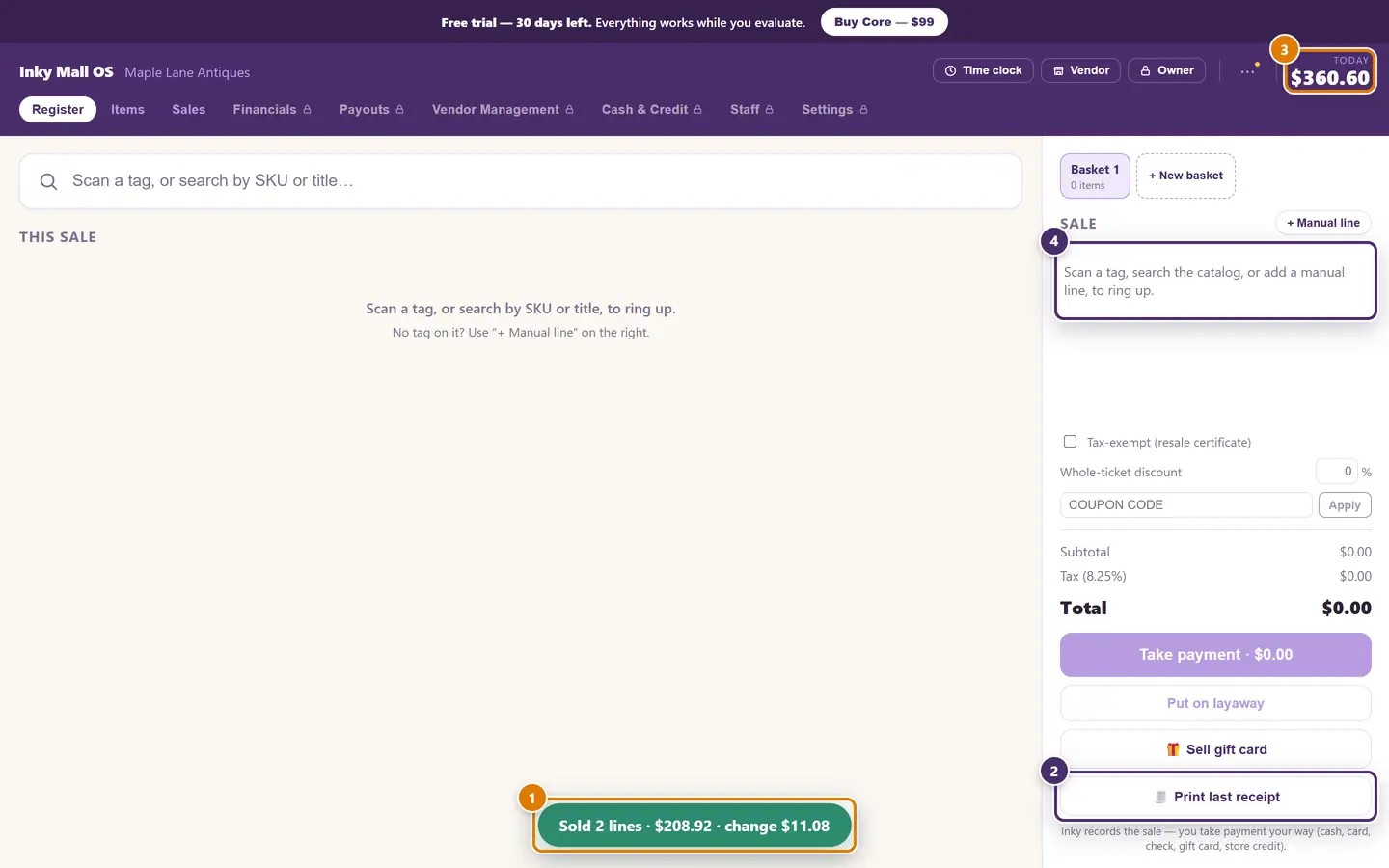
- What just happened, for a few seconds: how many lines, the total, and the change to give back.
- Print last receipt appears, and stays until the next sale — for the customer who asks on the way out. Receipts don't print by themselves; most shops only print when asked.
- Today has moved on by the sale.
- The sale is cleared, ready for the next customer. If another basket was parked, it comes forward instead.
Then, depending on the tender: a cash sale pops the drawer; a Square reader sale opens the reader screen; a wallet sale asks for confirmation; and the customer display, if you have one, shows the thanks and the change.
If something was wrong, the sale is on the Sales tab — to reprint, correct, or void.
When the internet is out
Every tender here works offline except the two that genuinely need the outside world: the Square reader (it has to reach Square to charge) and the automatic Cash App verification. Cash, card-logged, check, gift card, store credit and the confirm-it-yourself wallets all ring exactly as always.
Guide for Inky Mall OS 0.16.0, updated Nov 20, 2026 · Download the whole guide (PDF)