5 · Items & inventory
On this page
Everything the shop has for sale — and everything it has sold — is in the Items tab. Every item carries a SKU, the SKU is what the barcode on the tag says, and scanning the tag at the register is what makes the sale land in the right booth.
The Items tab is open to everyone at the counter; it is not behind the owner's PIN.
What you are looking at
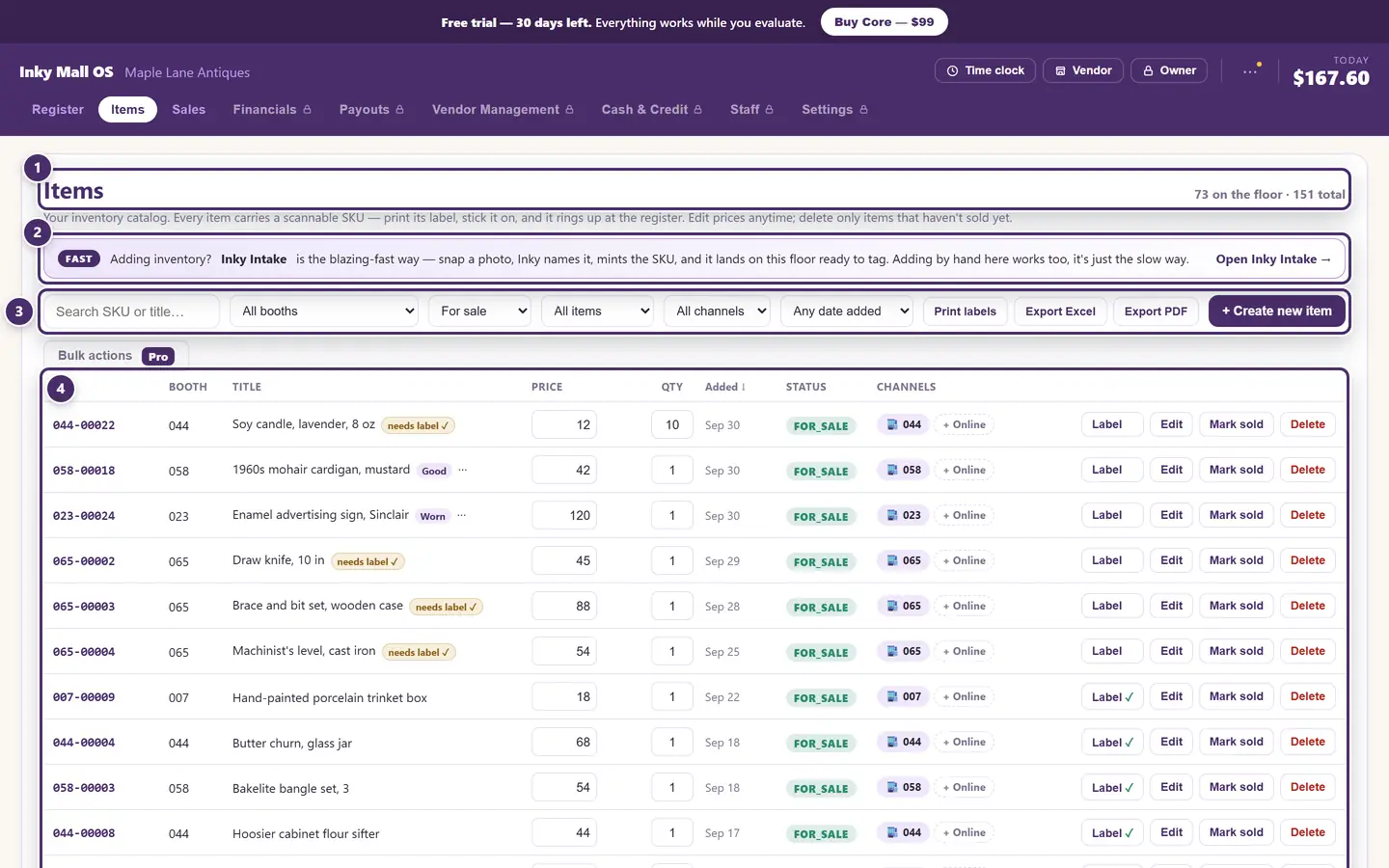
- The count. How many units are on the floor right now, and how many items the catalog holds altogether — sold items and drafts included.
- Inky Intake. The fast way to add stock: take a photo on a phone, and the item arrives here named, priced and with a SKU, ready to tag. Adding by hand, below, works too — it's just slower.
- Search, filters and the buttons. Narrow the list down, print labels for it, export it, or create an item.
- The list. One row per SKU, newest first, forty to a page.
Finding things

- Search. Any part of a SKU or a title.
- One booth. Just that vendor's items — the way you look at a booth before a payout or a walk-through.
- Status. The list opens on For sale. Switch to Sold, Layaway, Draft, Voided, or everything at once.
- Where it's listed. Items also queued for get-inky.com, or only the ones that aren't. Beside it: consignment vs owned, and when it was added (today, this week, this month).
- Labels and exports. Print labels opens the label sheet for the whole store — see Labels & printing. Export Excel and Export PDF write out exactly what the filters show: SKU, booth, title, price, cost, tax, consignment and status.
- Add one by hand.
The filters stack. Booth 23 · Sold · Consignment is a perfectly good question to ask.
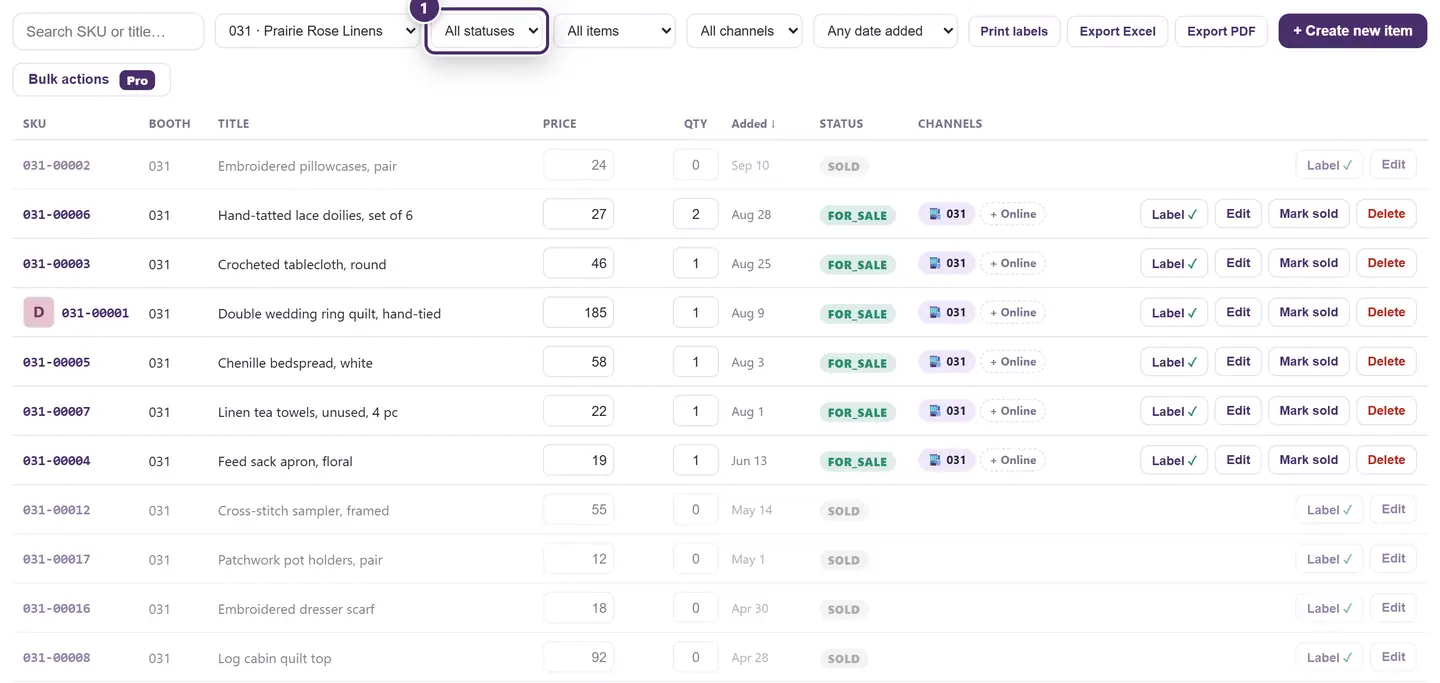
- All statuses. Rows that aren't on the floor are greyed. Sold items stay in the catalog so their history does; layaway items are held for a customer; draft items are priced but not yet out. Choosing Sold with no booth picked shows everything the shop has ever sold.
One row of the list

- SKU and photo. The SKU is the booth number, then the item's own number within
that booth:
007-00001is booth 7's first item. The thumbnail is whatever photo the item has — from the phone, or added here. - Title. With any tags Inky Intake left on it: the condition, and what still needs doing (below).
- Price — type straight into it.
- Units on hand — also typed straight in. Most items are one of a kind; a set of six cups that sells one cup at a time is a SKU with six units. Raise the number to restock.
- When it was added. Click the Added heading to sort newest or oldest first.
- Status. for_sale, sold, layaway, draft or voided.
- Where it's for sale. The floor chip names the booth. + Online queues the item for get-inky.com as well; once queued, the chip turns into an Online badge and clicking it again takes the item back off. Marketplace badges (eBay, Poshmark and the rest) light up here when a listing exists — those are managed on the web.
- The buttons. Label prints this item's tag (the tick means one has been printed already). Edit opens the whole row. Mark sold and Delete are explained below.
Changing a price or a count
For one or two items, type straight into the list.
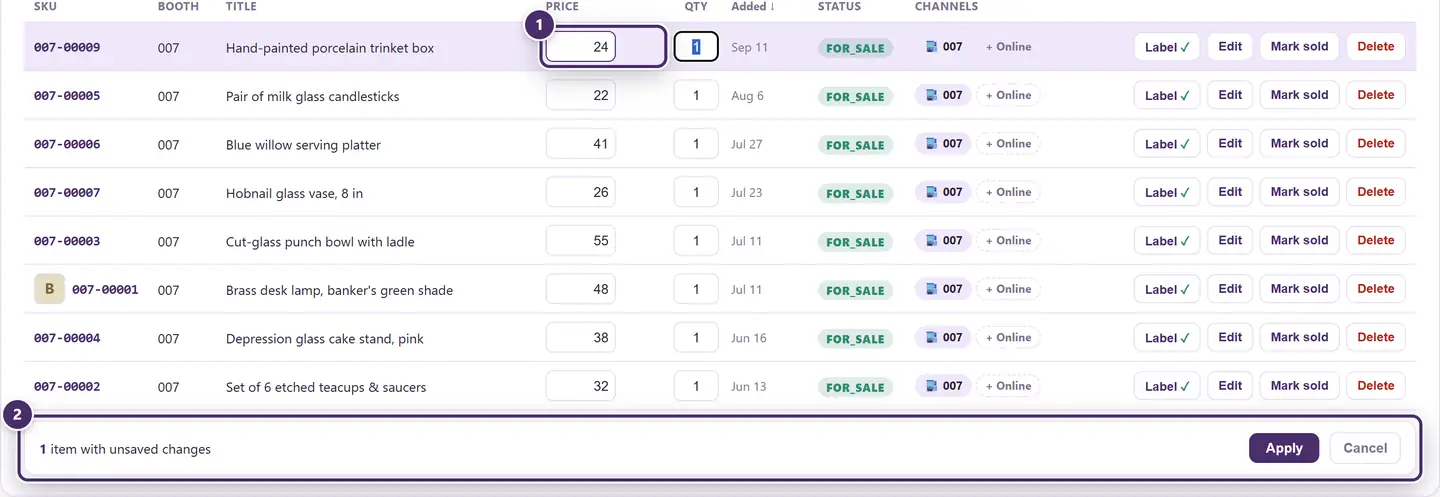
- Type the new number. The row is marked as changed, but nothing is saved yet. Enter hops to the same box on the next row, so a whole booth can be re-priced in one pass; Escape puts a box back the way it was.
- Apply. Every changed row saves at once. Cancel throws the lot away. A number that can't be saved — a blank, or a count under 1 — shows red and is skipped; a count of 0 only ever comes from a sale.
For everything else about an item, tap Edit.

- Booth. Move the item to another vendor. Its SKU follows the new booth, so the old tag stops scanning — print a fresh one.
- Title.
- Price.
- Units on hand. Raising a sold-out item's count puts it back on the floor.
- Tax, consignment, photo. Whether sales tax applies to this item; whether the vendor owns it (Cons, consignment) or the shop does; and a photo from this computer. On a consignment item the shop takes the booth's consignment rate instead of its commission rate, if one is set — see Vendors & booths.
- Save or Cancel.
What came in from Inky Intake, and what still needs doing
Items added from a phone arrive with two small flags, so the counter knows what hasn't been done to them yet.

- Condition, as it was noted on the phone.
- needs label. No tag has been printed for this SKU yet. Printing one clears it; if the item was already tagged by hand, one tap on the ✓ clears it too.
- price & qty? Nobody at the counter has confirmed the price and the count that came in from the phone. Tap the ✓ when they're right, or just edit the row — saving is the confirmation.
An item created here by hand never shows the second flag: a price you typed yourself is already confirmed. To clear the flags on a whole batch at once, use Bulk actions → Clear checks.
Changing many items at once
Bulk actions work on exactly the items the filters show, so set the filters first. This is an Inky Mall OS Pro feature.

- Who it applies to. The filtered list — here, booth 7's eight items.
- What to do. Price changes prices. Status puts items on the floor or takes them off into drafts. Find & replace fixes a word in every title at once (Vtg → Vintage). Clear checks dismisses the intake flags for the lot.
- Which way. Mark down or up by a percentage, or set one price for everything.
- By how much.
- Apply. Nothing changes until this is pressed. Items already at the target status, or with no price to change, are left alone and the message says how many changed.
Discounts that apply themselves at the register — a weekend promotion, an automatic markdown after sixty days — are not bulk actions; they don't touch the tag price at all. Those are in Promotions, coupons & rewards.
Creating an item by hand
Tap + Create new item.
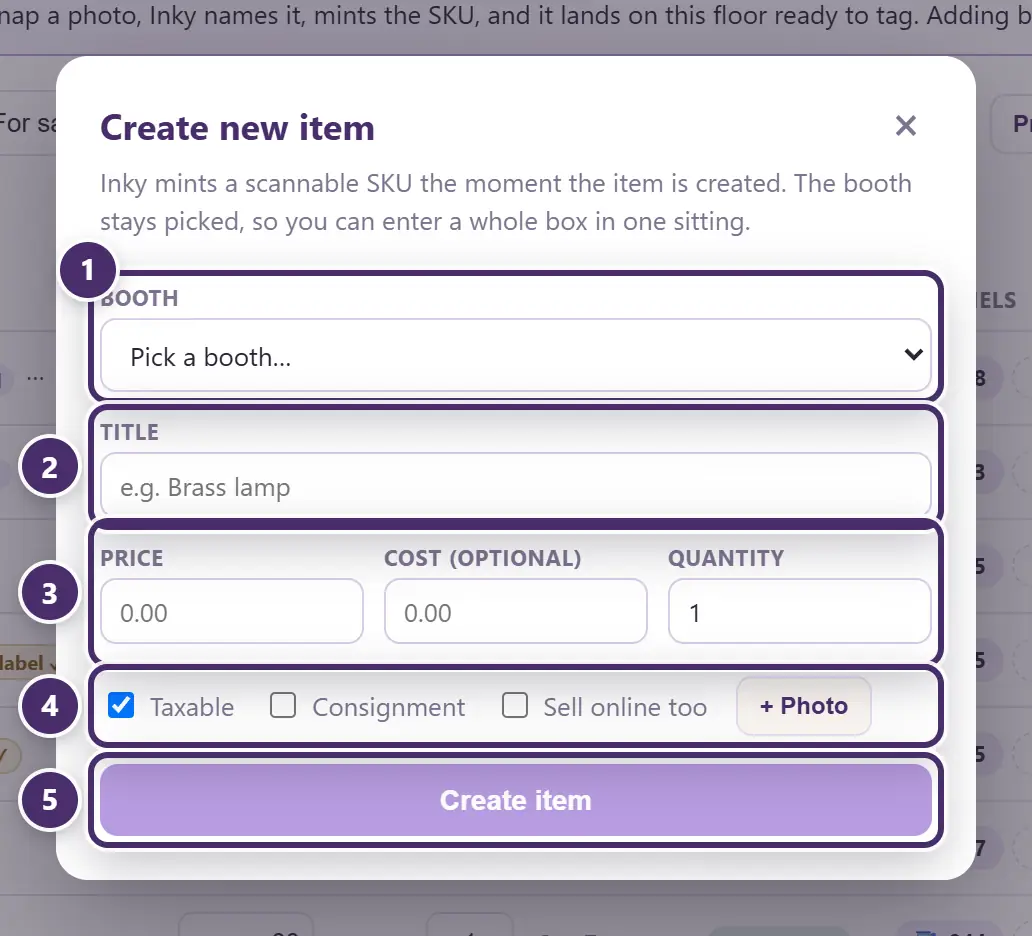
- Booth. Whose item it is. This decides the SKU and who gets paid. It stays picked after you create the item, so a whole box can be entered in one sitting.
- Title. What the receipt and the label will say.
- Price, cost, quantity. Cost is optional and is never shown to a customer — it's for the shop's own margin, on items the shop owns. Quantity is how many units this one SKU covers.
- Taxable, consignment, sell online, photo. Tax is on unless you turn it off. Sell online too queues the item for get-inky.com as soon as the store syncs.
- Create. Inky mints the SKU the moment the item exists, and the row is in the list ready to label.
There's no booth in the list until one exists — booths are made in Vendor Management.
Sold by hand, and deleting
Mark sold takes an item off the floor without recording a sale: no money, no commission, and the booth is not paid for it. It is for the item that went missing, the one the vendor took home, the one that was rung under the wrong tag and has since been corrected. If it sold at the counter, ring it — or open the sale and scan its tag, see Sales & corrections. Inky asks you to confirm, and writes the action to the activity log with your name on it. A hand-marked item can be put Back on floor as long as no sale has ever been recorded against it.
Delete is only offered while an item is on the floor or a draft, and it refuses if the item has ever appeared on a receipt. A sold item is history, and history stays.
When the internet is out
The whole Items tab works offline — searching, editing, bulk changes, creating, printing labels. Two things wait for a connection: items queued for get-inky.com are sent when the store next syncs, and stock added through Inky Intake on a phone lands here the same way. Nothing is lost in between; it simply arrives when you're back.
Guide for Inky Mall OS 0.16.0, updated Nov 20, 2026 · Download the whole guide (PDF)