
8 · Sales & corrections
On this page
Every receipt the register has ever rung is on the Sales tab, and so is every way of putting one right: reprinting it, correcting a line, voiding a return, refunding a card.
Sales is open to anyone clocked in at the counter — it isn't behind the owner's PIN. What is protected is the changing: a correction asks for the PIN of whoever is making it, and the sale carries their name from then on.
What you are looking at
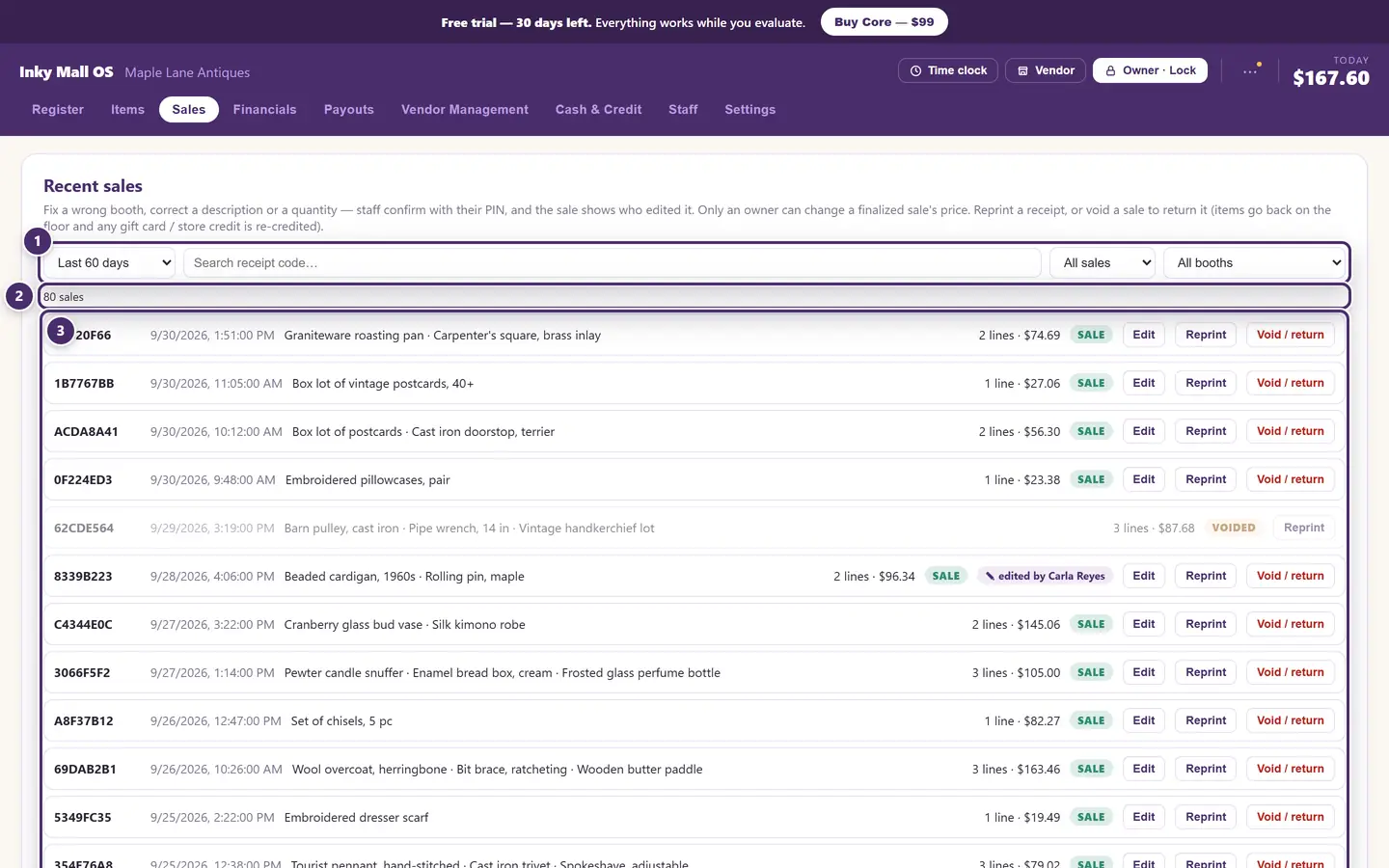
- Narrow it down. A date range, a receipt code, sales or voids, one booth.
- How many matched. The list shows the most recent few hundred; if there are more, tighten the dates or search.
- One row per receipt, newest first.
Finding a sale

- When. The last 60 days to start; anything from the last week to all time, or a custom from–to.
- The receipt code — the eight characters printed at the top of the customer's receipt. The fastest way to find a sale when the customer is standing there with the paper.
- Sales, voids, or both.
- One booth. Every receipt with a line from that vendor — for the vendor who asks "did my blue lamp sell?".

- The receipt code, then when it was rung.
- What sold, and how many lines for how much.
- Sale or voided.
- Who last changed it. A corrected receipt says so, with the name. There are no silent edits.
- Edit — below.
- Reprint the receipt, exactly as it was.
- Void / return — below.
Correcting a sale
Tap Edit. Each line of the receipt gets its own box.
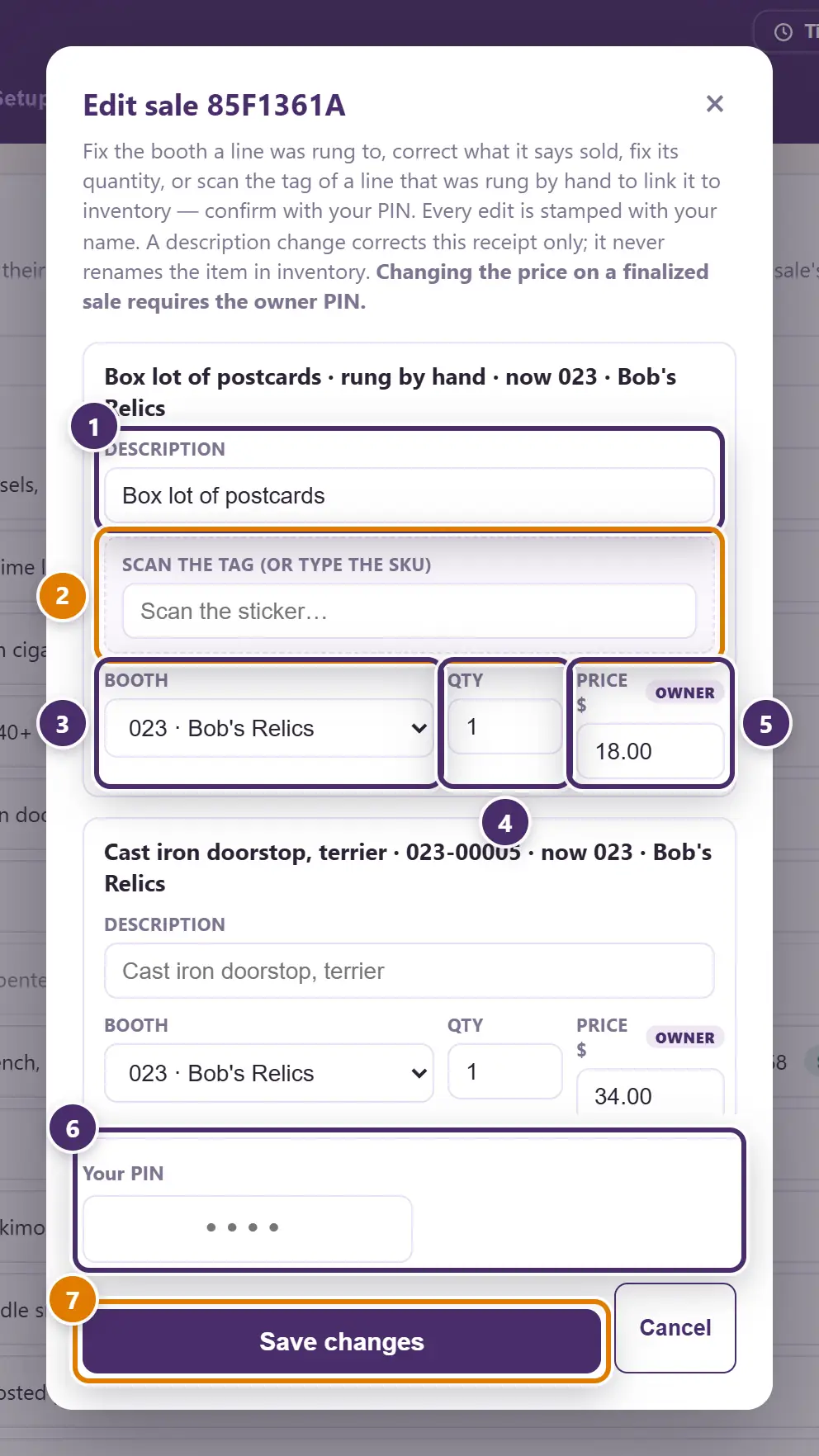
- What it says sold. A description change corrects this receipt only — it never renames the item in inventory.
- Link a hand-rung line to its tag. Only on a line that was rung without a sticker (see + Manual line in The register). Scan the tag — or type the SKU — and the line becomes that item: it comes off the floor, and the booth on the line follows the tag. The price stays what was paid.
- Booth. Which vendor gets paid for this line — the most common fix of all, when something was rung to the wrong booth. Greyed while a tag is linked, because then the tag decides.
- Quantity.
- Price — the owner only.
- Your PIN. Any cashier can confirm a booth, description or quantity fix with their own PIN. If the price changed, this box asks for the owner's PIN instead, and nothing saves without it.
- Save. Every change is written to the activity log with the name on the PIN, and the receipt shows edited by from then on.
What a correction does to the money. Moving a line to another booth moves the sale, and its commission, to that booth — at the new booth's rate — and the next payout counts it there. If the sale was already on a payout you have closed, that statement is a frozen record and does not change: if nobody on it has been marked paid yet, remove the payout and close it again (see Payouts); if it has been paid, settle the difference with the two vendors by hand. A price change moves the tax too.
A voided receipt can't be edited. Ring it again instead.
Online orders
At the top of Sales, above Recent sales, is a list of pieces paid for on your shop page. It appears once your store has had an online order. The Sales tab shows a red count of the ones still waiting.
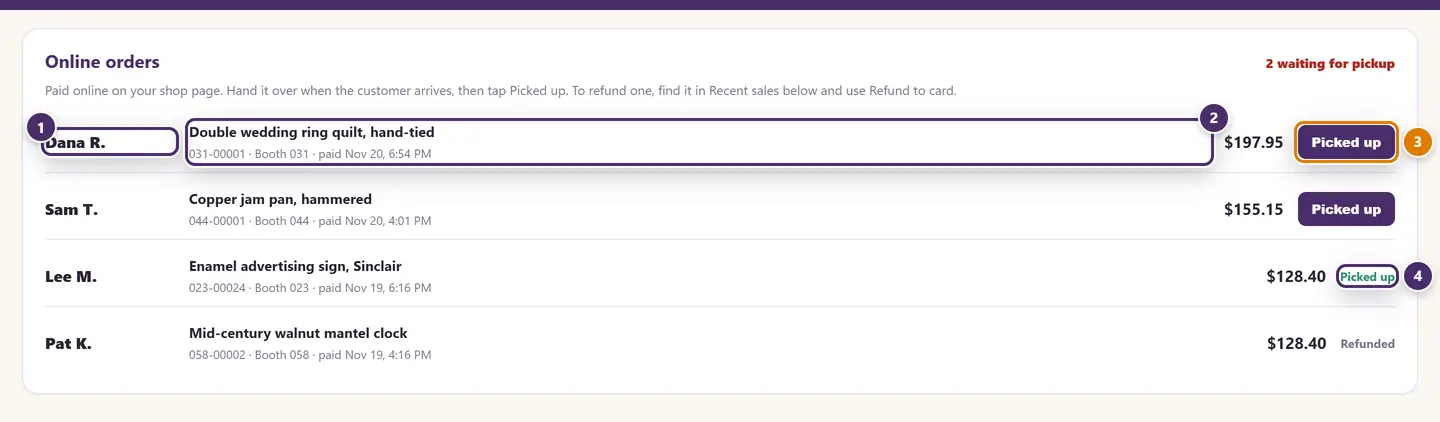
- Who is coming. The buyer's name, as they gave it when paying.
- The piece, with its tag number, booth and when it was paid.
- Picked up. When the customer arrives, hand the piece over and tap this. Ask for their name; Square's email receipt or a photo ID confirms it.
- Picked up / Refunded. Finished orders stay in the list, below the ones still waiting.
Marking an order picked up changes nothing about the sale. The sale was recorded, and the booth credited, when the payment went through. It is in Recent sales like any other, marked "Online order, pickup".
If the customer changes their mind, find the sale in Recent sales and use Refund to card. The money goes back through Square to the card that paid, and the piece returns to the floor once Square confirms it. That can take an hour or more. Void / return on its own does not send the money back, and it will warn you.
If the piece sells at the register first. Nothing is held for a shopper who has not paid yet. If someone buys the piece in the store while a shopper is on the payment page, the shopper is refunded in full automatically and told why. You don't have to do anything.
Returns: voiding a receipt
Tap Void / return on the receipt and confirm. The whole receipt is reversed:
- every item on it goes back on the floor, at its tag price;
- anything paid with a gift card or store credit is re-credited to it;
- if the shop runs a rewards program, the points the sale earned come back off;
- the receipt stays in the list, greyed and marked voided, and can still be reprinted — a return is a record, not a deletion.

- Voided only shows just the returns.
- The receipt stays.
The void is written to the activity log with the amount and the name of whoever did it (see Staff & security). Voiding is all-or-nothing: to take one item back off a three-item receipt, void the receipt and re-ring the two the customer is keeping.
Giving the money back is your side of it, the same way you took it — Inky records the void; it doesn't reach into the till. The one exception is a card charged through the reader: see the next section.
Refunding a card
When a receipt was paid through the Square reader, a Refund to card button appears on its row. It sends the money back to the customer's card through Square, and only then reverses the lines you chose — so a refund can never be recorded that didn't actually go through. You can refund the whole receipt or tick just some of its lines; a line already voided can't be refunded again, because voiding was the reversal. It asks for an owner's or manager's PIN.
The reader, the wallets, and what to do when a payment "didn't go through" are all in Card reader & wallets.
A sale paid by Square gift card gets Refund to gift card instead: the money goes straight back on the card. A sale paid partly by gift card and partly by card shows Refund, and the screen lists where the money goes — the gift card's share first, then the card. It never sends a payment more than it was paid; if you pick more than that, it says so instead of refunding less than it shows.
When the internet is out
Finding, reprinting, editing and voiding all work offline — a correction made in the basement is synced to your other tills when the connection returns. The one thing that needs a connection is Refund to card, because Square has to move the money.
Guide for Inky Mall OS 0.16.0, updated Nov 20, 2026 · Download the whole guide (PDF)