
11 · Payouts
On this page
A payout is how the booths get paid. You pick a period, Inky works out what each booth sold, takes the shop's commission and the booth's rent, and tells you what to hand over. You close the period into a saved statement, print each booth its statement, and tick them off as you pay. Payouts is behind the owner's PIN.
Financials is for looking; Payouts is the cash-out.
The arithmetic, once
For each booth, in the period:
sales − commission (the shop's cut, at the booth's rate) − rent (a full month's rent for each month that begins in the period) = balance due
Three rules underneath it:
- A payout never goes below zero. If a booth's sales don't cover its rent, the line reads owes instead, and the shortfall carries forward to the next period — where a good month clears it out of the booth's own sales, or the vendor settles it in cash. Inky never turns "rent not yet covered" into "the vendor owes the shop" inside the payout itself.
- The booth bears its discounts. A line that sold at a discount pays commission on what it actually sold for, and the statement says what the discounts cost. Gift cards and store credit spent on a booth's item count as full sales to the booth — those are the shop's business, not the vendor's.
- A voided sale isn't a sale. It's left out of the payout and out of the statement's Sold items list, so the list and the count above it always agree.
What you are looking at
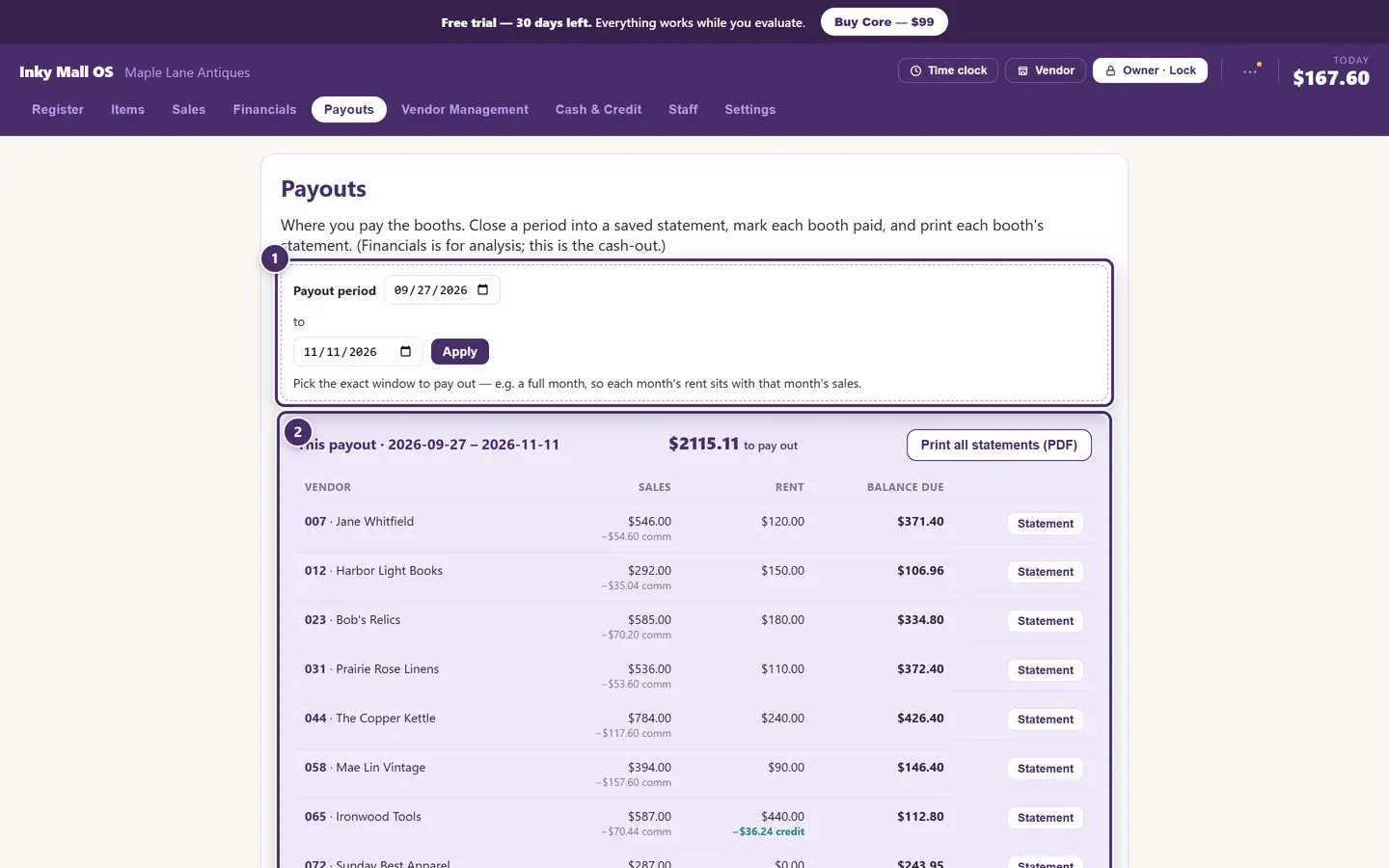
- The payout period. What span of sales this payout covers. It continues from where the last one ended, and you can set it to anything.
- This payout. One line per booth with activity in the period. Below it: rent owed by vendors, and every past payout.
Choosing the period
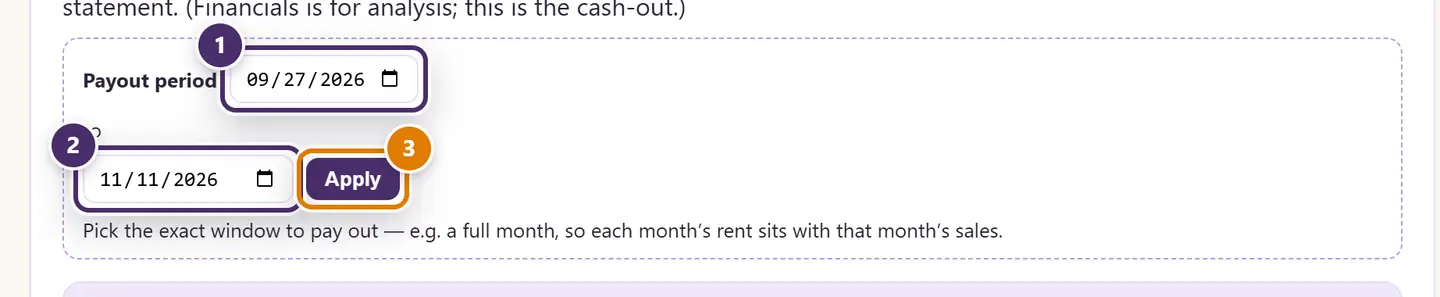
- From. Starts where the last payout ended, so nothing is paid twice and nothing falls through a gap. Before your very first payout, set this to your go-live date — otherwise sales history you imported from your old system is counted as due now.
- To. Usually the last day of the month.
- Apply re-figures the table for that window.
Pick a whole month when you can. Rent is never split by the day. Each month's rent is charged once, in full, by the payout that covers the 1st of that month. A payout from the 15th to the 14th still charges one month's rent, but that rent and the sales beside it belong to different months, so pay out by the calendar month and every statement lines up. A booth with a Rent starts date pays nothing before that month, and its first month in full.
This payout
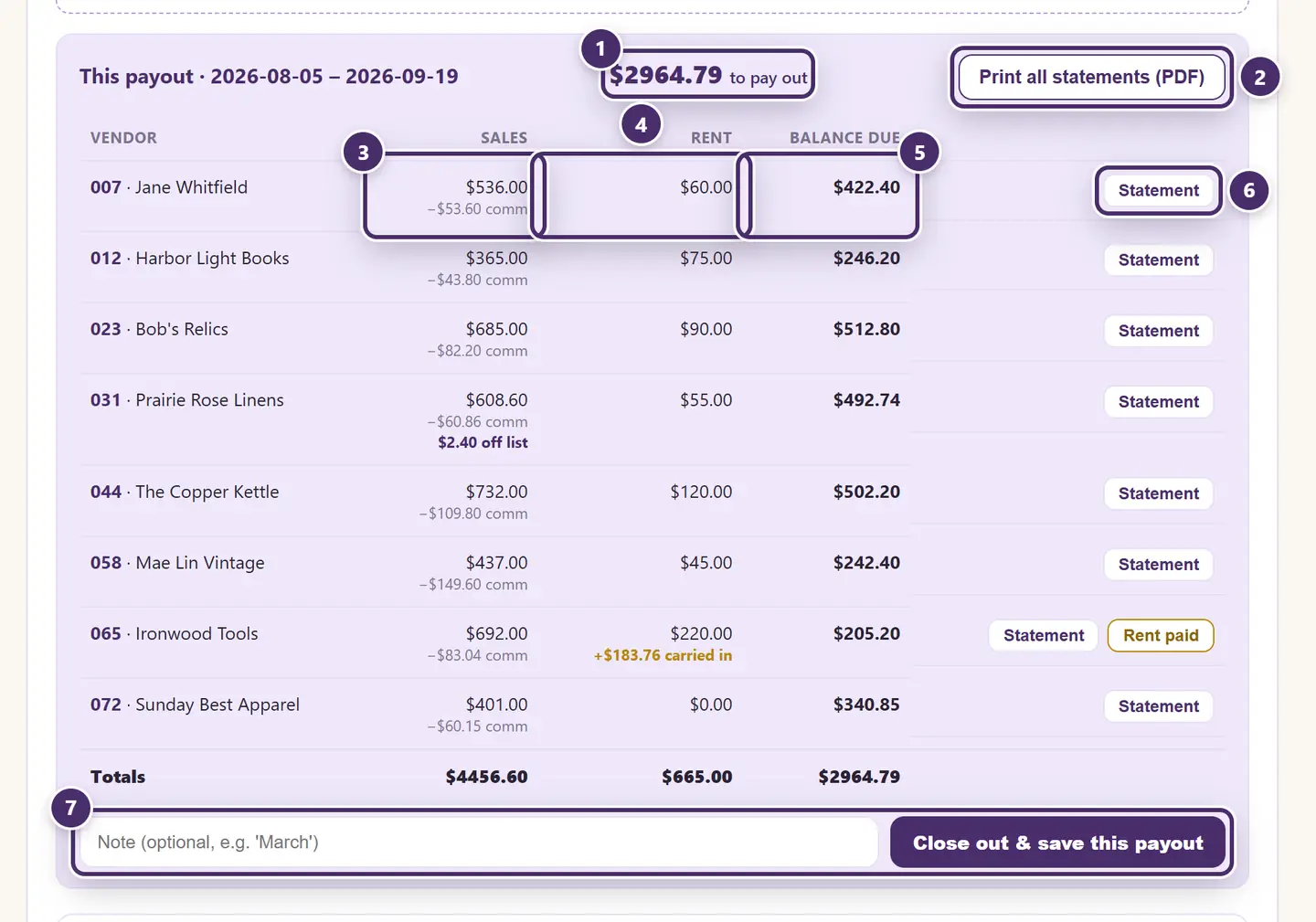
- The total to pay out across every booth in the period.
- Print all statements. Every booth's statement for the period in one PDF, ready to go in the envelopes with the checks.
- Sales. What the booth sold, the commission that comes off, and — if anything rang at a discount — what the discounts cost the booth.
- Rent for the period. A shortfall carried in from an earlier period shows here as carried in; a credit the vendor paid ahead shows as credit.
- Balance due — what to pay. If rent wasn't covered, it reads owes and the amount carries forward.
- Statement previews and prints this one booth's statement.
- Close out & save this payout. This is the moment that matters: the table is frozen into a saved statement — the record you pay from, and the record the vendor gets. Until you press it, nothing here is final; after, the next period starts the day after this one ended. The note is for you: September, Q3.
A booth that has been set inactive but still sold something in the period is listed and paid — just not charged rent.
If the register and the cloud disagree. On a Cloud+ shop, a warning appears above the table when the books check finds a booth whose sales differ between this register and the cloud. Settle that before you close — a saved payout can't be edited afterwards. See Cloud+ & sync.
Rent owed by vendors
When a booth's sales didn't cover its rent on a closed payout, the shortfall lands here, and stays until it's cleared — by the next payout, or by the vendor paying it.
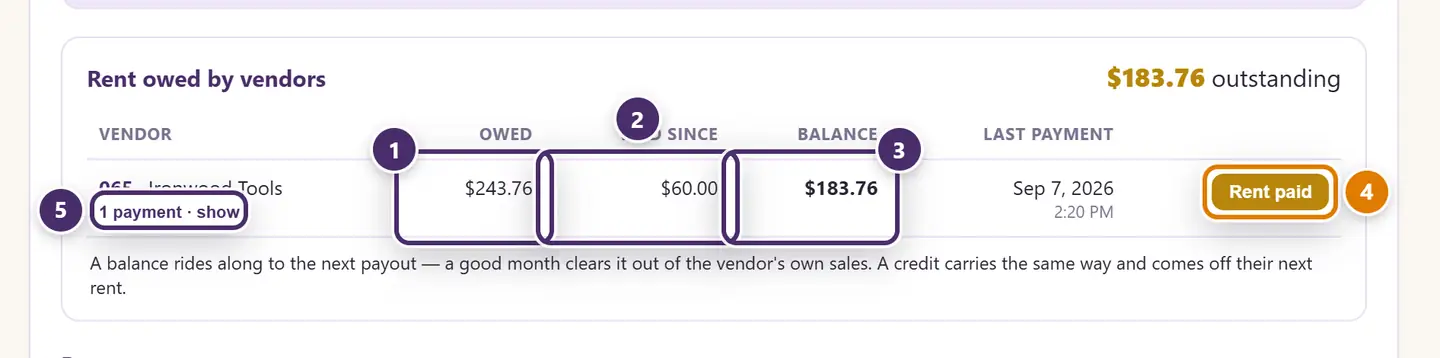
- Owed. The shortfall carried forward from closed payouts.
- Paid since — what the vendor has handed over against it.
- Balance. What still stands. A vendor who pays ahead shows a credit, which comes off their next rent.
- Rent paid records money the vendor brings in.
- The payment log for this booth. Each payment shows how it was paid and who took it; a Void undoes one recorded in error.
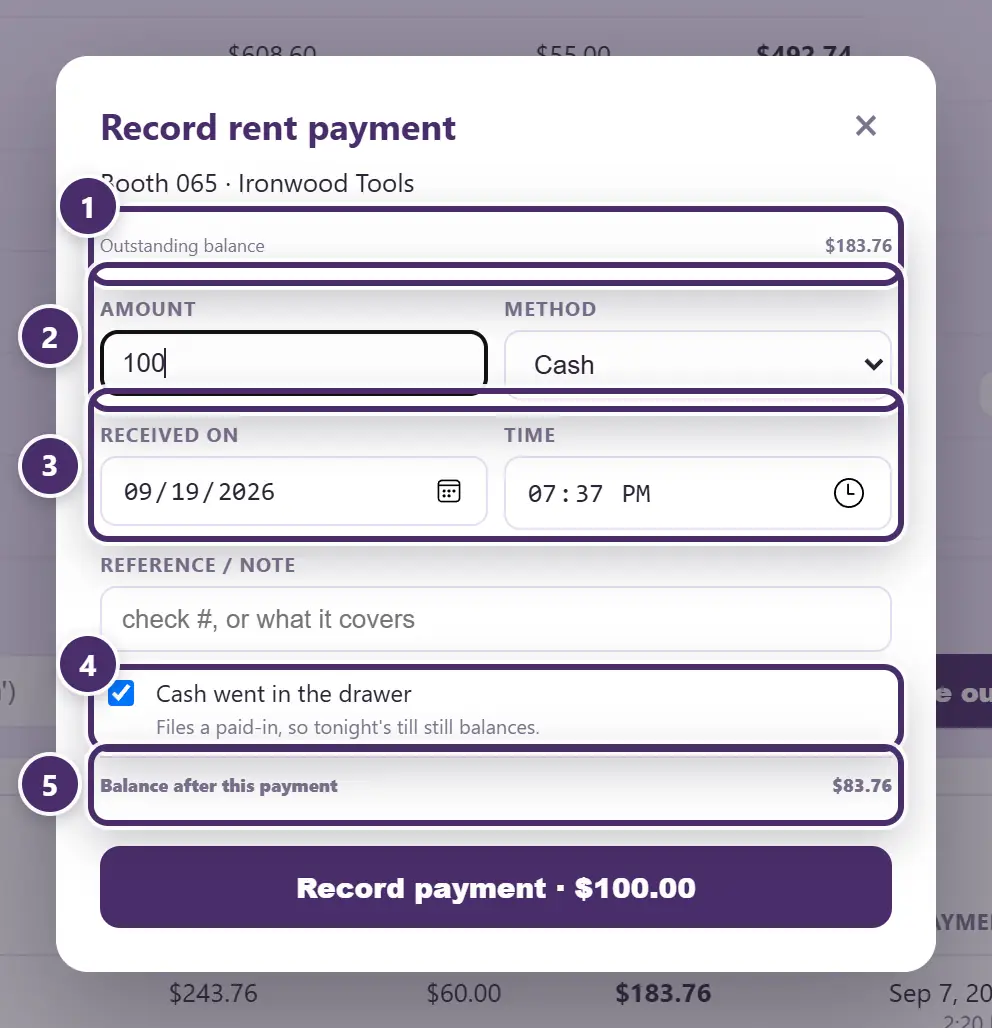
- What they owe right now.
- How much, and how — cash, check, card, or other. Paying more than the balance is allowed; the extra carries as a credit.
- When it was received. Defaults to now; backdate it if the check sat in the drawer for a day.
- Into the till? Tick it for cash: the payment is filed as a pay-in, so tonight's drawer count still balances.
- The balance after this payment.
A rent payment is settled against the next payout you close, and the log says so.
Past payouts
Every closed payout is listed, newest first, with how many booths have been paid. Open one:
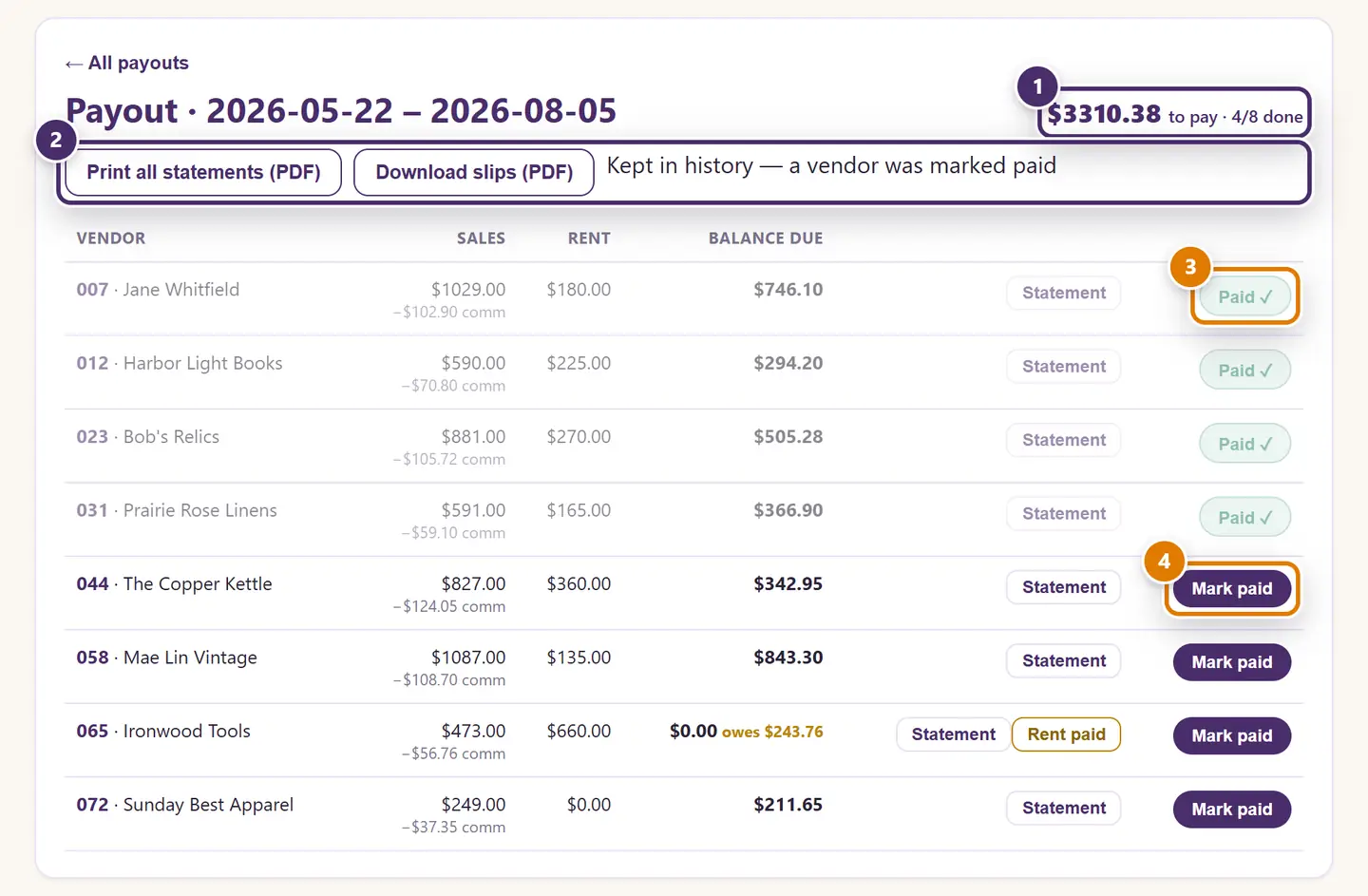
- The total, and how many booths are done.
- Print all statements, download the payout slips — one page per booth, sized for the envelope — or remove the payout. Removing is only possible while nobody on it has been marked paid; after that it's kept in history for good.
- Paid ✓ — this booth has had its money.
- Mark paid when you hand it over. The statement itself never changes; only this tick does. Tap it again if you ticked the wrong booth.
A saved payout is a frozen record. The amounts are carried exactly as they were when you closed it, even if a sale in that period is later corrected. That is deliberate: the number a vendor was paid from should still be the number on the paper a year later. If a mistake is found before anyone is paid, remove the payout, fix the sale on the Sales tab, and close it again.
When the internet is out
Closing a payout, printing statements, marking booths paid, recording rent — all local. On a Cloud+ shop the saved statement syncs, and a vendor can read their own statement from home once you're back online.
Guide for Inky Mall OS 0.16.0, updated Nov 20, 2026 · Download the whole guide (PDF)