6 · Labels & printing
On this page
Inky is a scan-first register: print a barcode label, stick it on the item, scan it to ring it up. This chapter covers the labels, the label printer, the receipt printer and cash drawer, and what prints on a receipt.
Two kinds of printer, and neither is required:
| What it's for | Without one | |
|---|---|---|
| Label printer — a thermal tag printer (Jadens, Munbyn, Rollo, Zebra…) | Barcode price tags, one at a time or by the batch | Labels come out as a PDF laid out for Avery sheets or thermal stock, for any printer you have |
| Receipt printer — an ESC/POS thermal receipt printer, with the cash drawer plugged into it | Receipts, and popping the drawer | Receipts come out as a PDF; the drawer button doesn't appear |
Every label is a Code128 barcode of the item's SKU. A scanner reads it straight into the register's scan bar, and Inky rings the item.
Printing labels
For the whole floor, or a booth
From the Items tab, Print labels opens the label sheet for the whole store. From Vendor Management, the Labels button on a booth opens the same sheet for that booth only — the usual way to tag a vendor's new delivery.
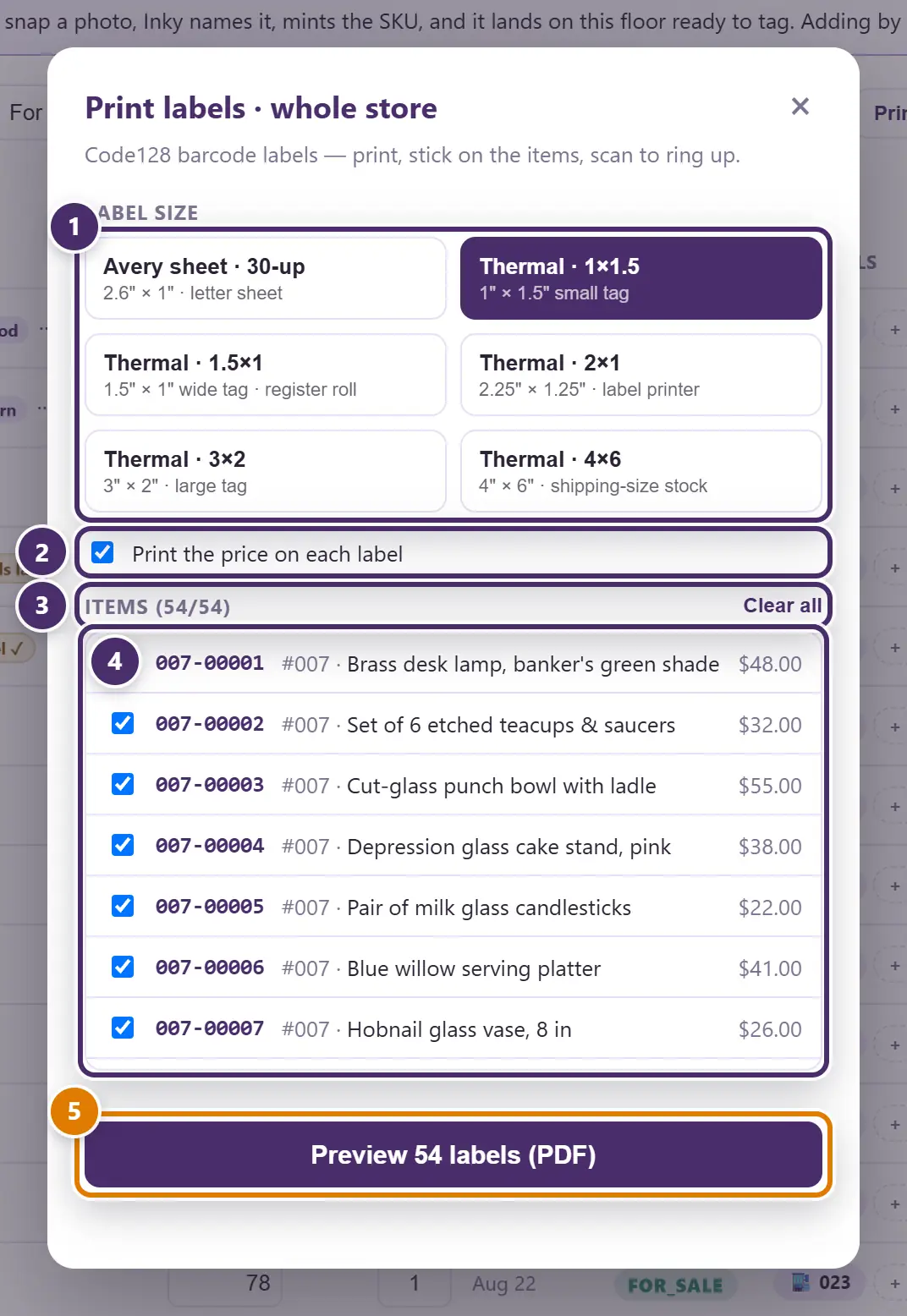
- The label stock. Avery 30-up sheets for a desk printer, or one of the thermal sizes for a label printer. Inky remembers the choice.
- Price on the label, or not.
- Select all / Clear all.
- Every labelable item — everything with a SKU. Tick the ones to print; the newest arrivals are what you usually want.
- Print. With a label printer set up, this sends the batch straight to it, with a Preview as PDF instead link underneath. Without one, it opens a PDF laid out for the stock you chose, ready for any printer.
Printing a label marks the item labeled, which clears the needs label flag in the Items list (see Items & inventory).
One item
The Label button on an item's row prints just that tag. The tick on the button means one has been printed before.
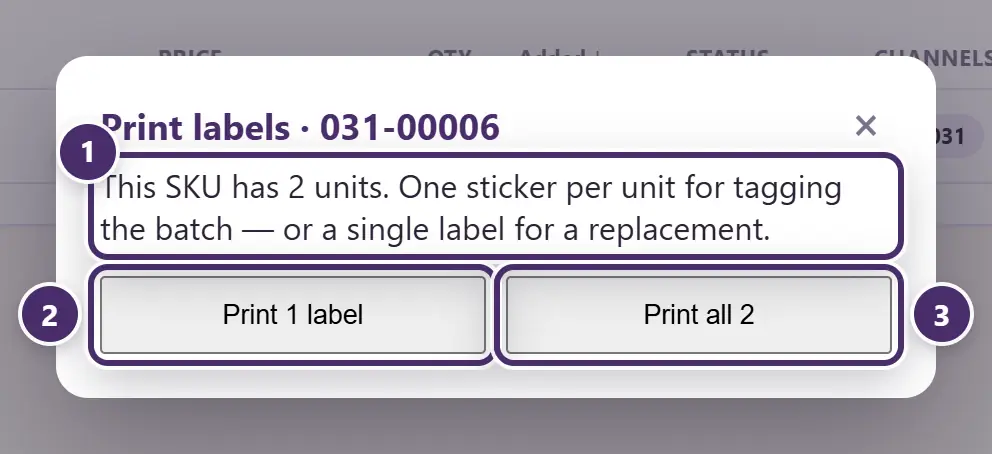
- A SKU with several units asks how many stickers you want.
- One label — a replacement for a tag that fell off.
- One per unit — for tagging the whole batch. A one-of-a-kind item skips this question and prints straight away.
Labels asked for from a phone
Stock added through the Inky app on a phone can ask for its tags to be printed at the register. Nothing prints by itself: the moment a phone asks, a small card appears in the bottom-left corner of the Register — how many labels are waiting, who sent them, and how long ago — and waits for someone to walk over. The card has no Print button on purpose: click anywhere on it to open the print queue and see what you're about to print first.
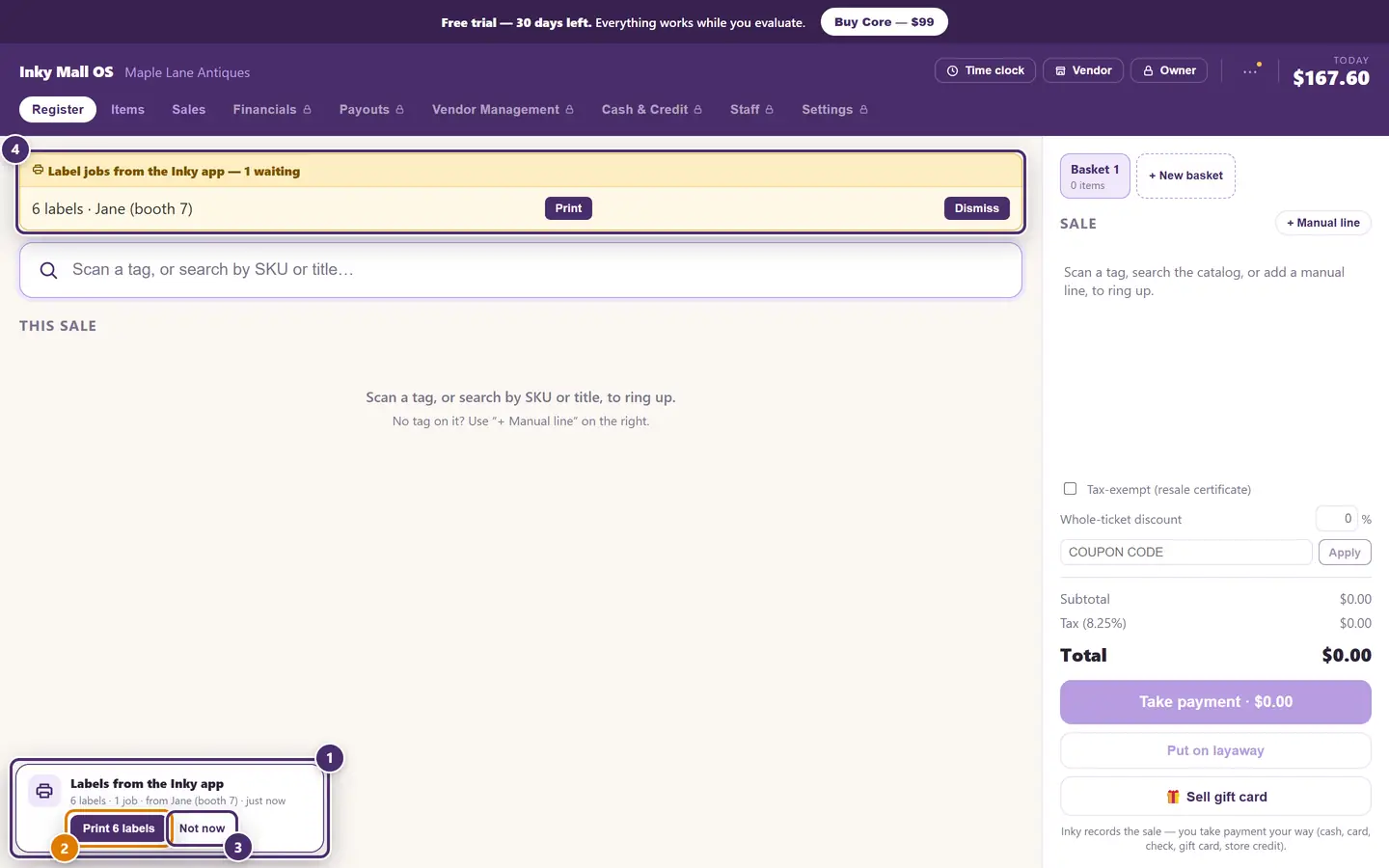
- Who sent it. Each person's requests are grouped, with their own Print and Dismiss — for when you want one person's tags but not the others.
- Each request — when it was sent and how many labels it makes. The arrow opens its items: SKU, title, booth, and how many stickers each one prints. An item with several units prints one sticker per unit, which is why 13 items can make 19 labels. An item that hasn't reached this register yet, or has no SKU, is marked won't print.
- Minimize shrinks the queue back to the small card.
- Print all runs every waiting request, oldest first, on this register's own label size — the roll that's physically in the printer, never a size chosen from a phone. Then the phone shows the printed ✓ on each item.
If a print fails — out of paper, printer off — the request turns red with the reason and stays in the queue. Nothing retries by itself; tap Print (or Retry) when the printer's ready, or Dismiss it.
With more than one till on Cloud+, the queue appears on every register. Whichever one prints the tags clears them from all the others, and a Dismiss on one register clears it everywhere too — nobody prints the same tags twice.
If this register has no label printer set up, the card says so and offers Open Settings instead of Print; the requests keep waiting for a register that has one.
Coupon labels
A coupon code prints as a barcode label too, from the Coupon codes card in Settings — see Promotions, coupons & rewards.
Setting up a label printer
In Settings, on this register. Printers are per register: each till has its own.
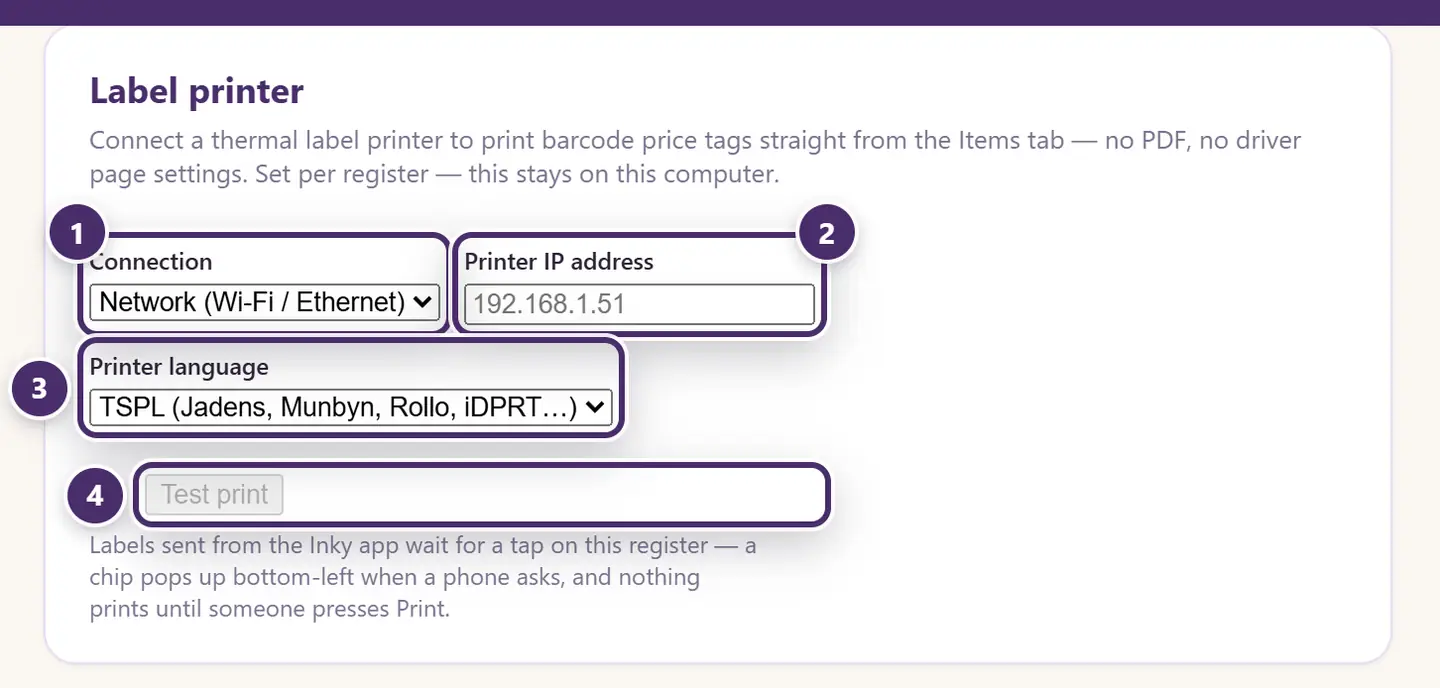
- How it's connected. Over the network (Wi-Fi or Ethernet), or by USB.
- Its address on your network. For USB, this becomes a list of the printers on this computer to pick from. Add the printer to the computer first: Settings → Printers & scanners on Windows, System Settings → Printers & Scanners on a Mac.
- Its language. TSPL covers Jadens, Munbyn, Rollo, iDPRT and most desktop label printers; ZPL is Zebra. If a test label prints garbage, it's the other one.
- Test print — one label should come out, sized to the tag, and scan.
Thermal printing needs one of the thermal label sizes; an Avery sheet layout always goes to PDF. Match the size to the roll in the printer.
Tags asked for from a phone always wait for a tap on this register — see Labels asked for from a phone above. There's no auto-print switch; there never should be a tag coming off the printer that nobody asked for at the till.
What goes on a tag
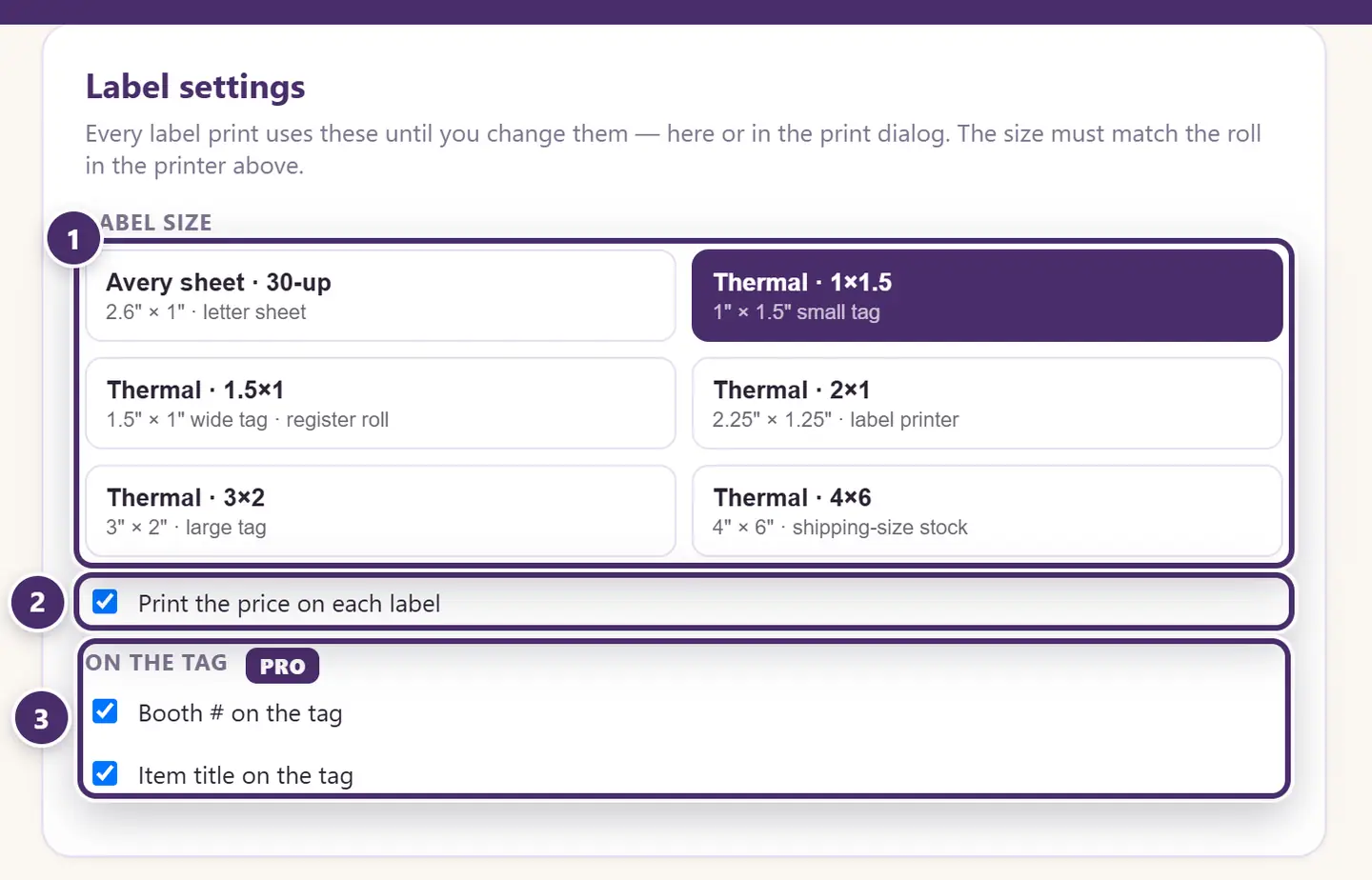
- The default label size for this register. The print sheet starts on it.
- The price on the tag, or not.
- On the tag (Pro): the booth number, the item title, or both, beside the barcode and SKU.
Every tag leads with what a shopper looks for: the price, big and bold, with the booth number beside it on the top line. The item title comes next, then the SKU in small print just over the barcode, so it can be typed in if a scan ever fails. A long price on narrow stock shrinks to fit the tag rather than being cut off. It always prints exactly as set.
Bundle tags
A bundle is two to four items from one booth, bagged together and sold as one at a lower price. Sellers make bundles in the Inky app (the Bundler); with Cloud+, each bundle arrives here as an item of its own, with its own SKU and price.
A bundle's tag is an ordinary tag with one addition: a black strip under the price that reads BUNDLE · 2 ITEMS · SAVE $9.00 (on the small 1.5 × 1 roll, BUNDLE OF 2 · SAVE $9). The saving only prints when the price does. On stock 1.25" tall or more the name gets two lines, so every item in the bag shows. Bag the items together and put the bundle tag on the outside.
When a bundle is scanned
The register knows which items are bagged in a bundle, and checks before it rings:
- An item's own tag, when it's in a bundle. This item is in a bundle lists what's in the bag. Ring up the bundle puts the bundle on the sale. Sell just this item sells it alone. That breaks the bundle, so take the bundle tag off the bag; the seller is told in Inky.
- A broken bundle. When one of its items has already sold on its own (online, or at another register), the bundle can't be rung up. The register says what sold. If it's still in the bag, take it out and set it aside. It offers to ring up the items that are left.
- An item that already left inside a bundle. This item already sold: set it aside.
A register that sells a bundle, or an item out of one, knows straight away, even with the internet out. Other registers hear it on their next sync.
Setting up the receipt printer and cash drawer
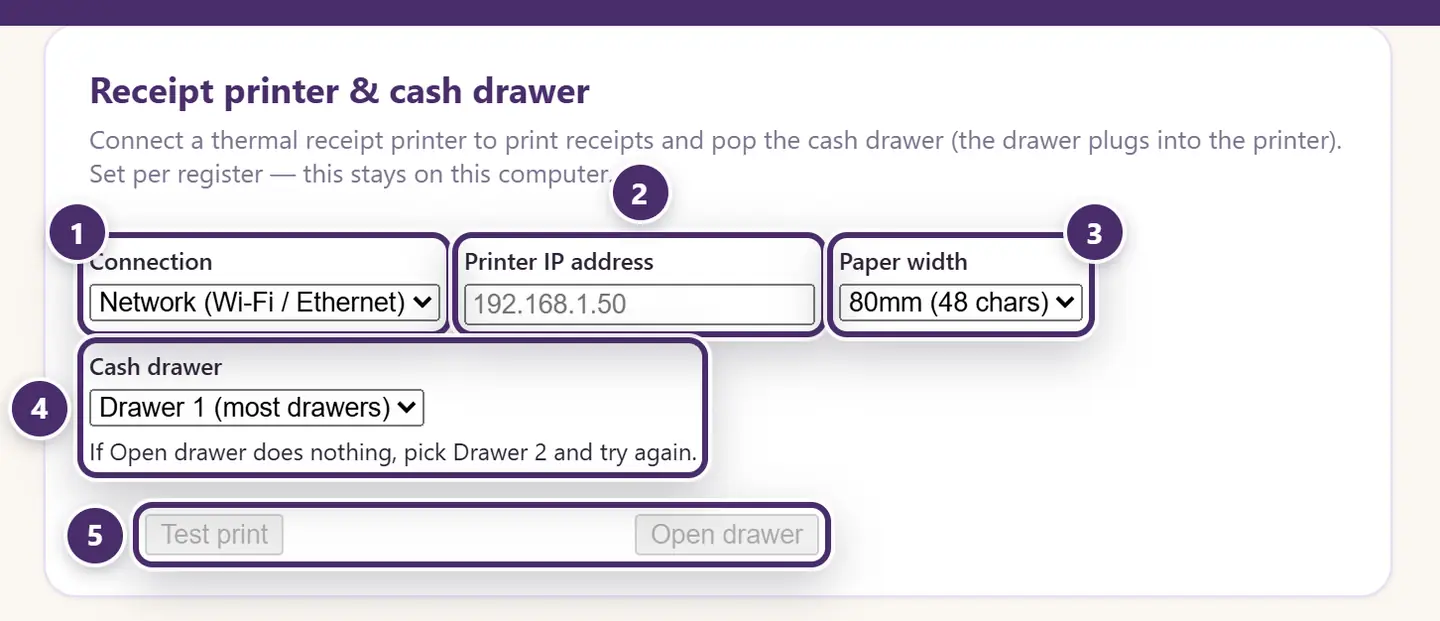
- How it's connected. Over the network (Wi-Fi or Ethernet), or by USB.
- Its address on your network. For USB, a list of the printers on this computer to pick from.
- Paper width. 80 mm rolls print 48 characters a line; 58 mm rolls print 32.
- Cash drawer. Most drawers are Drawer 1. If Open drawer does nothing, pick Drawer 2 and try again.
- Test print sends a one-line receipt; Open drawer kicks the drawer, which plugs into the printer.
Once a receipt printer is set up: a cash sale pops the drawer by itself, No sale — open drawer appears on the register, and Print last receipt goes to the printer instead of a PDF. Receipts are never printed unasked — a shop that only prints on request prints on request.
What prints on a receipt
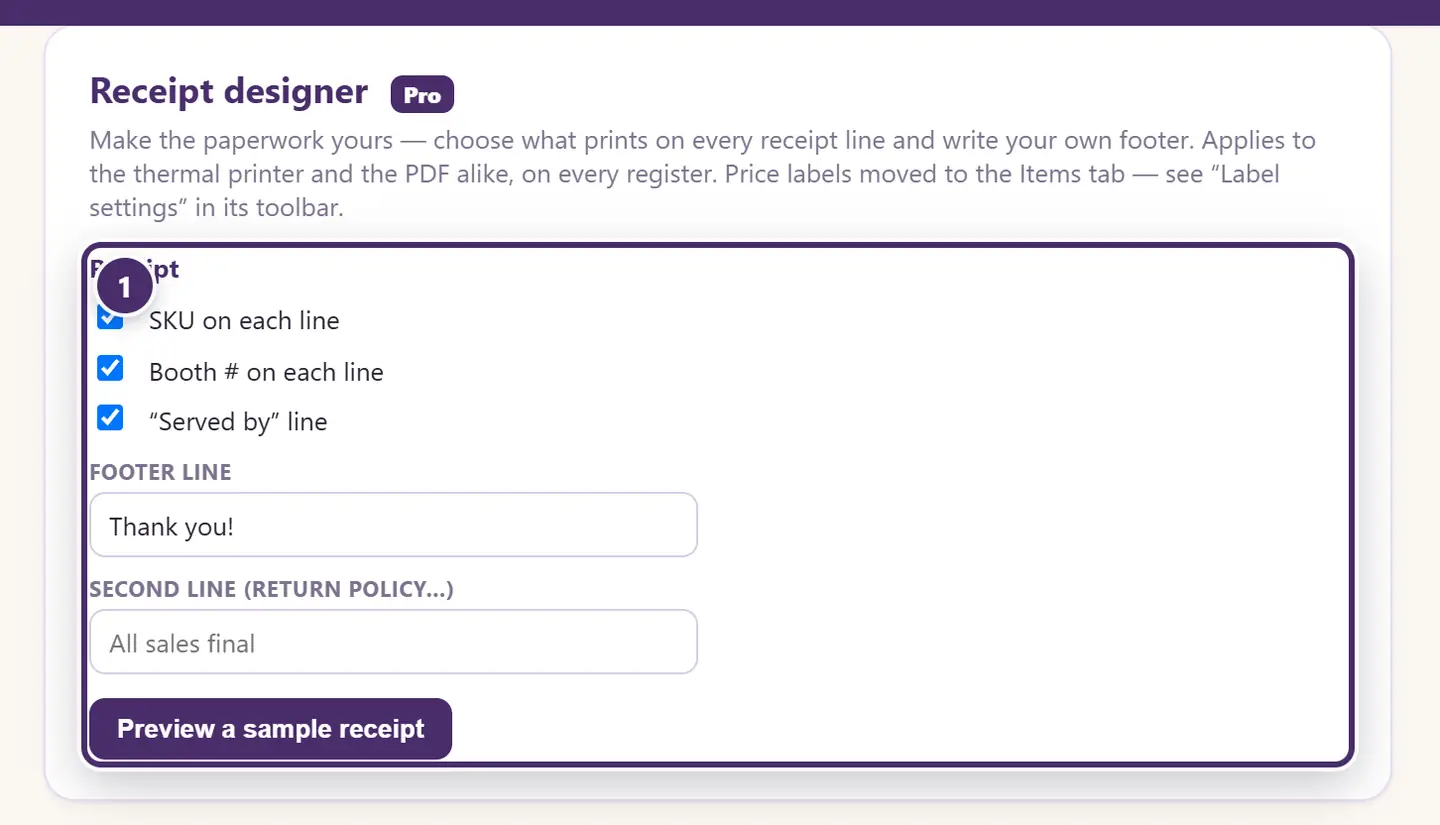
- What prints on every receipt line — the SKU, the booth number, a Served by line with the cashier's name — and your own footer line and a second line (All sales final, a return policy). It applies to the thermal printer and the PDF alike, on every register. Preview a sample receipt shows exactly how a real one prints.
The receipt designer is an Inky Mall OS Pro feature (the Receipt & label designer switch). Your logo and shop name at the top of the receipt come from Branding — see Settings reference.
Every receipt carries the shop's name, the date and time, the eight-character receipt code, each line with its quantity and price (and the percentage off, if any), the tax, the total, how it was paid, and the change.
Statements, slips and other paper
Payout statements, payout slips, the Financials PDF statement, exports of the item list — all of these are generated as PDFs and open in a preview with a Print button, whatever printers you have. See Payouts and Financials & reports.
When the internet is out
Everything here is between this computer and a printer on your own network or USB cable. None of it needs the internet.
Guide for Inky Mall OS 0.16.0, updated Nov 20, 2026 · Download the whole guide (PDF)