
7 · Vendors & booths
On this page
A booth is a vendor, a number, a commission rate and a rent. Every item belongs to a booth, every sale is credited to one, and at the end of the period each booth is paid what it's owed. All of that is set up on the Vendor Management tab, which sits behind the owner's PIN.
What you are looking at
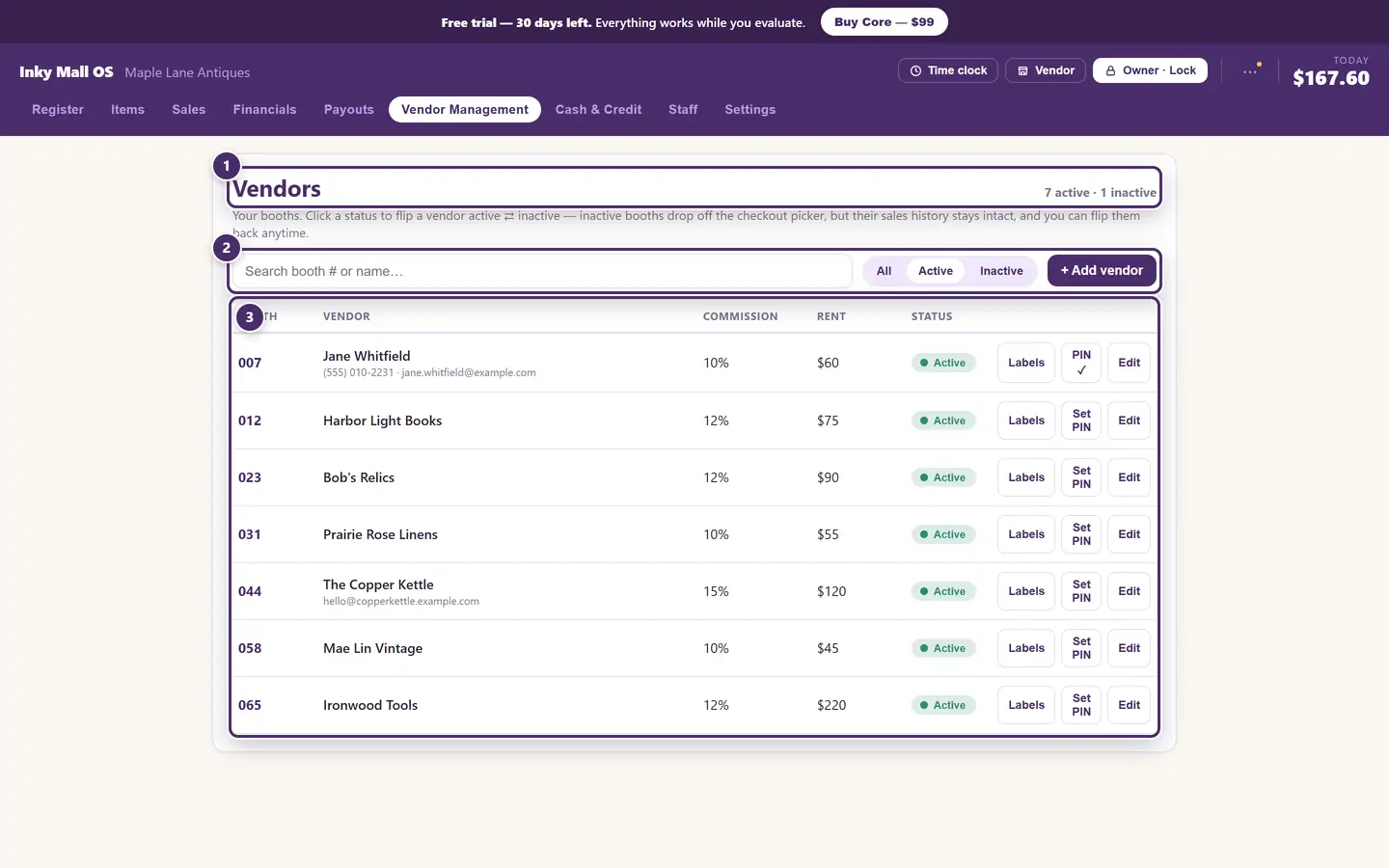
- The count. How many booths are trading, and how many are kept only for their history.
- Search, the Active / Inactive filter, and Add vendor. The list opens on the active booths; All shows the retired ones too.
- One row per booth. Number, name and contact, commission, rent, whether it's active, and the buttons.
Adding a booth
Tap + Add vendor.

- Booth number. This becomes the first half of every SKU the vendor will ever have
—
007-00001is booth 7's first item — so choose it once and keep it. Inky pads it to three digits on tags and refuses a number another booth already answers to, even one that only differs by leading zeros (7,07and007would all print the same barcode). - Name. As it should read on statements and receipts.
- Commission %. The shop's cut of each sale from this booth.
- Rent, per month. Leave it blank for a vendor who pays no booth rent.
- Add.
- Phone, optional.
- Email, optional.
The consignment rate — a different cut for items the vendor owns outright — isn't on this screen. It comes over with an import (see Your data) or from your store on get-inky.com, and the register applies it to any item marked consignment in Items.
One booth

Booth number.
Name, and the contact card if one was entered.
Commission. The shop's cut of this booth's sales.
Rent per month, or — for a booth that pays none.
Active. Click it to flip the booth inactive: it drops off the register's booth pickers and stops being charged rent, but every sale it ever made stays exactly where it is. If something of theirs still sells after they've gone, the booth appears on that period's payout and is owed its money as usual — just with no rent taken. Click again to bring it back. This is how a vendor leaves; booths are almost never deleted.
Nothing new can be rung up on an inactive booth. If the booth still has items for sale, Inky says how many before it lets you switch it off, since those tags won't ring until the items are moved to a live booth.
Labels prints tags for this booth's items, see Labels & printing. PIN sets the booth PIN for the vendor's own view, below. Edit opens the row.
Editing a booth

- Name. The booth number itself can't be edited — it's printed on every tag in the booth.
- Commission %. A change applies to sales from now on. Every sale already rung keeps the rate it was rung at, so a mid-month change never rewrites the first half of the month.
- Rent.
- Phone and email.
- Combine… folds this booth into another one — below.
- Delete is only possible while the booth has no items and no sales. For anything that has ever traded, set it inactive instead; the history has to stay.
Combining two booths
For a vendor who took over a second space, or a duplicate booth made by mistake. Open the booth that is going away with Edit, then Combine….
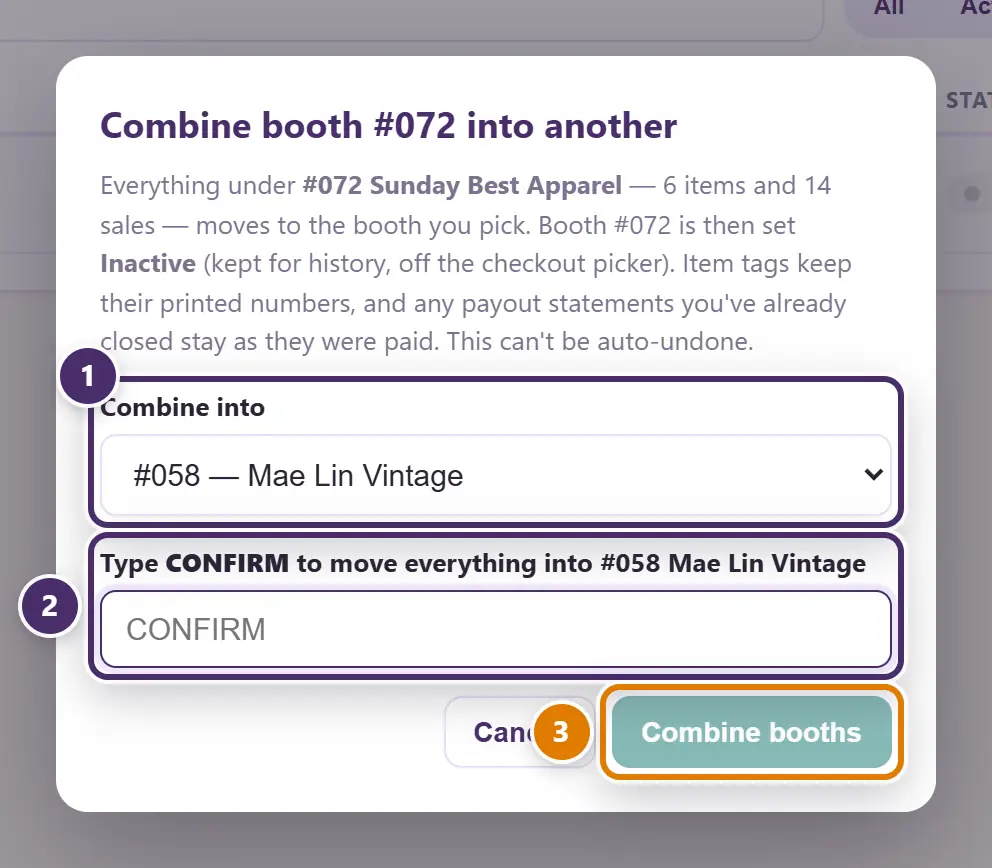
- Which booth takes everything over. Only live booths are offered.
- Type CONFIRM. This can't be undone by pressing a button, so Inky asks for the word rather than a click.
- Combine booths. Every item and every sale moves to the booth you picked; the emptied booth is set inactive and kept.
Items keep the SKUs printed on their tags, so nothing needs re-labelling — a tag from the old booth still scans, and the sale is credited to the new one. Payout statements you have already closed stay exactly as they were paid.
Items on inactive booths
When items are still for sale under a booth that's inactive, an amber box at the top of the vendor list names every one of them — the register won't ring them, because the money would go to a booth that's gone.
- Move sends one item to the booth you pick. When the tag already names a live booth
(a CAFE tag
001-00042left under an inactive01, say), that booth is picked for you and the item keeps its SKU — the tag on the shelf still scans. - Move all to their tag's booth does that for every item with an obvious home at once.
- An item moved to a booth its tag doesn't name gets a new SKU for that booth; print it a fresh tag.
The vendor's own view
A vendor can see their own booth — and only their own booth — at the counter, without anyone unlocking the back office. It takes a booth PIN, which you set from the vendor's row.
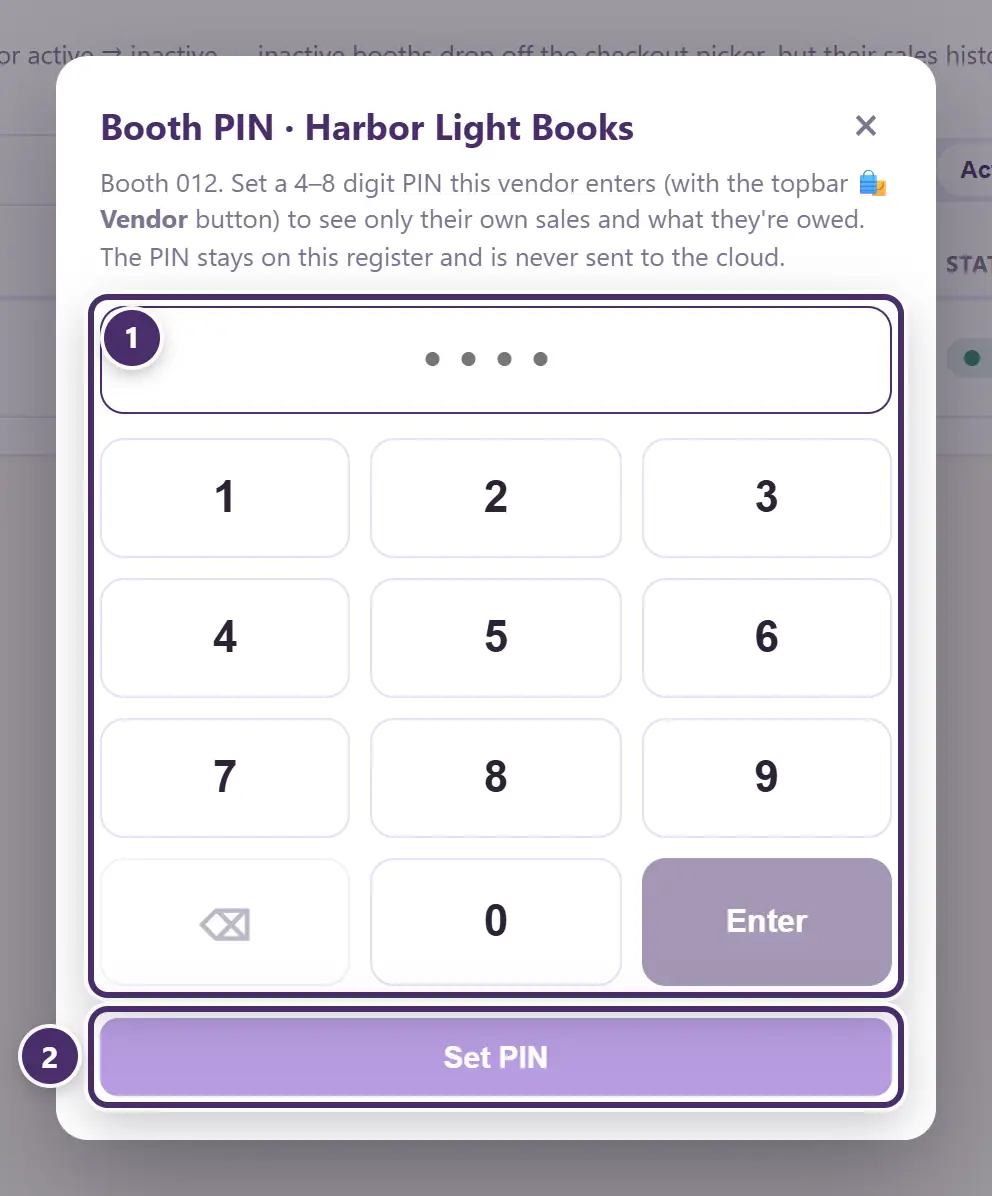
- 4 to 8 digits. Type it, or tap it in. The PIN stays on this register and is never sent anywhere; Remove PIN takes it away again.
- Set PIN.
Then, from the register, the vendor taps Vendor in the top bar.
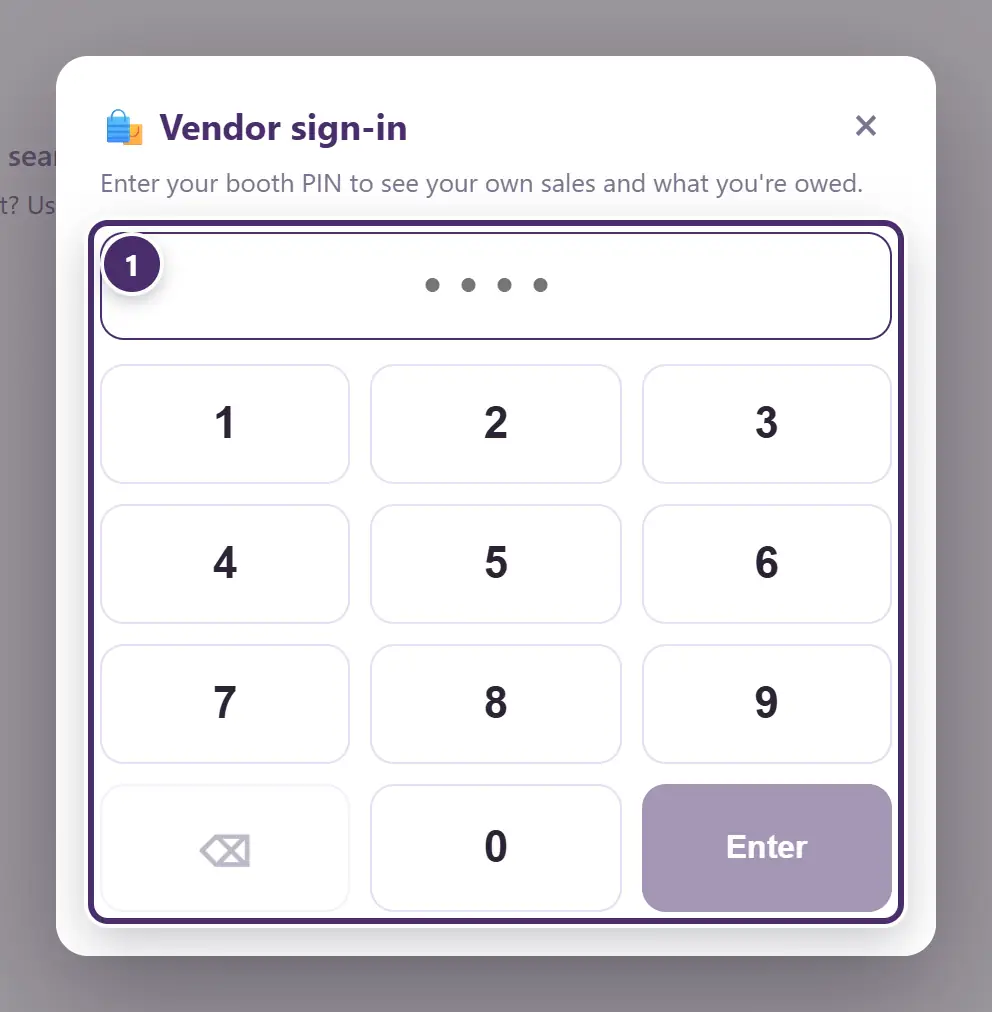
- The booth PIN. Whoever types Jane's PIN sees Jane's booth, and nothing else.
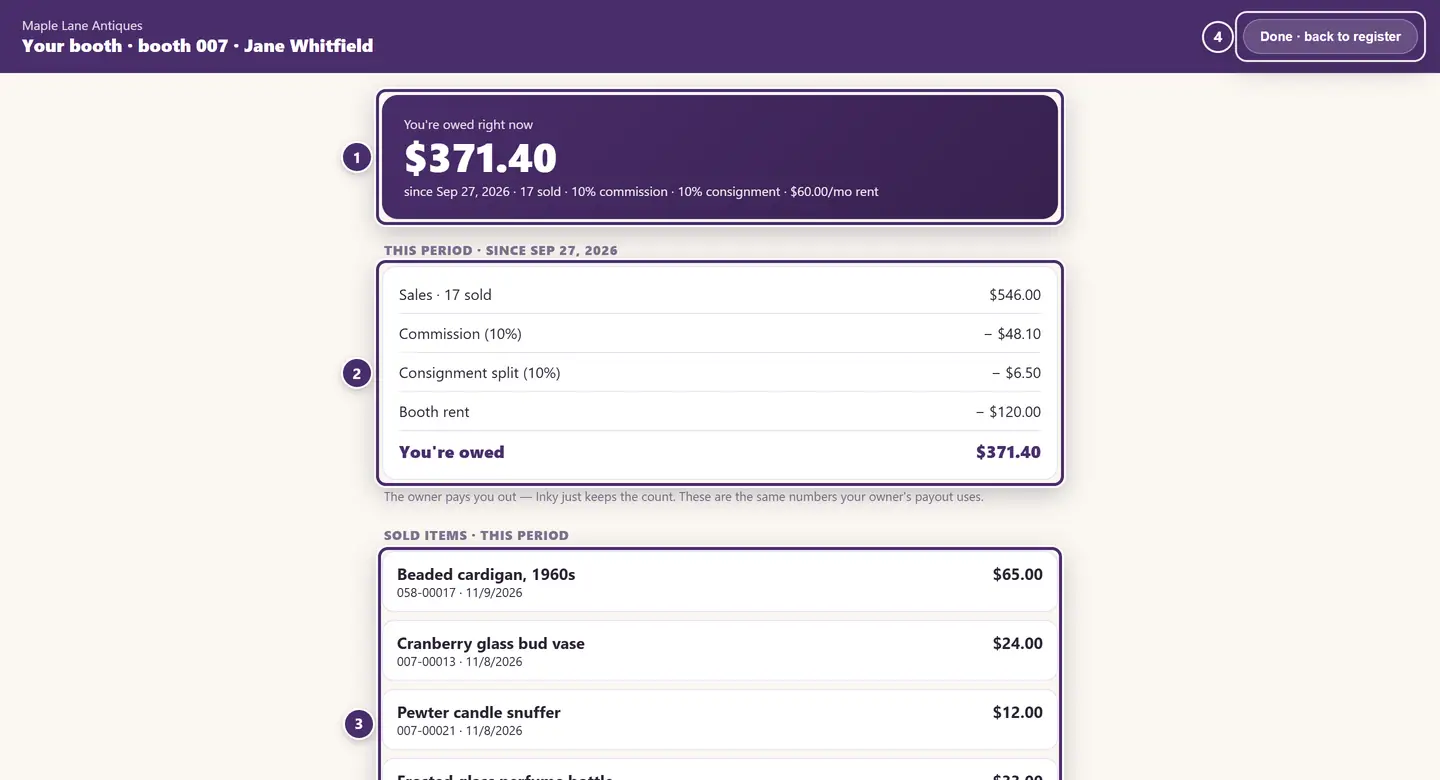
- What they're owed right now — their sales since the last payout, less the shop's commission, less their booth rent for the period so far.
- How that number is made. These are the same figures the owner's payout uses; there is no second set of books.
- Everything of theirs that has sold this period, with the date and the price it went for — a discount shows beside the price.
- Done. Back to the register. Nothing on this screen can be changed.
If a booth's sales haven't yet covered its rent, the vendor sees that plainly: the shortfall carries to the next period, and a payout never goes below $0 — Inky never turns "rent not yet covered" into "the vendor owes the shop". How rent is actually collected is in Payouts.
From home. In a Cloud+ shop the same view is live on get-inky.com, with statements to download — vendors see their sales there as they happen. See Cloud+ & sync.
When the internet is out
Everything on this tab is local — adding, editing, combining, booth PINs and the vendor's own view all work with no connection. Only the from-home parts wait for one.
Guide for Inky Mall OS 0.16.0, updated Nov 20, 2026 · Download the whole guide (PDF)