
17 · Settings reference
On this page
Every card on the Settings tab, what it does, what it defaults to, and where in this manual it's explained. Settings sits behind the owner's PIN.
Two kinds of setting live here, and it matters which is which:
- Shop settings sync. The name, tax rate, time zone, payment methods, feature switches, promotions, coupons, branding, the designer — one shop, every register the same. Change it once.
- Register settings stay on this computer. The printers, the label size, the card reader, the customer display window. Each till has its own.
What you are looking at
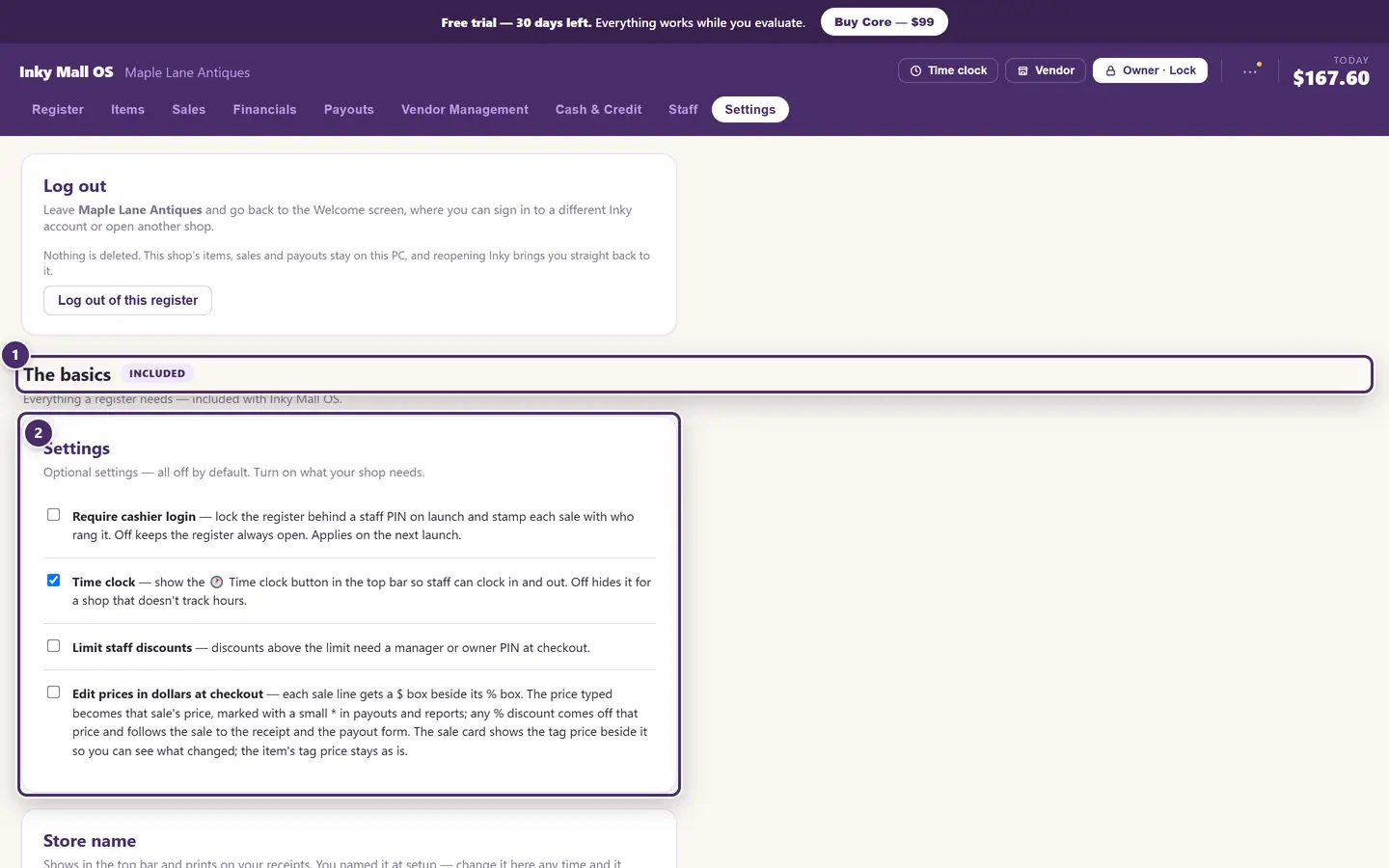
- Four groups, top to bottom: the basics that come with every edition, the Pro suite, Cloud+, and Inky Accounting. Each group's header says what it needs; a group you don't have is dimmed, with a button to get it.
- The optional basics — all off by default. Below them: the shop's name, tax rate and time zone, payment methods, the printers, labels, and bringing a store over.
The basics — included with every edition
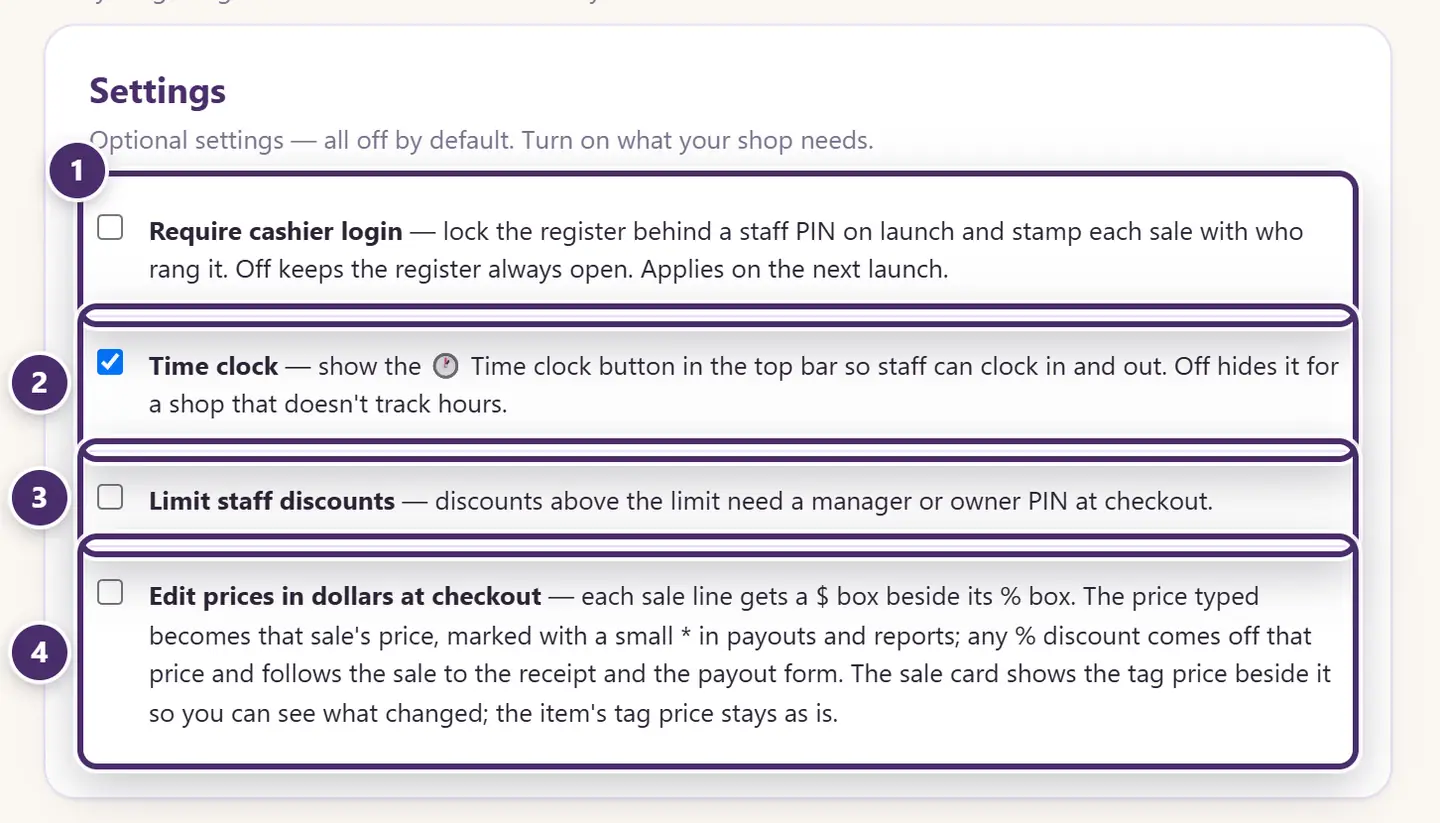
| Setting | What it does | Default | Chapter |
|---|---|---|---|
| Require cashier login | The register opens on a staff PIN pad; every sale carries who rang it; the register locks when nobody's clocked in. Takes effect on the next launch. | Off | 14 |
| Time clock | Shows the Time clock button in the top bar. Off hides it for a shop that doesn't track hours. | On | 14 |
| Limit staff discounts | Any sale discounted above the percentage needs a manager or owner PIN at checkout. | Off · 10% | 14 |
| Edit prices in dollars at checkout | Every sale line gets a $ box beside its % box; a typed price becomes that sale's price, marked with a *. | Off | 2 |
| Card | What it does | Notes | Chapter |
|---|---|---|---|
| Store name | Shows in the top bar and prints on receipts. | Set at first run; change any time. Syncs. | 1 |
| Sales tax rate | Applied to every taxable line at checkout. | Takes effect on the next sale; sales already rung keep the rate they were charged. 0 = no tax. Syncs. | 3 |
| Time zone | Decides when a day begins and ends for payout periods and date filters — a June payout is your June. | Defaults to the register's own zone. | 11 |
| Payment methods | Which tenders appear at checkout. Cash is always on; Square reader only appears on a till with a paired reader; the record-only Card is hidden while a reader is paired unless you save it here. | All on. | 3 |
| ↳ Ask the cashier to confirm wallet payments | After a Venmo / Cash App / PayPal sale, asks "did the money arrive?"; unconfirmed ones list on Cash & Credit. | On | 4 |
| ↳ Square gift cards | Take, sell, reload and check Square gift cards at the register, beside Inky's own. Needs the internet and Square connected with the gift card permission (reconnect Square once if they don't show). Square's load fee applies to every load. | Off | 4 |
| ↳ Take cards over the phone | Adds two Phone order choices to the Square reader tender: type the card in on the reader, or send the customer a payment link. Both cost more than a tap, and the shop carries the fraud risk. Needs a paired reader. | Off | 4 |
| ↳ Card fee | Adds a percentage on credit cards (never debit); asked at checkout, printed on the receipt, kept by the shop. Choose which card tenders it applies to. | 0% = off | 3 |
| Receipt printer & cash drawer | A thermal receipt printer over the network or USB, paper width, which drawer (Drawer 1 or 2), test print, open drawer. | Per register. | 6 |
| Label printer | A thermal label printer over the network or USB, its language (TSPL / ZPL), test print. Tags asked for from a phone always wait for a tap on the register. | Per register. | 6 |
| Label settings | Default label size, price on the tag, and (Pro) booth number and title on the tag. | Per register. | 6 |
| Bring your store over | Import your old system's Access backup (.mdb), or booths and items from a CSV. |
The Access backup works on the free trial or with a licence. | 18 |
| Backup & restore | A dated backup of the whole store; restore one (a safety copy of today's data is set aside first); export the inventory as a spreadsheet. Installed app only. | Every edition. | 18 |
Inky Mall OS Pro
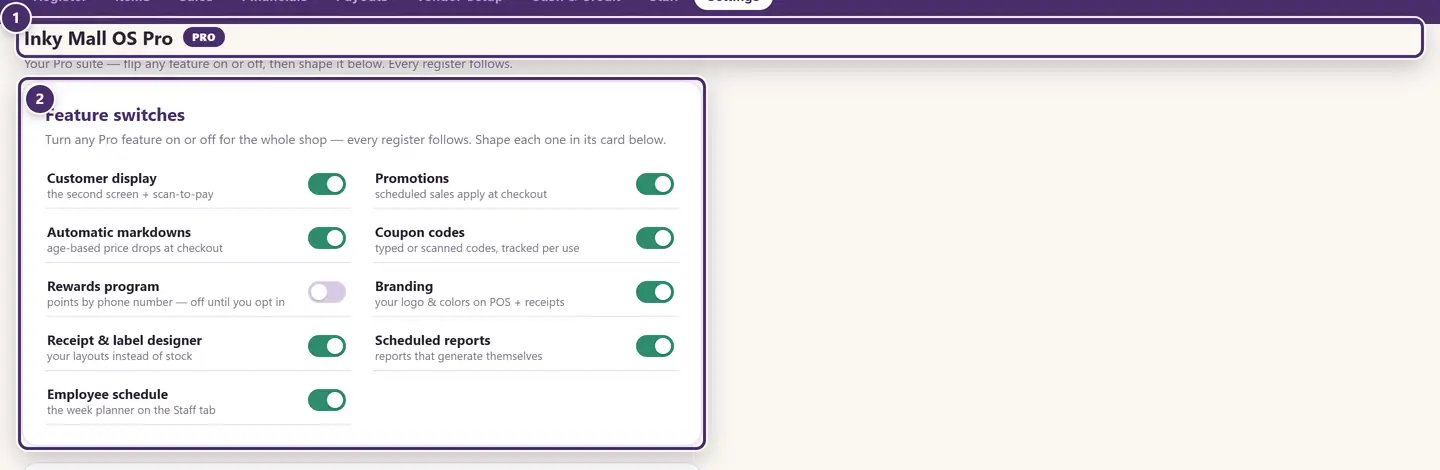
- Inky Mall OS Pro. On a Core shop this header carries a Get Pro button and the cards below are dimmed; on a Pro shop they're live.
- The feature switches come first — every Pro card below obeys its switch, and so does every register.
| Switch / card | What it does | Default | Chapter |
|---|---|---|---|
| Feature switches | One master switch per Pro feature, for the whole shop. | All on except Rewards | 10 |
| Customer display | Opens the second screen; fills a second monitor automatically; the welcome message and announcement banner; the You saved line and sale badges; a pay code when a wallet tender is selected; your Venmo / Cash App / PayPal handles. | Auto-fill on · savings & badges on · pay code on cart | 15 |
| Promotions & markdowns | Scheduled percentage-off sales, store-wide or one booth. | — | 10 |
| Coupon codes | Codes the customer presents; single or in unique batches; printable as barcodes. | — | 10 |
| Rewards program | Points by phone; the earn rate and what a redemption is worth. | Off — opt in | 10 |
| Automatic markdowns | Age-based tiers: after N days, X% off. | — | 10 |
| Branding | Accent colour; a logo (PNG or SVG under 512 KB) on the POS and at the top of receipts; the shop name in the receipt header; header lines (address, phone, policy); a receipt tagline. | Plum; name on | 6 |
| Receipt designer | SKU, booth number and Served by on each receipt line; footer line and second line; a sample receipt. | All on | 6 |
| Scheduled reports | Standing orders the register fulfils by itself — a sales CSV or an inventory snapshot, daily, weekly or monthly — into the Saved folder when the app opens. Installed app only. | None | 12 |
Inky Cloud+ and Inky Accounting
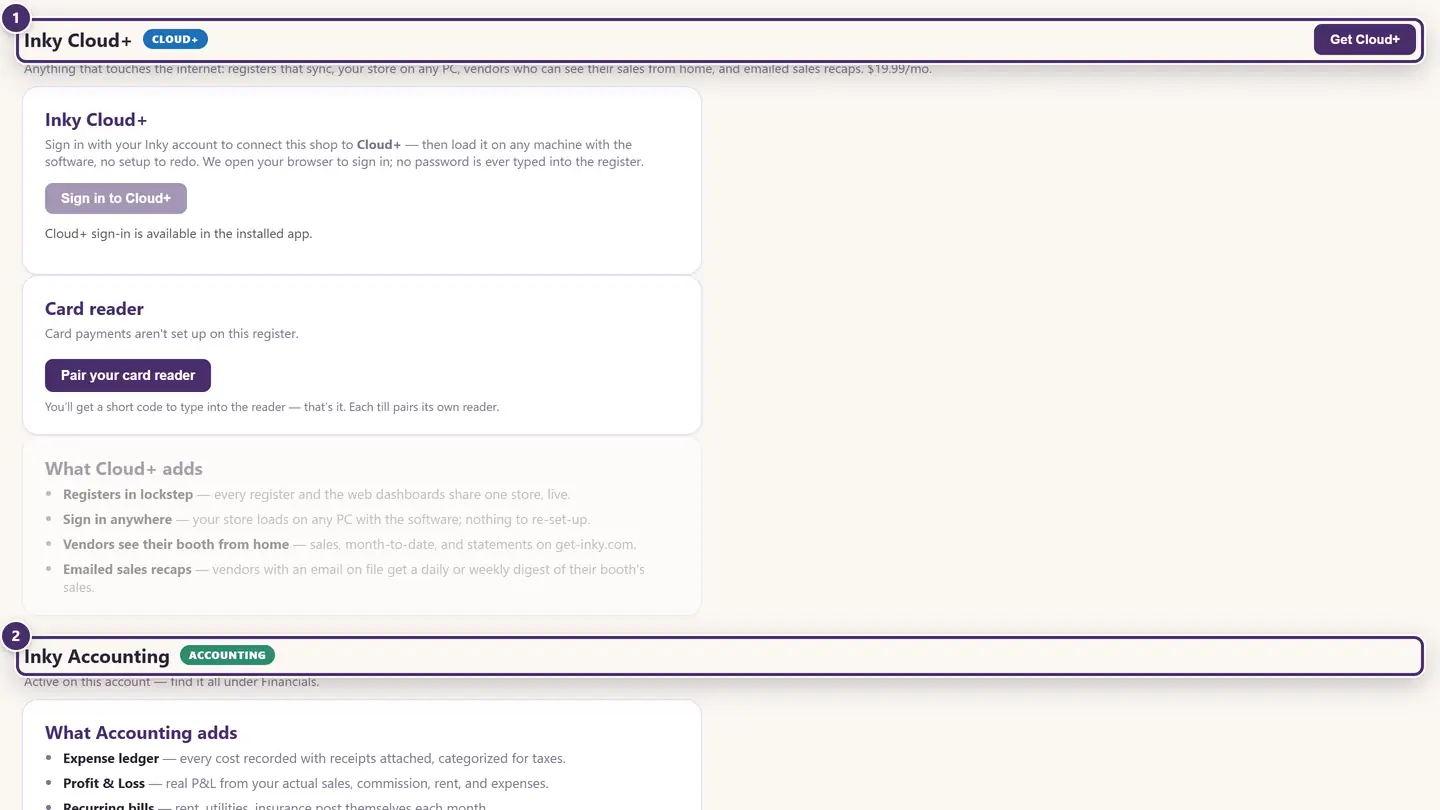
- Inky Cloud+ — signing this register into your Inky account, the Square card reader, and a list of what Cloud+ adds.
- Inky Accounting — the bookkeeping suite, which lives under Financials once it's on your account.
| Card | What it does | Chapter |
|---|---|---|
| Inky Cloud+ | Sign in with your Inky account (the browser opens; no password is typed into the register); choose which of your stores this register is; reconnect; sign out. Signed in, this register runs from your account and syncs. | 16 |
| Card reader | Pair a Square reader to this till with a short code; unpair it; test mode shows when the reader is on Square's sandbox. | 4 |
| What Cloud+ adds | Registers in lockstep, sign in anywhere, vendors see their booth from home. | 16 |
| Inky Accounting | Expense ledger, Profit & Loss, recurring bills, budgets and year-end worksheets — under Financials. | 13 |
| Need a feature we don't have? | Emails [email protected] with the subject filled in. | — |
Plans, prices and what each edition includes are in Licensing & plans.
Where the top-bar things live
Not everything is on the Settings tab. The ⋯ menu in the top bar holds the plan, Cloud+ status, the version (and Check for updates), Help (this guide, as a PDF in your browser), and the sync log. The store name in the top bar opens the location switcher on a Pro shop with more than one location. See Getting started.
Guide for Inky Mall OS 0.16.0, updated Nov 20, 2026 · Download the whole guide (PDF)