2 · The register
On this page
- What you are looking at
- Ringing something up
- Changing a line before you take payment
- Discounts, coupons and tax on the whole sale
- Something with no tag at all
- Serving two people at once
- Taking payment
- Layaway
- Gift cards
- When a piece sells on your shop page
- The other buttons and banners
- When the internet is out
The register is where the day happens. It opens when Inky opens, it works with the internet unplugged, and it is the one screen a new person at the counter needs to learn.
Everything here works the same whether your shop has three booths or three hundred.
What you are looking at
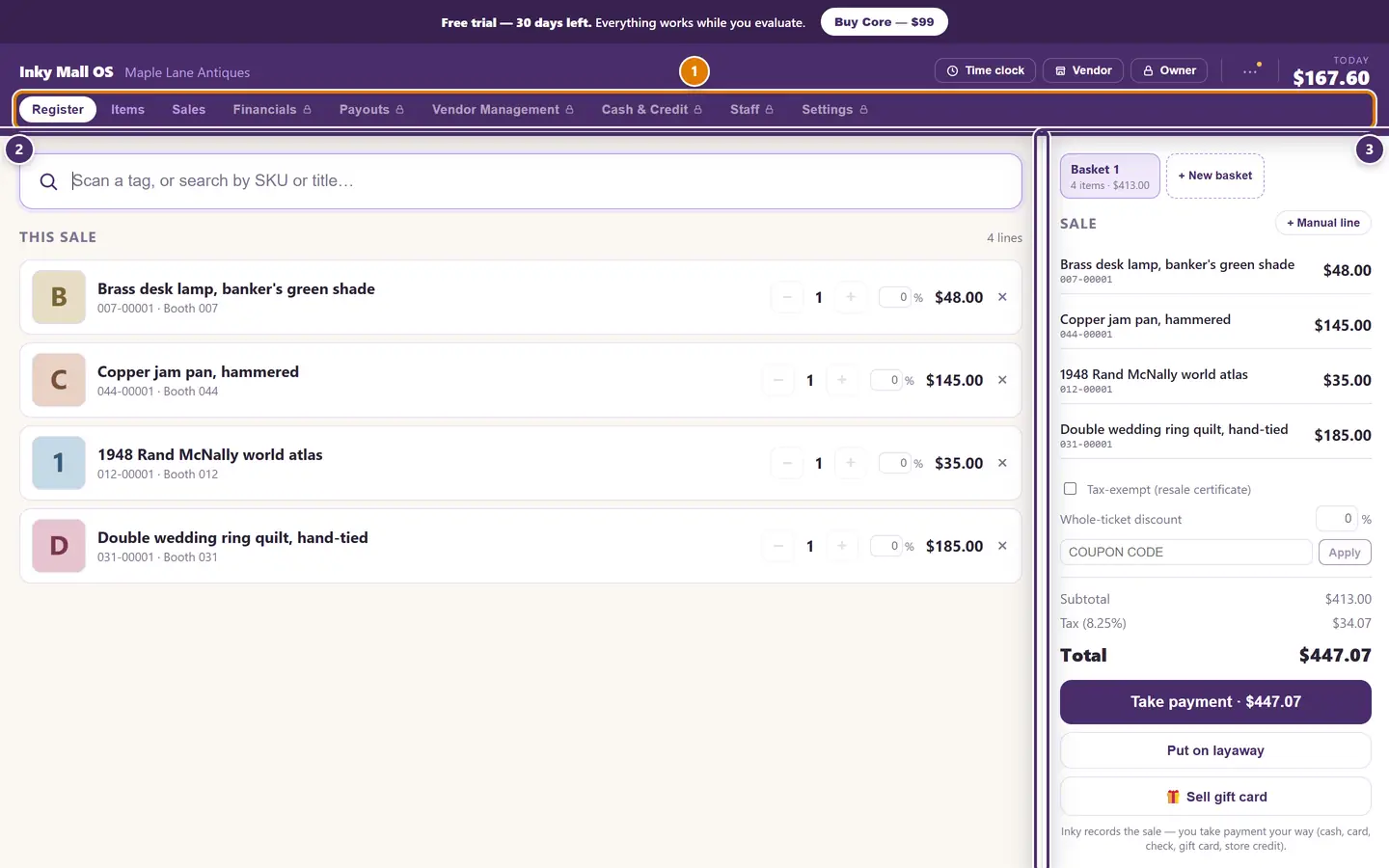
- The tabs. Everything else in the shop — inventory, sales, the books, the booths — lives up here. The register is always the first one. Tabs with a small padlock need the owner's PIN; see Staff & security.
- The sale you are building. Each thing you ring lands here as a card: title, SKU, which booth it came from, how many, and its own discount box.
- The receipt side. The same sale laid out the way the printed tape reads, with the totals and the money buttons underneath.
Up in the corner, Today is the one number most owners glance at all day — everything rung on this register since midnight.
Ringing something up

Point the scanner at the tag. That's it — the item goes straight onto the sale and the bar clears itself, ready for the next tag. You don't press Enter, and you don't tap anything. Some scanner guns don't send an Enter at all, so Inky doesn't wait for one.
The bar only rings on an exact, complete SKU. Typing part of a title, or half a SKU, never rings anything by surprise — it just searches.
Scan the same tag twice and the line's quantity goes up instead of a second line appearing. Inky will not let that number go past what the booth actually has on the shelf.
When there's no tag, or the barcode won't read
Type any part of the title instead.
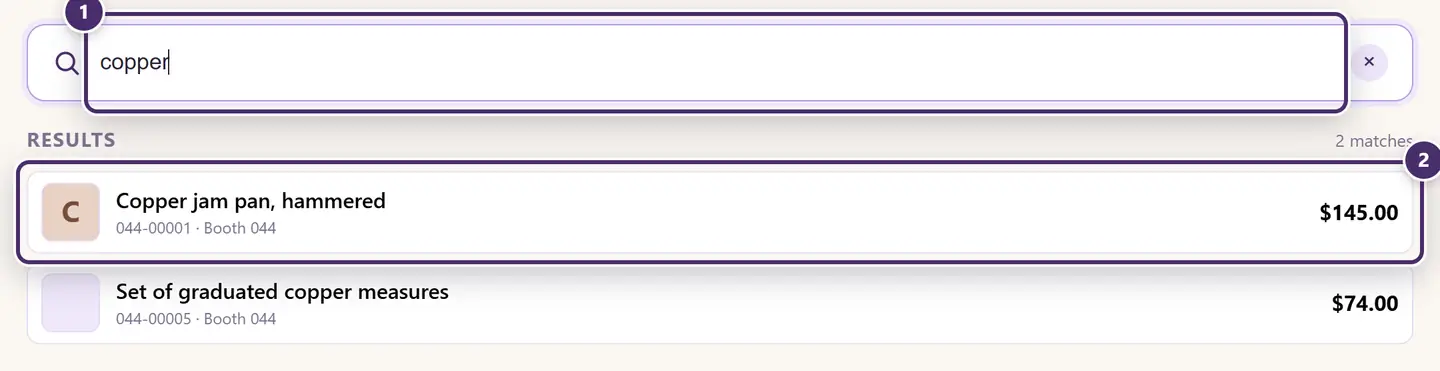
- Type what you can see. Searching never rings anything on its own, so you can type freely and look at what comes back.
- Tap a row to ring it. Each row shows the price and the booth. The bar clears itself afterwards, ready for the next thing.
If exactly one item is left in the results, pressing Enter rings it.
Something with no price on it
It still goes on the sale. The line is flagged with a small "No price on this one" box — type the price, press Enter or tap Set, and carry on.
You can keep scanning the rest of the basket first and come back to it. The sale simply can't be completed until every flagged line has a price, so an unpriced thing can never slip through at $0.00.
Changing a line before you take payment

- How many. The + stops at the number the booth actually has on the shelf, so the register can't oversell.
- Money off this line. A percentage off this one thing. The booth's share follows the real selling price — a discount comes out of the vendor's cut, exactly as it always has at the counter.
- What the line comes to. If anything came off, the original price shows struck through above it.
- Take it off the sale. Nothing is recorded until you take payment, so removing a line costs nothing.
If a scheduled promotion or an automatic markdown applies to the item, a small badge with the promotion's name appears under the title, and the price already reflects it.
Re-pricing a line in dollars
Some shops would rather type "40" than work out what percentage gets a $48 lamp down to $40. Switch on Edit prices in dollars at checkout in Settings and every sale line grows a $ box beside its % box.

- The $ box. Type what this one sells for today and press Enter. The % box beside it still works — a discount comes off the price you typed.
- What changed. The tag price shows struck through, the new price beside it with a small *, so anyone can see the line was re-priced. The item's own tag price is untouched — you have changed this sale, not the inventory.
The typed price becomes the sale's price for the receipt, the booth's payout and every report, and it carries the same * there so a re-priced sale is never mistaken for a discounted one.
The vendor's bottom dollar
A vendor can set a bottom dollar on an item: the lowest price they'll take. When they have, the sale line shows it, so you can say yes to a customer's offer without tracking the vendor down.

- Bottom $26. The lowest price this item's vendor will take. Only staff see it. At or above it, ring the sale the usual way: type the offer in the $ box, or take a percentage off.
If the line ends up below the bottom dollar, Take payment stops and asks for a manager or owner PIN first. The check uses what the line really sells for, after every discount, promotion and coupon.
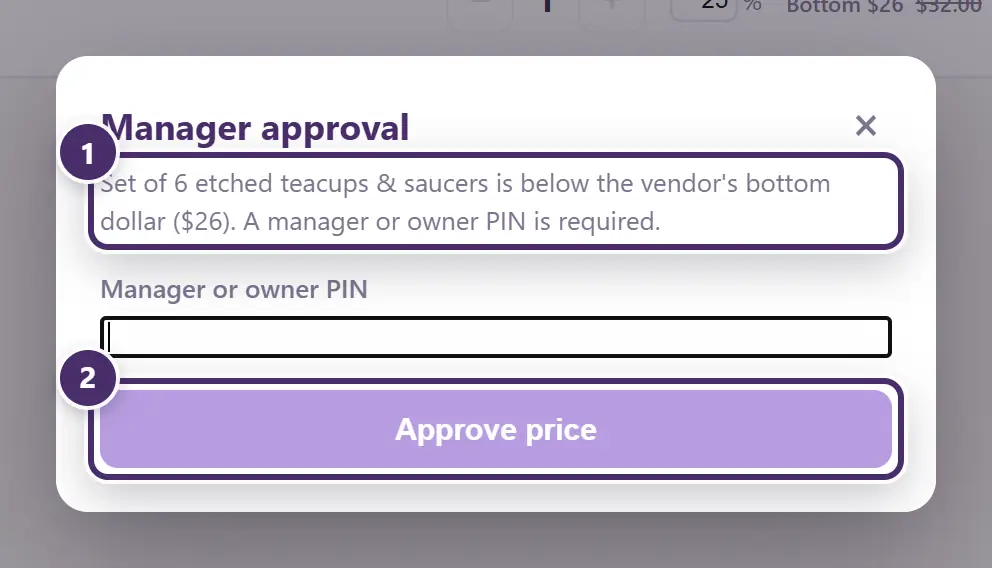
- Why it stopped. Names the item and its bottom dollar.
- Approve price. A manager or owner types their PIN and taps it. The approval goes in the activity log.
The bottom dollar never shows on the customer display, the receipt or the price tag. Vendors set and change it in Inky on the web or their phone; the register shows it but can't change it. If one doesn't show up right after this register updates, tap Sync now once.
Discounts, coupons and tax on the whole sale
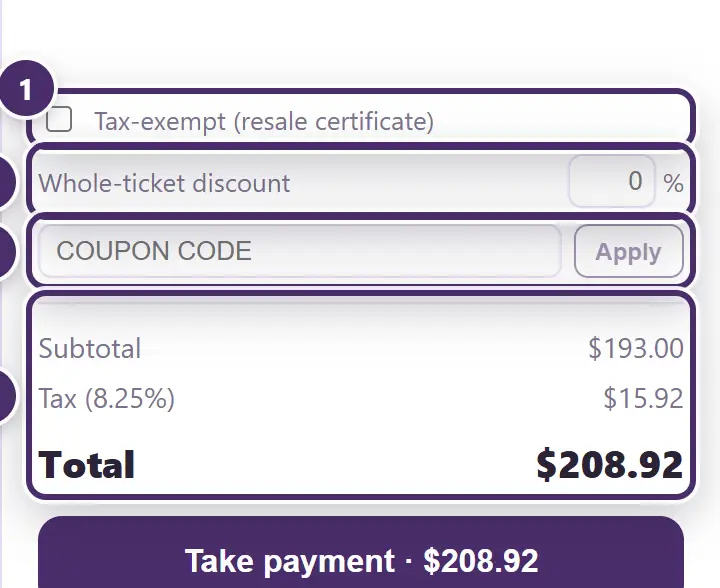
- Tax-exempt (resale certificate). For a buyer who is buying to resell. Ticking it asks who — a tax-exempt sale with nobody on it is no use to you at audit time. Pick the buyer from the list, or add them right there with their certificate number; you never have to leave the sale to do it. The name then sits under the tick box, with Change beside it. Close the window without choosing and the sale stays taxable. Anyone you add here is saved as a reseller, so next time they're at the top of the list — and picking them at payment makes the sale tax-exempt even if nobody ticked this box.
- Whole-ticket discount. A percentage off everything, on top of anything you already took off a single line.
- Coupon code. Type the code — or scan it, if it was printed as a barcode — and tap Apply. The coupon shows as a chip with what it took off, and Remove puts it back. This box is only there when Coupon codes is switched on; see Promotions, coupons & rewards.
- The running totals. Subtotal, any discount, the tax, and what they owe.
A note on discounts. If your shop runs scheduled promotions or automatic markdowns, they apply themselves at the register. Where both land on the same item the customer gets whichever of the two is larger — those never stack with each other. A discount you type in yourself is applied on top of that. The whole story — including who pays for a discount — is in Promotions, coupons & rewards.
Your shop can also require a manager's PIN for anything above a set percentage. That's Limit staff discounts in Settings; the approval itself is described in Staff & security.
Something with no tag at all
A box lot, a last-minute find, something a vendor just carried in. Tap + Manual line.
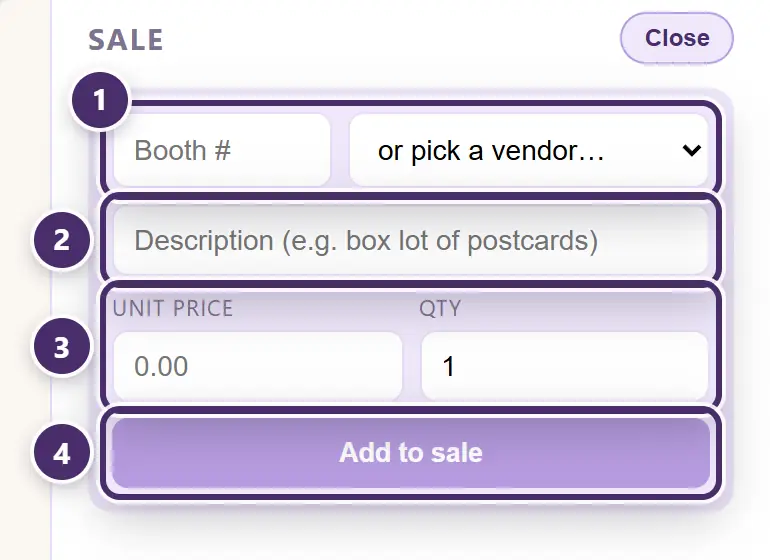
- Whose booth is it? Type the booth number, or pick the vendor from the list. This is the one field not to guess — it decides who gets paid.
- What is it? Whatever you'd want to see on the receipt later: box lot of postcards.
- How much each, and how many.
- Add it to the sale. From here on it rings, taxes and pays out exactly like a tagged item.
The button stays greyed out until there's both a real vendor and a price above zero. Close puts the form away again.
A line rung this way is remembered as rung by hand. If it turns out to have been a tagged item after all, the sale can be linked to its sticker later — see Sales & corrections.
Serving two people at once
Someone goes back for one more thing and there's a queue behind them. Park their basket and start another.
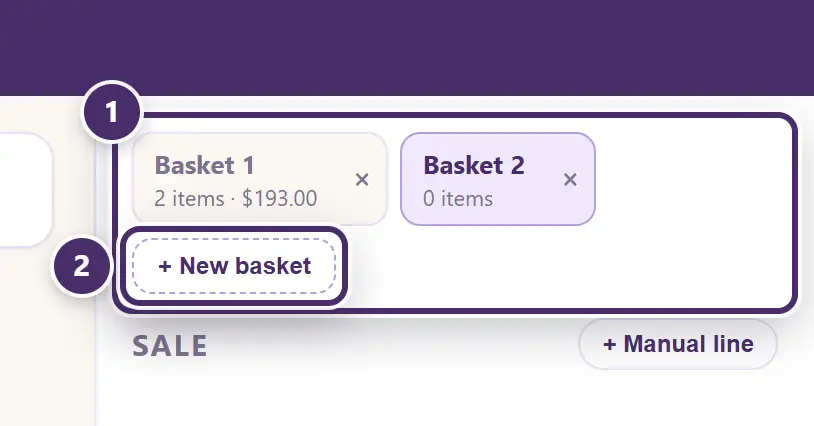
- Each basket is its own sale. Tap between them freely; each tab shows what's in it and what it comes to. A parked basket is not a sale — nothing is recorded and nothing leaves the floor until you take payment. The × on a tab throws that basket away.
- Start another.
Baskets belong to this register. They stay on this machine and are not shared with your other tills.
Taking payment
Tap Take payment.
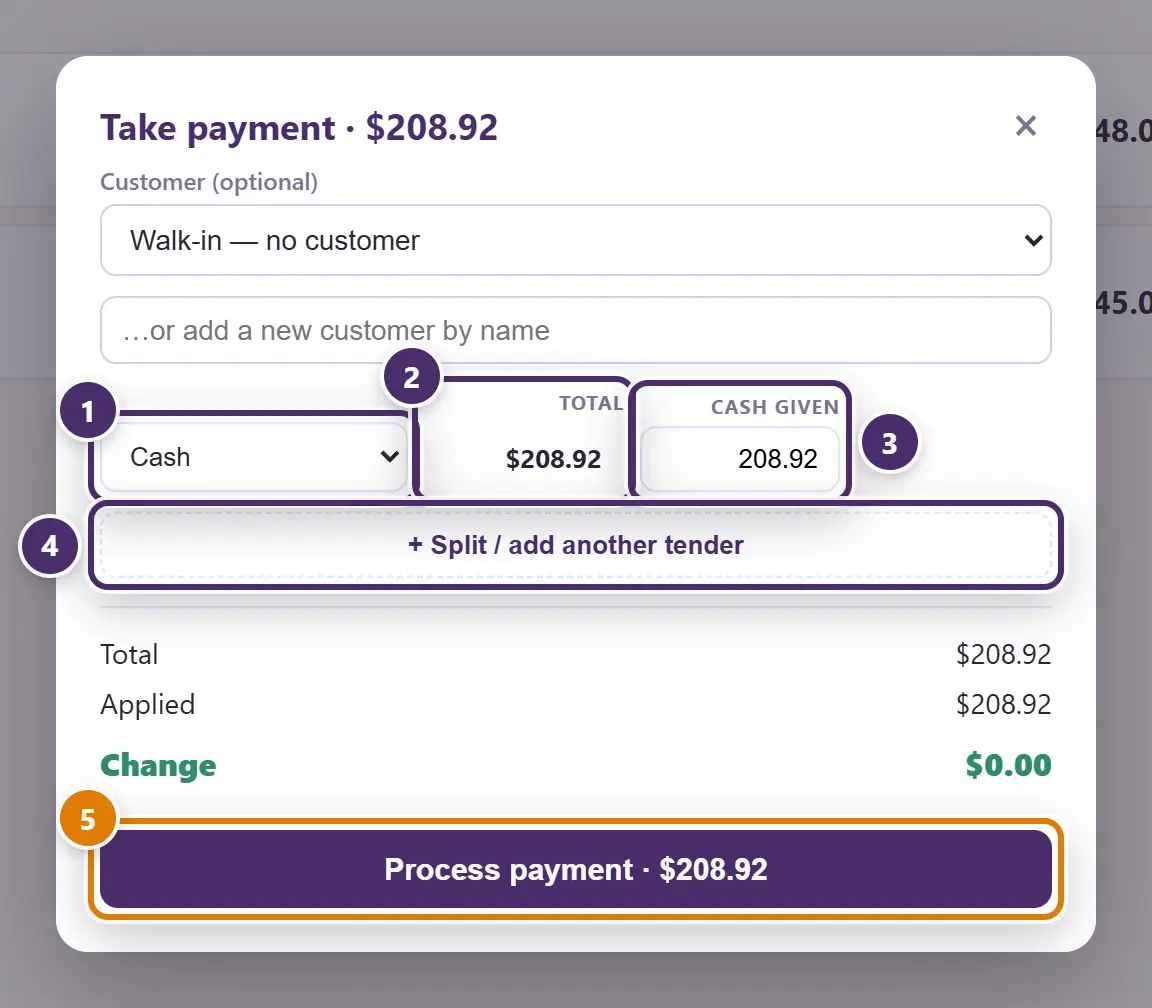
- How they are paying. The box opens on Choose payment… — nothing rings on an assumed cash. Pick from cash, card, check, and whichever wallets your shop accepts. Gift card and Store credit are always here too — those don't take money, they draw down a balance you already owe the customer.
- What this tender covers. The first line always carries whatever the rest of the sale doesn't — the whole total until you split it.
- Cash given. Appears when you pick Cash: what they actually handed over. Put $50 against a $47.07 total and Inky shows the change to give back.
- Split the sale. Adds a second line with its own amount — $40 in cash and the rest on a card, say. Inky keeps track of what is still owed.
- Finish. This button stays greyed out until every line has a tender and the amounts add up to the total, so a sale can't be rung half-paid by accident.
Attaching a customer is optional on an ordinary sale, and it's what builds their purchase history. It is required on a tax-exempt sale. If your shop runs a rewards program, a rewards phone box sits at the top of this window as well.
Card, check and wallet references. Card takes the last 4, check takes the check number, wallets take a handle. All optional, all useful when you're reconciling later. If your shop adds a card fee, a card line asks credit or debit — the fee rides credit only.
What happens after you tap Finish depends on how they paid — a card reader has its own screen, and Venmo, Cash App and PayPal ask you to confirm the money actually arrived. Every tender, in detail, is in Taking payment; the reader and the wallets are in Card reader & wallets.
Layaway
Held for a customer, paid off over time. Ring the items as usual, then tap Put on layaway instead of Take payment.
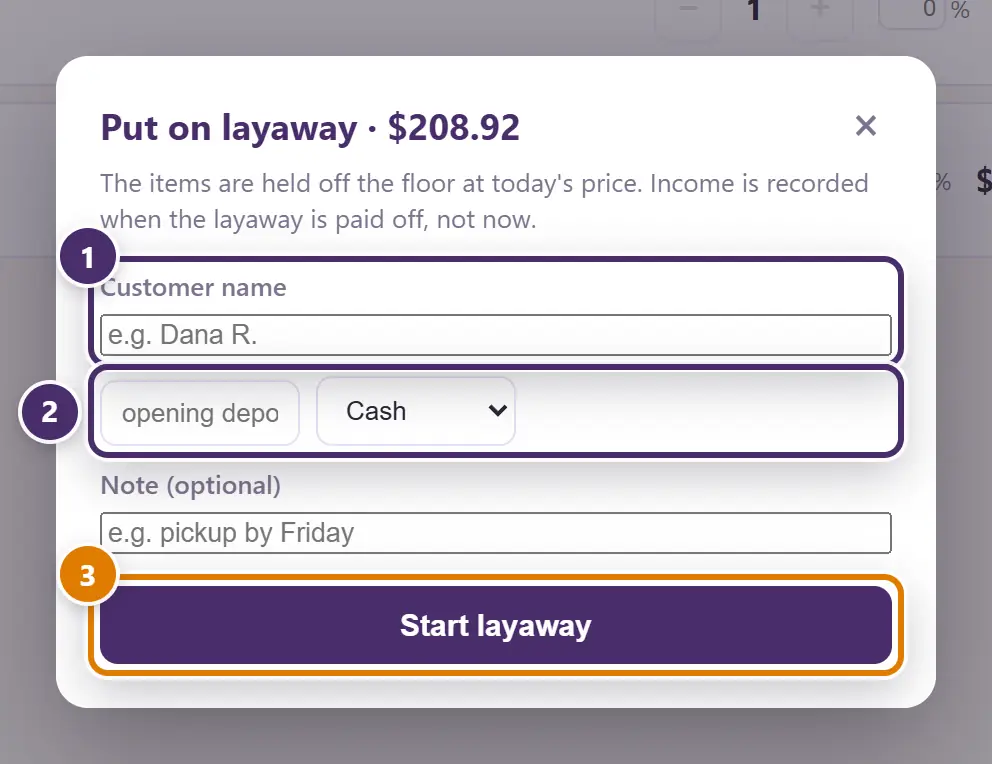
- Who it's for. The name you'll look them up by when they come back.
- What they're leaving today. The opening deposit and how they paid it. You can leave it empty and take a deposit later.
- Start it.
The items come off the floor at today's price and are held for that person, so nobody else can buy them and a later price change doesn't move the deal.
None of it counts as income yet. A deposit is money you're holding, not money you've earned — it stays a liability until the layaway is paid off. Open layaways live in Cash & Credit.
Gift cards
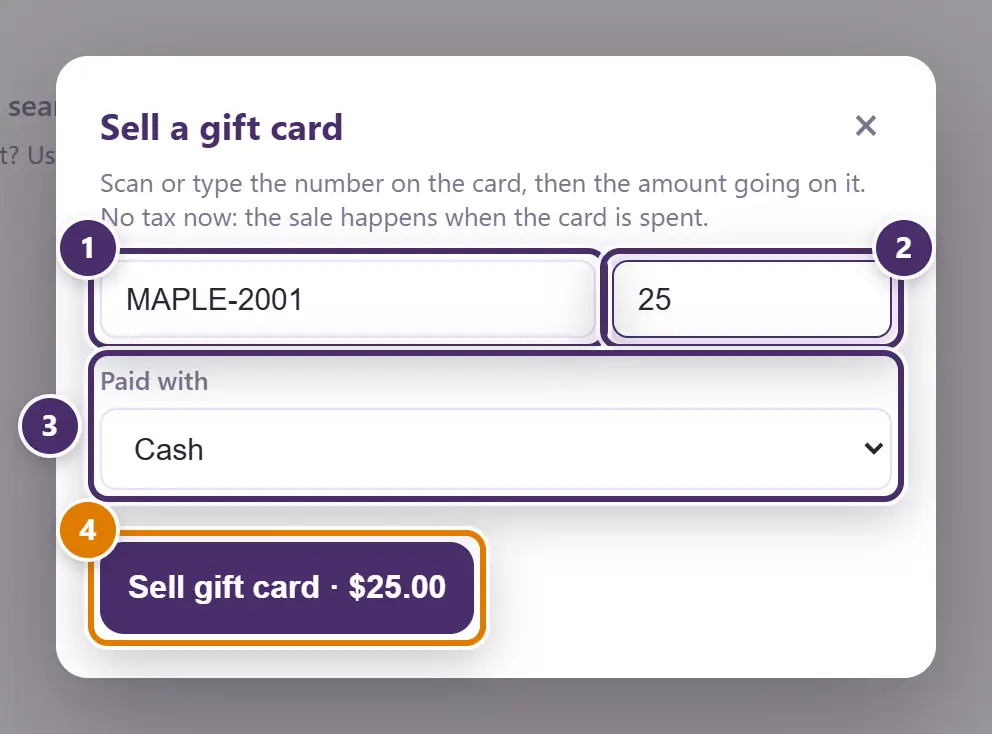
- The number on the card — whatever is printed or written on the one you're handing over. That's what you'll type when they come to spend it. A number that's already a card adds money to it instead.
- What they're loading onto it.
- How they're paying. Cash goes into the drawer count. The Square reader charges the card there and then.
- Sell it.
No sales tax is charged now. Nothing has been bought yet — you've taken money against a promise. The tax gets rung on whatever the card is eventually spent on. Until then the balance sits with your other liabilities in Cash & Credit.
Check a gift card, next to it, shows what's left on any card. With Square gift cards on, the same buttons sell, reload and check those too — see Square gift cards.
When a piece sells on your shop page
If your store sells online, a shopper can pay for a piece on your shop page and come in to pick it up. The moment the payment goes through, the register tells you.
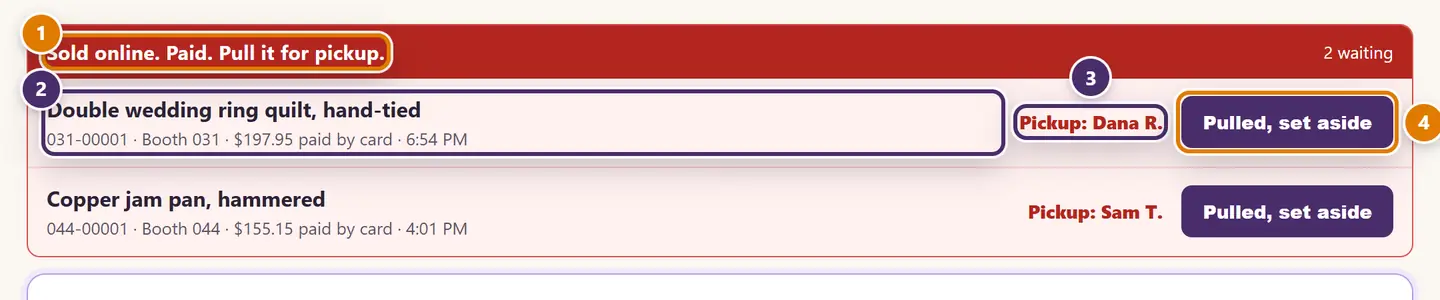
- Sold online. Paid. Pull it for pickup. The piece is already sold and paid for. Its tag will not ring up again.
- The piece. Its name, tag number, booth, what was paid, and when.
- Pickup. The name of the person coming for it.
- Pulled, set aside. Take the piece off the floor, put it behind the counter with the name on it, then tap this. The notice clears on every register in the store.
The notice stays until someone taps it. The order then waits in Sales until the customer arrives: see Sales & corrections.
Online selling is switched on in Inky on the web or your phone, in your store's settings, not here. It needs Cloud+ and your Square account connected.
The other buttons and banners
- Print last receipt appears after you've rung a sale — for when someone asks on their way out.
- No sale — open drawer pops the cash drawer without ringing anything, for making change. It only appears when a receipt printer is set up, because the drawer opens through the printer.
- Pull from the shelf appears at the top when something in your shop sold somewhere else online, so someone can go and take it off the floor. Tap Pulled ✓ when it's done.
- Labels from the Inky app — a card in the bottom-left corner of the Register — appears when someone added stock from their phone and asked for the tags to be printed here. Click it to open the print queue — every request, grouped by who sent it — and look over what you're printing before you tap Print; see Labels & printing.
When the internet is out
The register keeps working. Ringing sales, taxes, discounts, coupons, layaways, gift cards, receipts, the drawer — all of it runs on this computer and needs nothing from outside.
What pauses is only the parts that are genuinely online: syncing with your other tills, and card payments through the reader. Cash, check and every other tender ring exactly as always, and everything catches up on its own when you're back.
Guide for Inky Mall OS 0.16.0, updated Nov 20, 2026 · Download the whole guide (PDF)