
18 · Your data
On this page
Where the shop's data is, how to keep a copy of it, how to bring a shop in from another system, and how to run more than one location from one Inky.
Where it is
The whole store — items, booths, sales, payouts, staff, settings — is one file on this
computer, store.sqlite, saved after every change:
- in the Inky Mall OS folder in OneDrive, if the computer has a OneDrive folder — so that if OneDrive is signed in and syncing, you get an off-machine copy without doing anything;
- otherwise in the Inky Mall OS folder in Documents.
The register says which, in small print under the money buttons: Saved in your OneDrive folder or Saved on this computer. Inky always looks in both places when it starts and opens the store with the most in it, so a OneDrive folder appearing or disappearing can never make the app forget your shop.
Inky never sends that file anywhere. A Cloud+ shop syncs the contents to your Inky account — a choice you make in Settings — and the file on this computer stays the working copy regardless. See Cloud+ & sync.
Backup & restore
On the Settings tab. It works in the installed app; the browser preview has no file to back up, which is why the picture below says so.
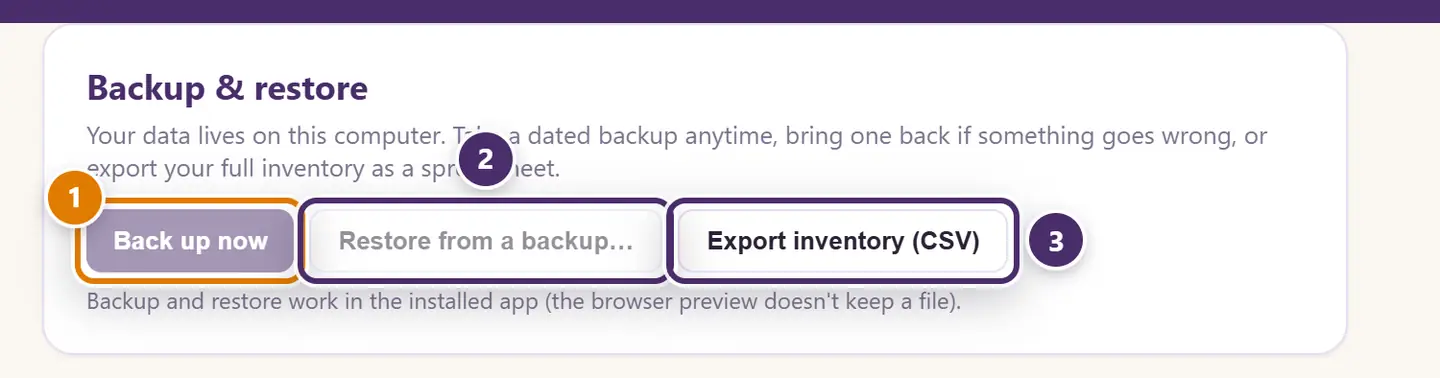
- Back up now. A dated copy of the whole store file lands in your Inky Mall OS folder. Copy it to a USB stick or a cloud drive and you have a backup that lives somewhere other than this computer.
- Restore from a backup… Pick a backup file. A safety copy of today's data is set aside first — the message tells you where — then the app reloads on the restored store. Nothing is overwritten without a way back.
- Export inventory (CSV) — every item, for a spreadsheet or another system.
How often? Inky saves after every change, so day to day you don't need to do anything. Take a backup before anything you'd hate to undo — an import, a big bulk price change, a new computer — and now and then for its own sake.
Moving to a new computer. Install Inky on the new computer, back up on the old one, copy the file across, and Restore from a backup… on the new one. Then move the licence: Remove license from this computer on the old computer, and paste the key on the new one (Licensing & plans). A Cloud+ shop can skip all of this — sign in on the new computer and the store loads.
Bringing a store over
For a shop moving from another system. Also on the Settings tab, under Bring your store over. Two ways in:
From an Access backup
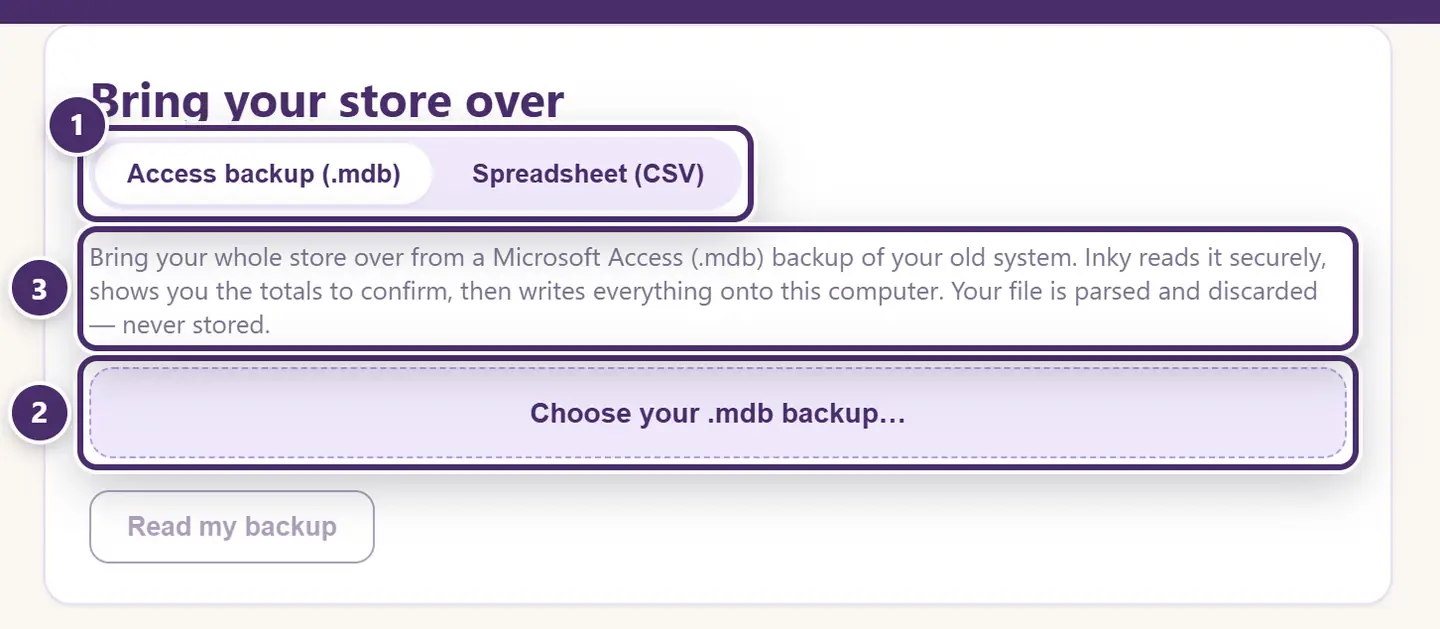
- Two ways in: your old system's Access backup (
.mdb), or spreadsheets (CSV). - Choose the backup file, then Read my backup. Inky shows you the totals — booths, sales, sales tax, customers and sales by year — and whether they reconcile to your old system's own recorded total, so you can see it's all there before anything is written. Items don't come over from the backup; load them from a spreadsheet (below). Inky reads one kind of Access backup today. If yours is a different kind, it says so before anything is written, and support can help.
- What happens to the file. The Access file is read by Inky's server, because that's where the parser lives — the one time the register talks to the cloud on its own account. It is parsed and discarded, never stored. The result is written to this computer as a new store; your current store stays untouched, and Inky switches you to the new one.
A register on its free trial can bring its store over too, so you can see your own store in Inky before you buy. Once the trial has ended, activate your licence first; it's how the request is authorised.
From spreadsheets
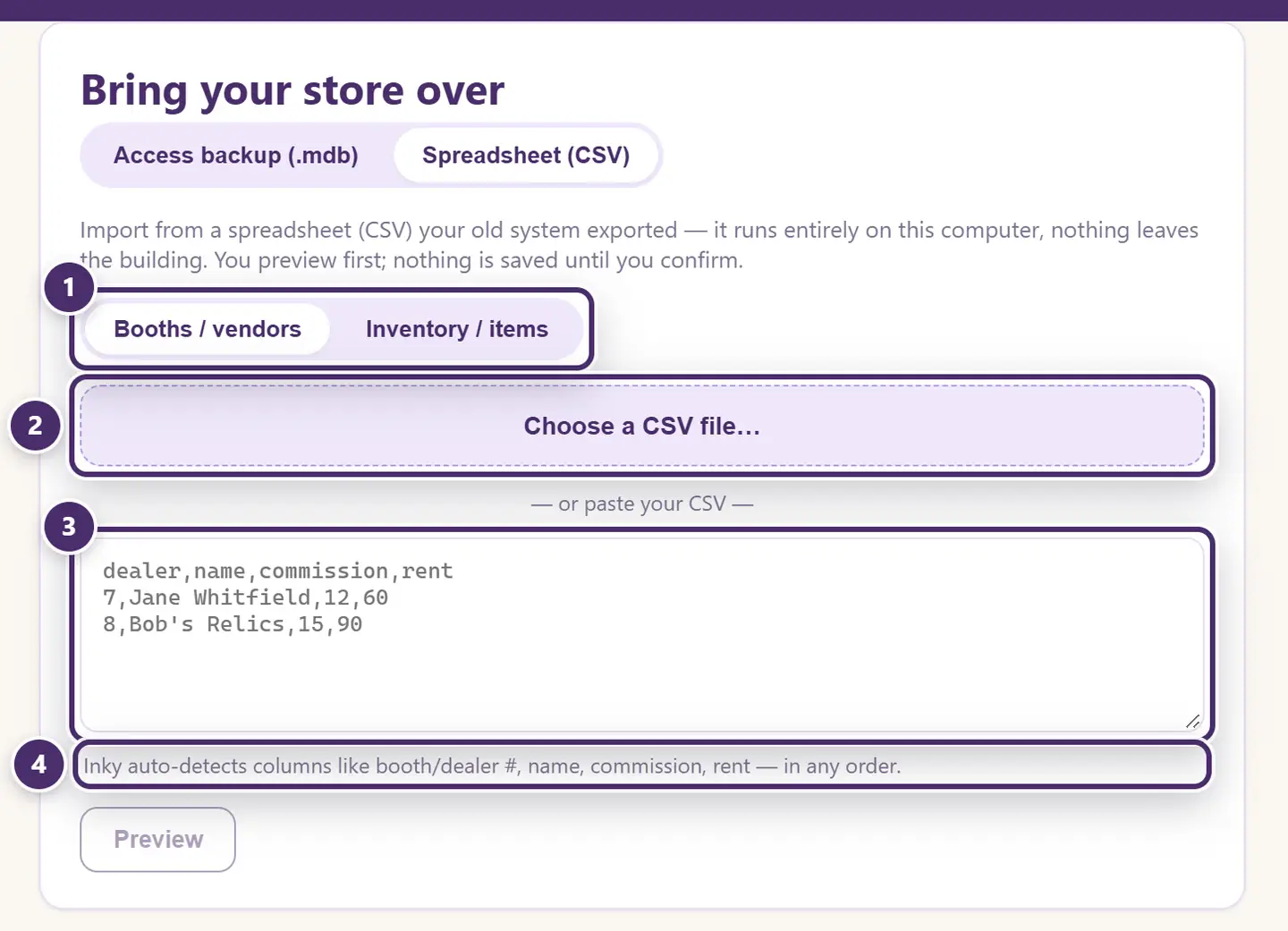
- Booths first, then items — every item needs a booth to belong to.
- Choose a CSV file…
- …or paste it straight from the spreadsheet.
- The columns find themselves. Booth or dealer number, name, commission, rent — or for items: booth, description, price, SKU — in any order. Preview shows what Inky made of it; nothing is saved until you confirm.
CSV import runs entirely on this computer. The full column list and the rules are in
IMPORT_SPEC.md in the Inky Mall OS repository.
After an import, before your first payout, set Count payouts from on the Payouts tab to your go-live date — otherwise the imported sales history is counted as due now. See Payouts.
More than one location
An Inky Mall OS Pro feature. A second location is a second store inside the same Inky: its own booths, items, sales, payouts and settings, switched with one click. Click the shop's name in the top bar.
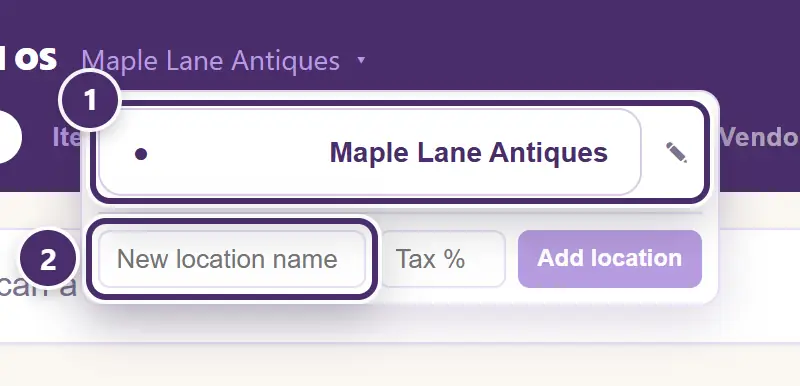
- Your locations. Click one to switch the register to it. The pencil renames it.
- A new location: a name and its sales tax rate.
The Financials → Locations tab reads across all of them — see Insights & Accounting.
Delete location removes the location and everything in it — its booths, items, sales and payouts — and there is no undo. Inky asks you to confirm first, and the question says exactly what the location holds (It holds 8 booths, 150 items and 259 sales — all of it will be removed). Take a backup before saying yes. The last remaining location can't be deleted.
When the internet is out
Backups, restores, CSV import and locations are all local. The one thing that needs a connection is the Access-backup import, because the parsing happens on Inky's server.
Guide for Inky Mall OS 0.16.0, updated Nov 20, 2026 · Download the whole guide (PDF)